Documentation
CMS Translator, step by step
Translate a Framer CMS collection into a new collection per language, publish it at /fr/blog or /de/blog, keep it in sync with the source, and fix what goes wrong.
Version 2.4On this page
Get started
Start in two minutes
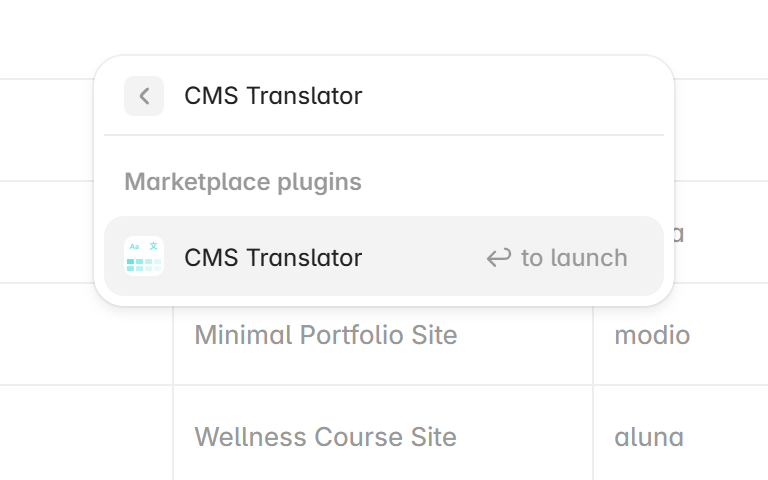
CMS Translator opens from the CMS of your Framer project, never from the canvas. The path is always the same. CMS, + Add Collection, CMS Translator.
- Install the plugin from its Marketplace page.
- In your project, open the CMS and click + Add Collection. Pick CMS Translator in the menu. Framer asks for a name first, give it the one you want to see in your CMS, Blog FR for example.
- On Source, pick the collection to translate (your blog, for example) and click the language you want. Click Continue.
- On Method, keep Instant translation and click Continue.
- On Create, click Translate 6 items → (the number is yours).
- When it says Collection translated, the new collection is in your CMS.
Your source collection is not touched. The translation is a new collection, one per language, that you bind to a page like any other collection. The next section explains how to put it online.
Your first translation, in detail
The plugin works in three tabs, Source, Method and Create, under the title Create a translated collection. You move forward with the button at the bottom or by clicking a tab. A tab shows a lock until the one before it is filled in.
Before you start
- Your source collection needs at least one item, and your Framer role needs edit access to the CMS of the project. Without it, the plugin says Edit access needed, see Permissions.
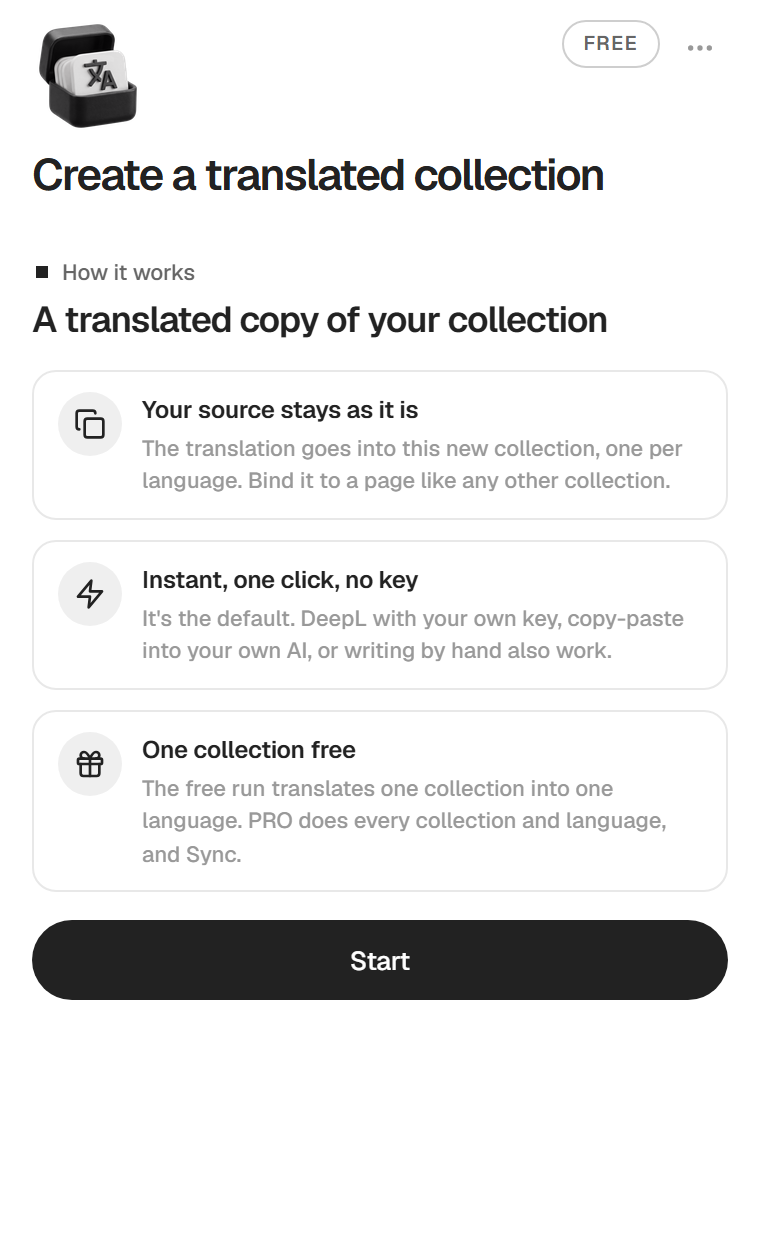
- The first time, three cards explain how the plugin works. Click Start.
1. Source
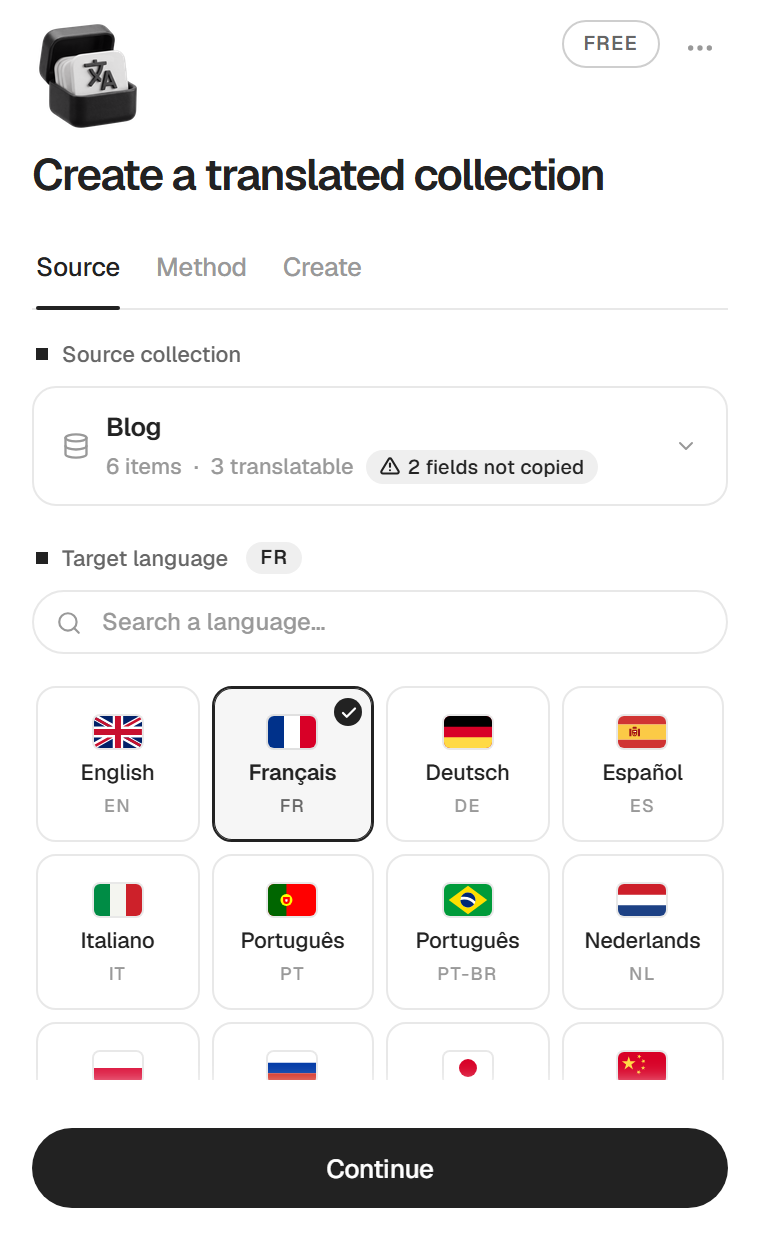
Under Source collection, pick the collection to translate. Its card shows the number of items and how many fields can be translated. When some fields can't be copied, mostly references to other collections, a tag such as 1 field not copied says so, and hovering it shows their names (see What gets translated).
Under Target language, click a language in the grid, or type in Search a language…. Languages you used before are suggested under Previously used. Then click Continue.
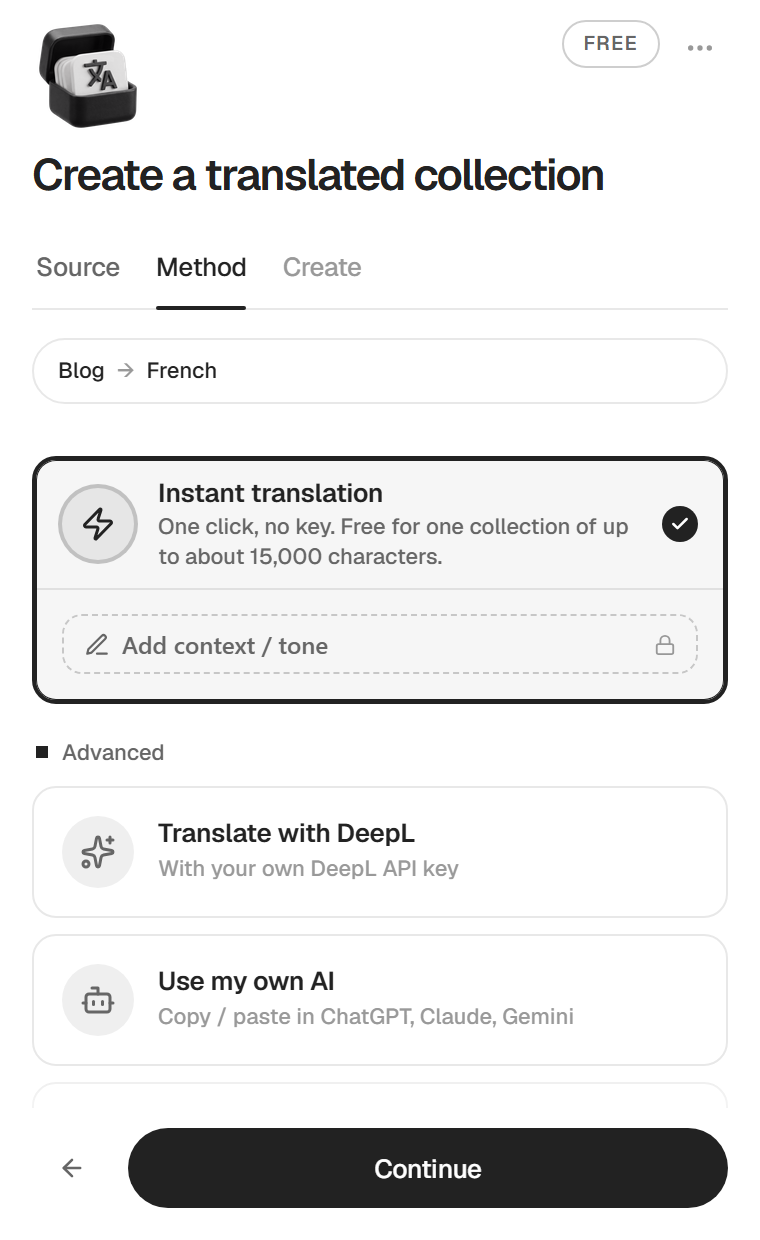
2. Method
Instant translation is selected by default. The three other methods are under Advanced, see Choose a method. Under each method that sends your texts somewhere, a short note says where they go. Nothing is sent before you click. Click Continue.
3. Create
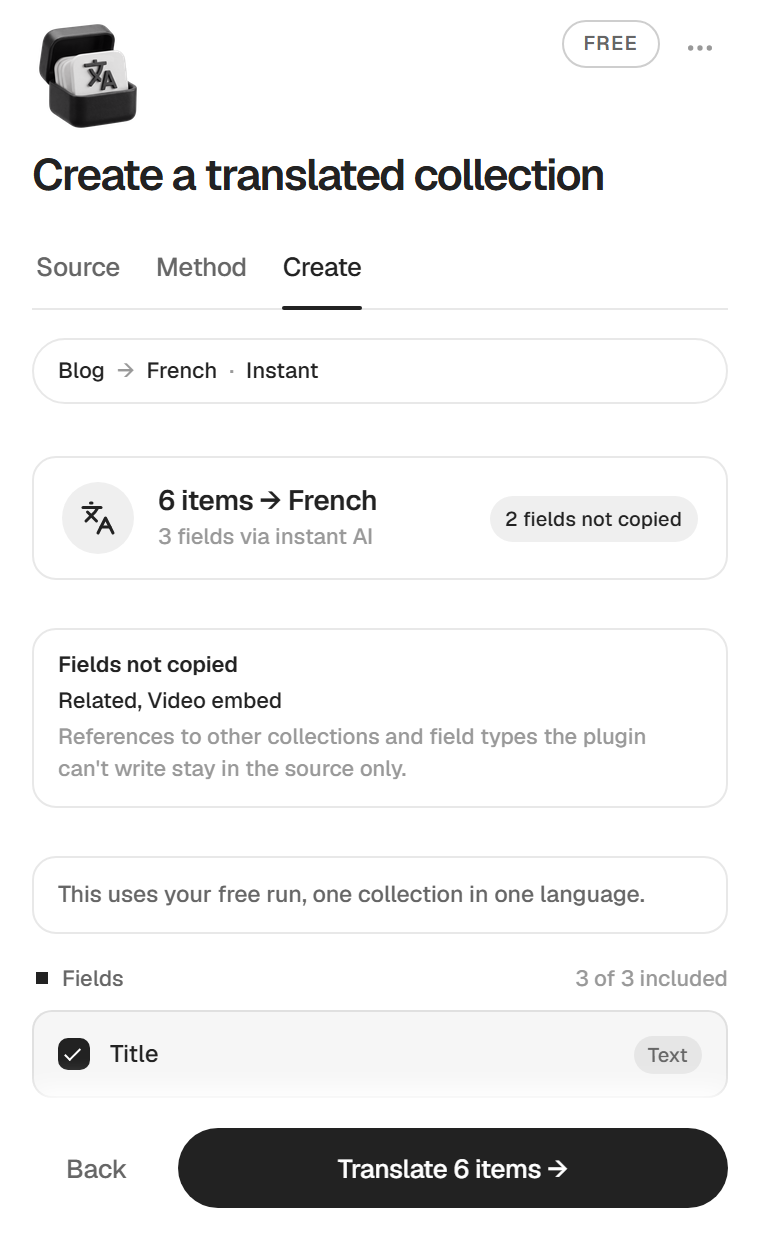
The summary reads, for example, 6 items → French and 3 fields via instant AI. On the free plan a note says This uses your free run, one collection in one language.
The Fields list shows every field that can be translated, all ticked. Untick a field to leave it out, see Leave fields out. Below the list, Translate slugs is off by default, see Slugs.
If the source has fields the plugin can't copy, they are named under Fields not copied before you click.
The button at the bottom depends on the method. It reads Translate 6 items → for Instant and DeepL, Generate prompt → for your own AI, and Create 6 items → for the manual method.
While it runs
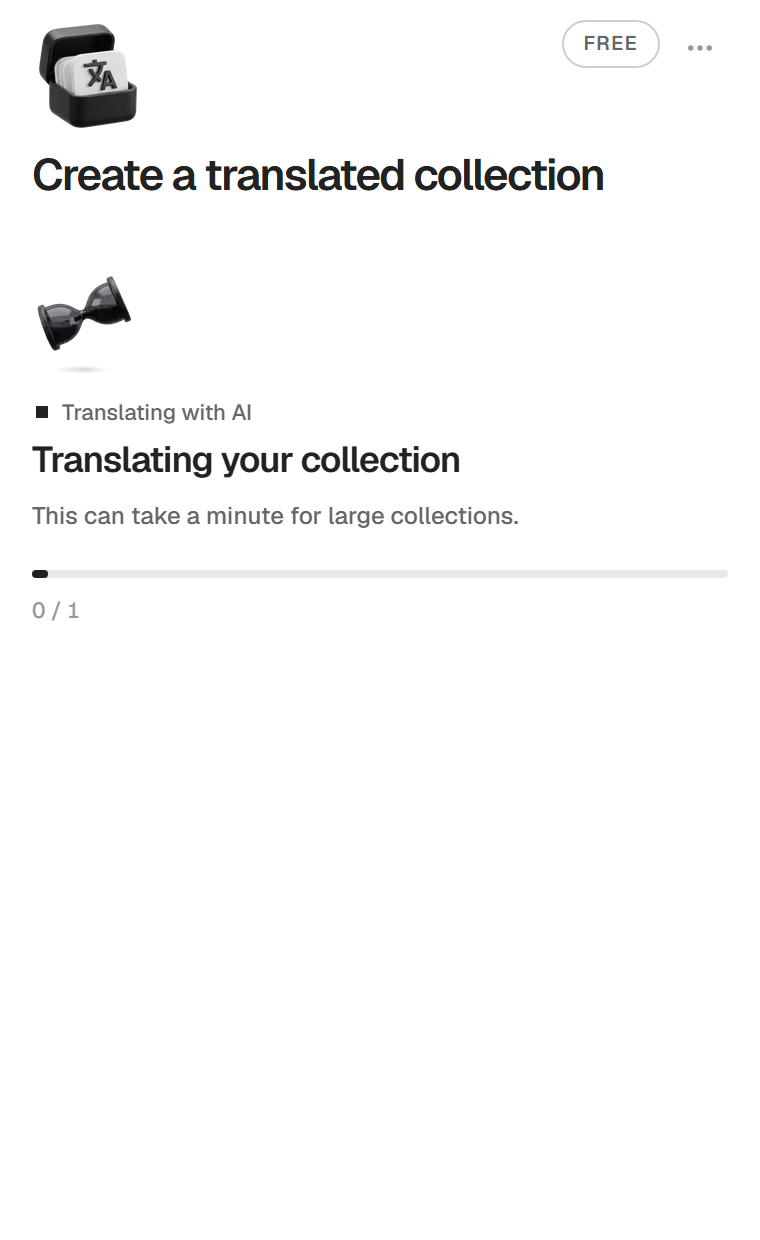
The plugin reads the source, translates the texts, writes the fields, then writes the items one by one. The progress bar follows each phase, for example Translating 12 texts (about 9k characters) then 3 of 6 items written. Keep Framer open on the project.
The plugin translates everything first and writes only after. If the translation fails, nothing is written and the collection stays as it was.
If you close the plugin during a run, Framer warns you first with A translation is running. If you close now, it stops before the end. Cancel and the run goes on to the end.
When it is done
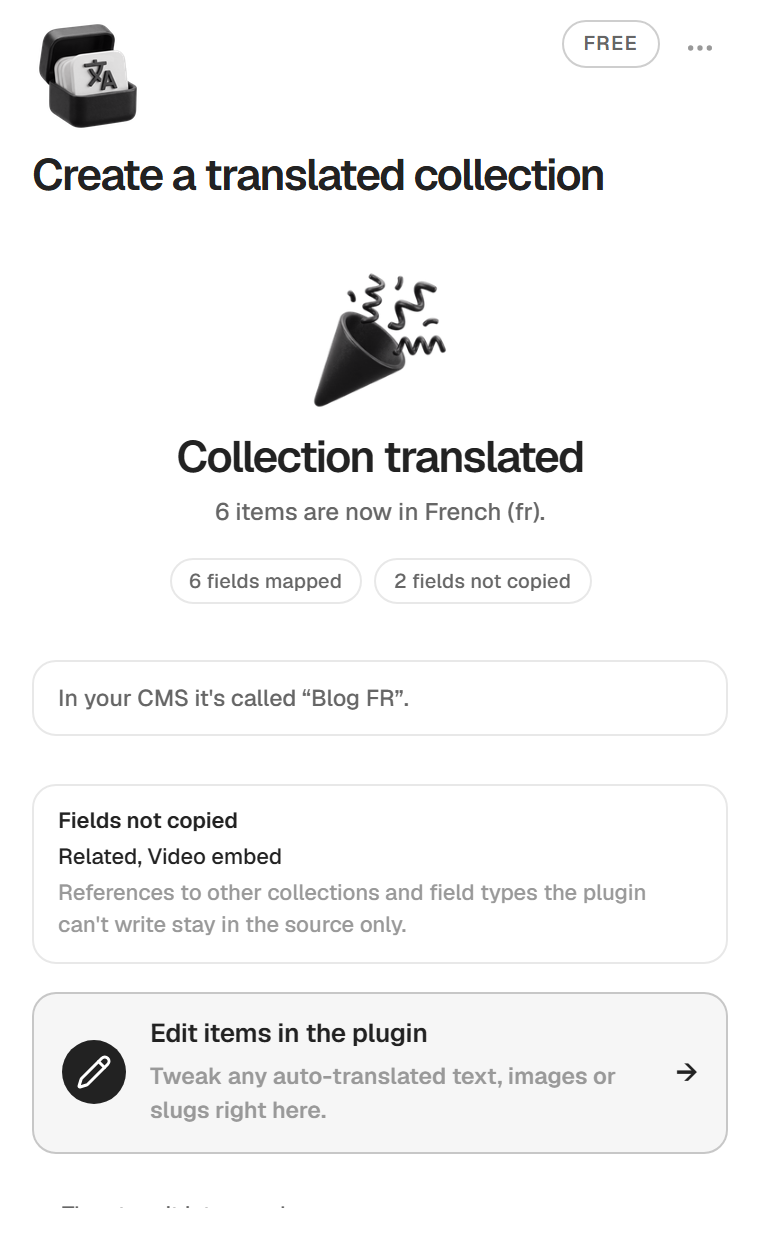
The screen says Collection translated and how many items are now in the language, for example 6 items are now in French (fr). A tag counts the fields mapped, and another the fields not copied when there are any, named below under Fields not copied. The plugin also gives the name of the collection, for example In your CMS it's called “Blog FR”. From there you can open Edit items in the plugin to review the items, see Edit items.
In the CMS, the new collection sits next to your other collections, marked as managed by CMS Translator. It keeps the name you gave it in Framer's window. The plugin can't rename it, so name each translated collection when Framer creates it. If you left the default name, the success screen reminds you.
Turn it into a real page
A collection alone is not visible on your site. The success screen lists the three steps under Then turn it into a real page.
- Create a new page. In the Pages panel of Framer, add the page where the translated items will live,
/fr/blogfor example. - Bind this collection inside. On that page, drop a Collection View and pick the new translated collection. For the article pages, create a CMS page such as
/fr/blog/:slugwhose source is the translated collection. Each item then gets its own page. - Publish your site from the Publish menu of Framer.
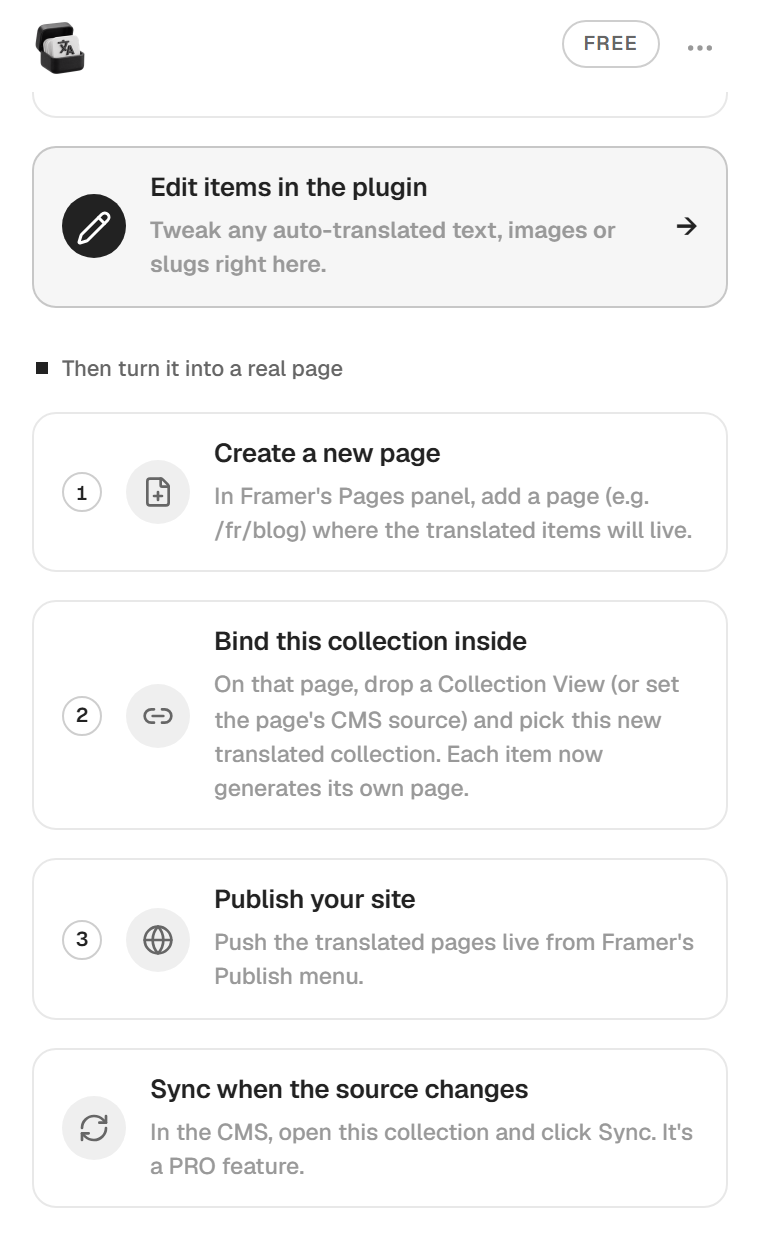
You can copy your existing blog page and its article page, set their path under /fr, then switch their collection to the translated one. The layout stays identical.
Translate
Choose a method
All four methods create the same translated collection. They differ in who does the translation.
| Method | Who translates | What you need |
|---|---|---|
| Instant translation | AI, inside the plugin | Nothing |
| Translate with DeepL | DeepL | Your DeepL API key |
| Use my own AI | ChatGPT, Claude, Gemini or any AI you use | Copy and paste |
| Just create the structure | You, in the plugin editor | Nothing |
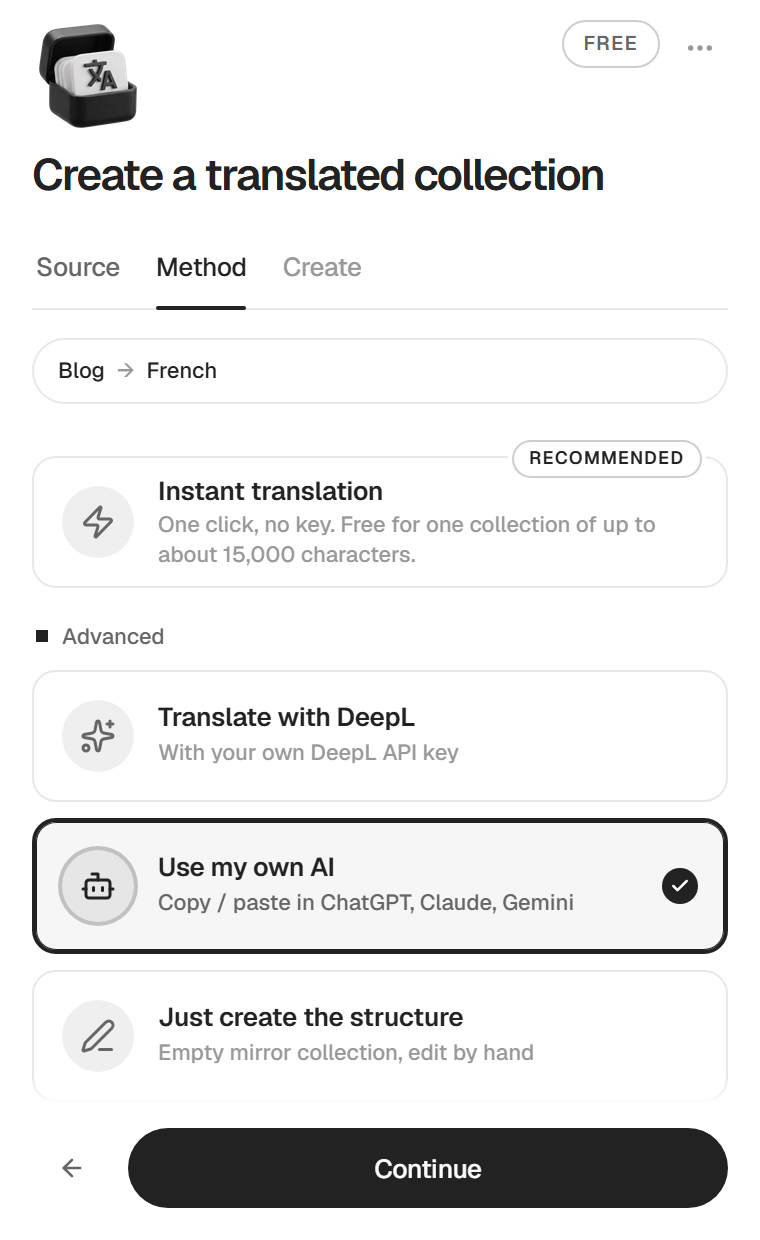
Instant translation
Instant is the default method. You click once and there is no key to set up. The texts of the source collection go to our server (api.patchou.cloud), which has them translated by Anthropic's Claude Haiku. The plugin says so under the method.
Each text travels with where it comes from, the collection name, the field name and the item it belongs to, so a short label is not translated blind. The instructions also ask for the target language's own writing rules, sentence case in French or Spanish, nouns capitalized in German, and correct elisions in French. The prompt of the copy-paste method carries the same context and rules.
- On the free plan, Instant covers one collection of up to about 15,000 characters, sent in one batch.
- On PRO, Instant handles large collections in several batches, up to 500,000 characters a month. Past that, use DeepL with your key or copy-paste until the next month.
If the collection is too large for the free run, the plugin tells you on the Create tab, before you click. It first shows Checking the size for the free run…, then Too large for the free run with two ways out, Use DeepL with my key and Copy-paste into my own AI. Your free run is not used in that case.
Translate with DeepL
- Create an API key in your DeepL account. The Get a key link opens the right page. Free and Pro API plans both work.
- Under Advanced, click Translate with DeepL and paste the key in DeepL API Key.
- The plugin checks it by itself and shows Key valid · 482,000 chars left (your own number).
- Click Continue, then Translate 6 items →.
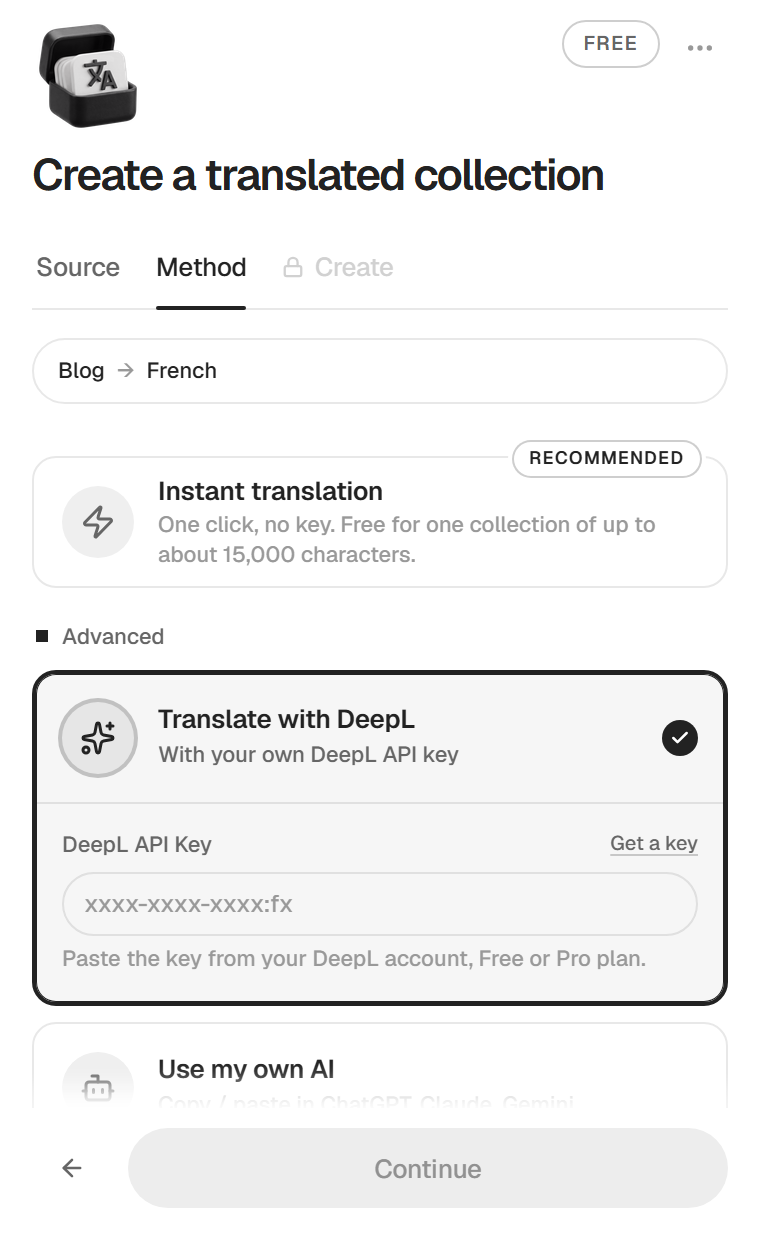
New DeepL API Free accounts get a one-time credit of 1,000,000 characters that does not reset. The texts go to DeepL with your key through our relay (deepl.patchou.cloud), because DeepL blocks calls from a browser. The key stays in your browser and is never saved in the project, so collaborators cannot see it.
Use my own AI
- Under Advanced, click Use my own AI, then Continue and Generate prompt →.
- Click Copy prompt and paste it into ChatGPT, Claude or Gemini.
- Copy the whole answer and paste it in the box under Paste the AI response. The plugin expects the numbered JSON the AI returns, as is.
- Click Apply translations →.
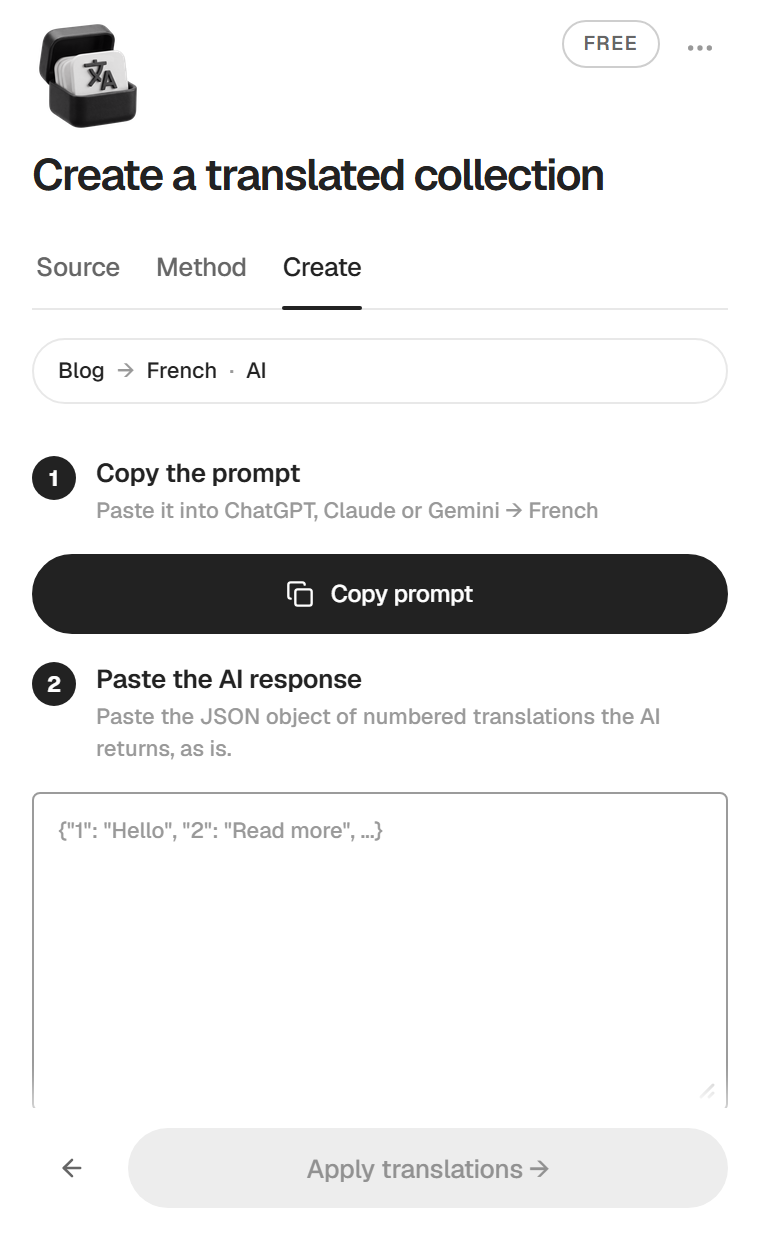
A large collection is split into several parts so each prompt stays within what an AI accepts. Tabs show Part 1, Part 2 and so on. Copy each part with Copy prompt · Part 1/3, paste each answer, move on with Next: Part 2/3 →, and the final button counts the parts filled in, Apply translations (3/3) →. Nothing leaves Framer with this method, you carry the texts yourself.
Just create the structure
The plugin creates the translated collection with the source content copied in, then opens the editor so you rewrite each item by hand. Click the card, then Continue and Create 6 items →. It helps when a translator delivers the copy, or for a language you write yourself. Nothing is sent anywhere.
Languages
54 languages are built in, each with its flag and its ISO code (fr, de, pt-BR and so on). Type in Search a language… to find one. One translated collection holds one language. For three languages, create three collections from the same source.
Custom languages
For a language that is not in the grid, click Custom, type its ISO code and its name (th and Thai, for example), then click Add custom language →. Custom languages are free. Instant and copy-paste handle any language. DeepL only translates the languages it supports.
On the free plan
Your free run covers one collection in one language, whichever language you pick, built-in or custom.
What gets translated, copied or skipped
| Field | What happens |
|---|---|
| Text | Translated |
| Rich text | Translated, formatting kept |
| Image alt text | Translated, the image itself is copied |
| Slug | Copied, or translated if Translate slugs is on |
| Number, date, toggle, color, link, image, file, option | Copied as they are |
| Collection reference, multi-reference | Skipped |
| Gallery | Copied, the alt text of each image translated |
Rich text
Headings, bold, italic, links and lists keep their tags. Each paragraph is translated as one block, so sentences stay whole. Images placed inside the rich text stay where they are.
Drafts
An item that is a draft in the source stays a draft in the translated collection, so it is not published there either.
Fields not copied
References to other collections, and the rare field types the plugin can't write, stay in the source only. The plugin names them before you start and again when it is done. The source card shows a tag such as 2 fields not copied, and the Create tab and the success screen list them under Fields not copied. A reference points to items of another collection, in the source language, so the plugin cannot pick the right translated item for you. If you need one, add the field to the translated collection after you detach it.
Item ids
Each translated item keeps the id of its source item. That is how Sync knows which translated item belongs to which source item.
Leave fields out
On the Create tab, the Fields list shows each translatable field with its type (Text or Rich text) and a counter, 3 of 3 included. Untick a field to leave it out of the translation. An author name or a product code, for example.
A field you leave out is copied as it is, untranslated. Your choice is saved with the collection, and Sync respects it later.
If you untick every field, or if the ticked fields hold no text, the plugin says Nothing to translate in the selected fields and offers Copy 6 items as they are. Go back to tick more fields, or copy them.
Slugs
The slug is the end of the item's URL, my-article in /blog/my-article. The Translate slugs option on the Create tab is off by default.
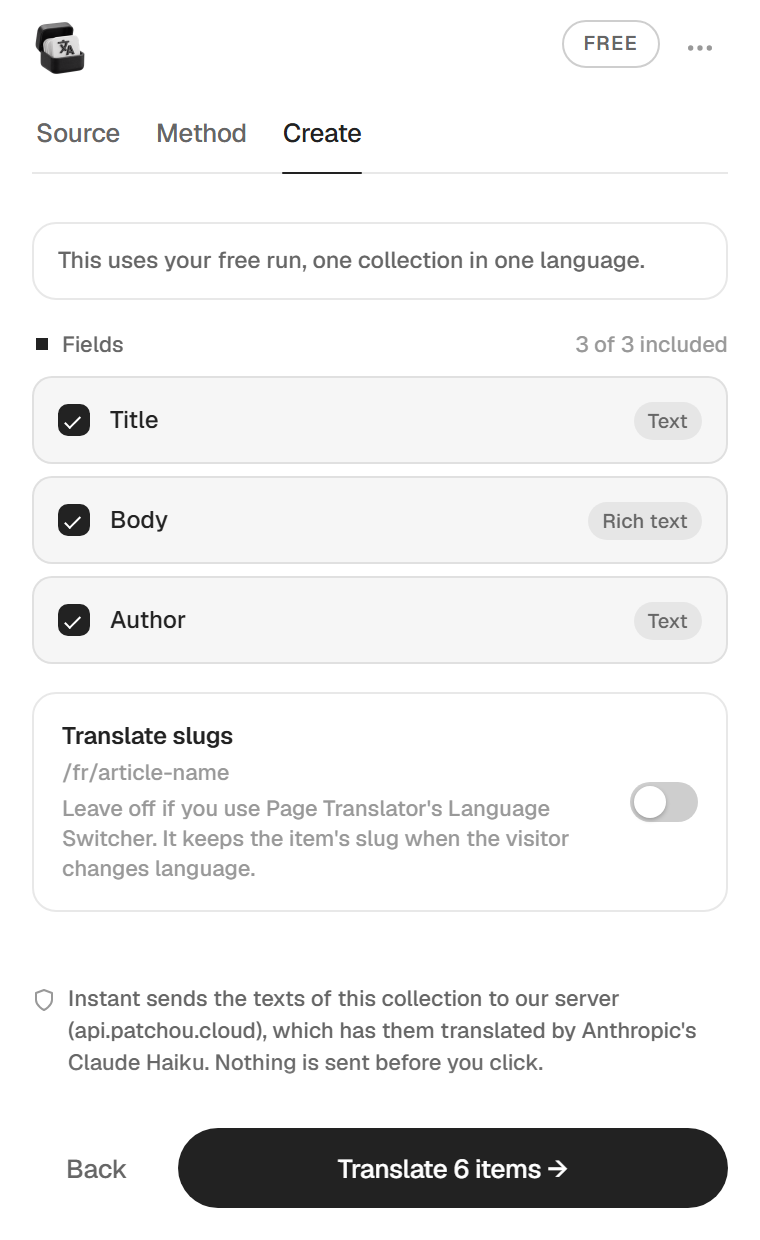
Off, the default
Each translated item keeps the slug of its source item. If your translated article page lives at /fr/blog/:slug, the French version of /blog/my-article is /fr/blog/my-article.
That is what the Language Switcher of Page Translator expects. When a visitor changes language, it keeps the slug and swaps the language prefix. With slugs left as they are, it lands on the right article.
On
The slugs are translated with the rest, my-article becomes mon-article. Every alphabet is kept (Cyrillic, Arabic, Chinese, Thai and so on). When two items end up with the same slug, the plugin adds -2, -3 so each slug stays unique.
/blog/my-article to /fr/blog/my-article, which does not exist, so they get a 404. Leave the option off if you use the switcher on your article pages.You can still edit any slug by hand in the editor.
After translating
Sync when the source changes (PRO)
When you add, change or delete items in the source collection, Sync brings the translated collection up to date. It translates only what changed and keeps the edits you made by hand.
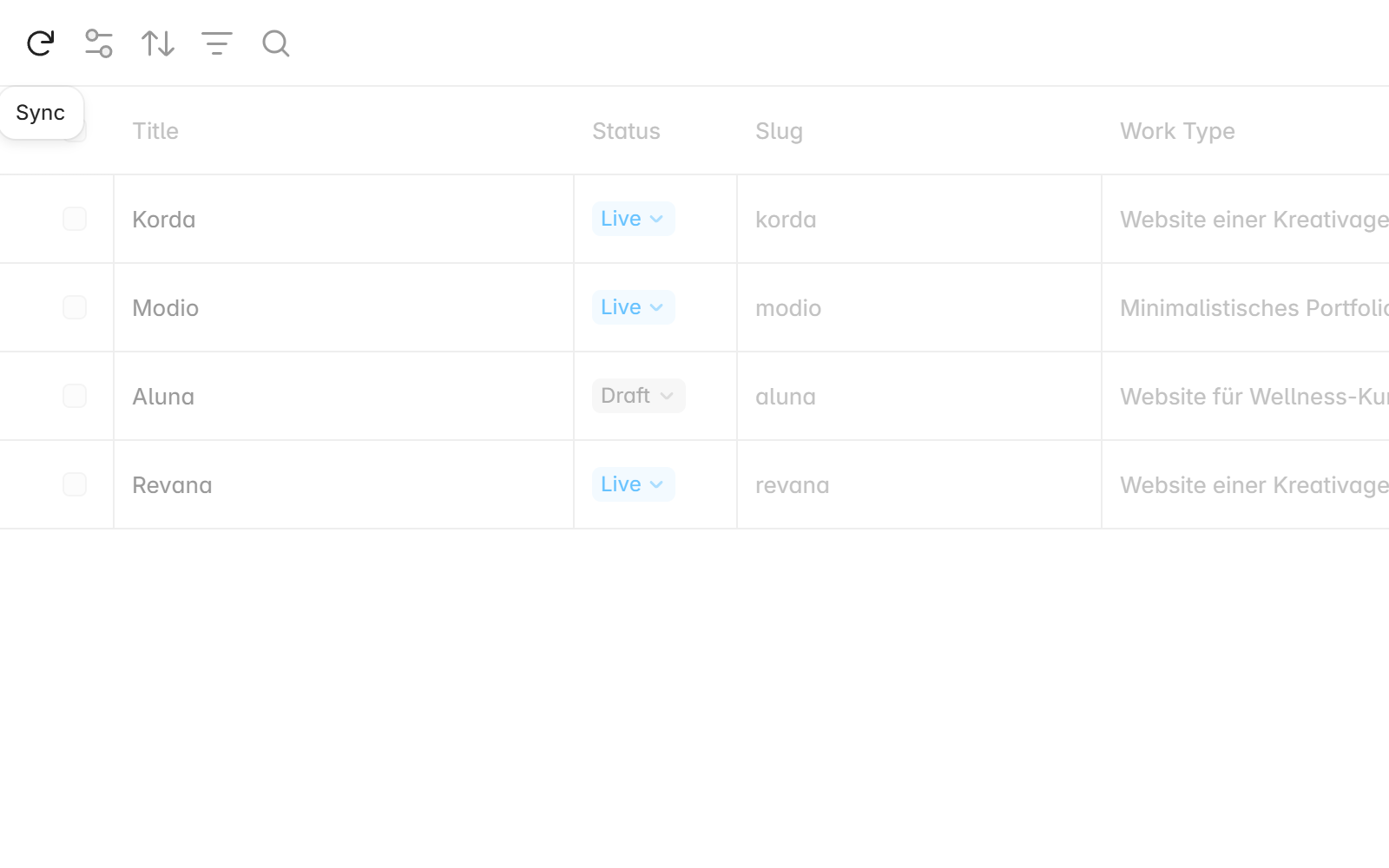
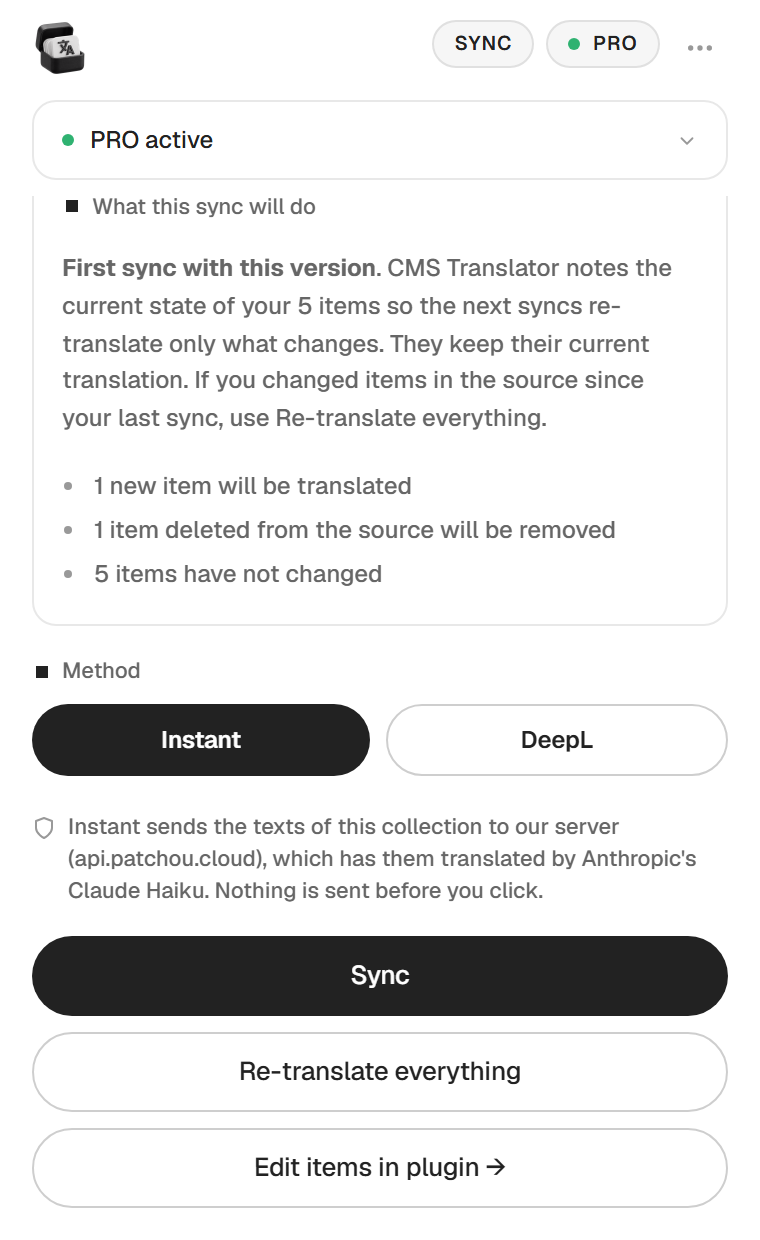
- In the CMS, open the translated collection and click Sync. Framer opens the plugin on the Re-sync a translated collection screen.
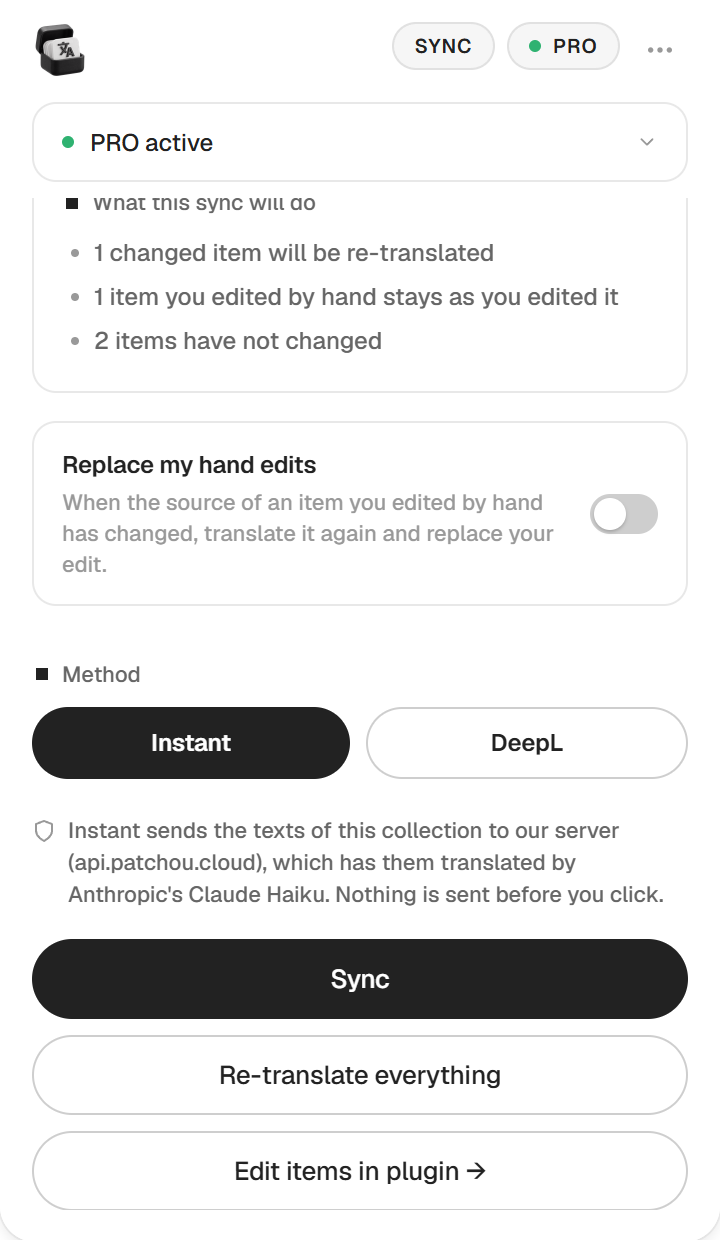
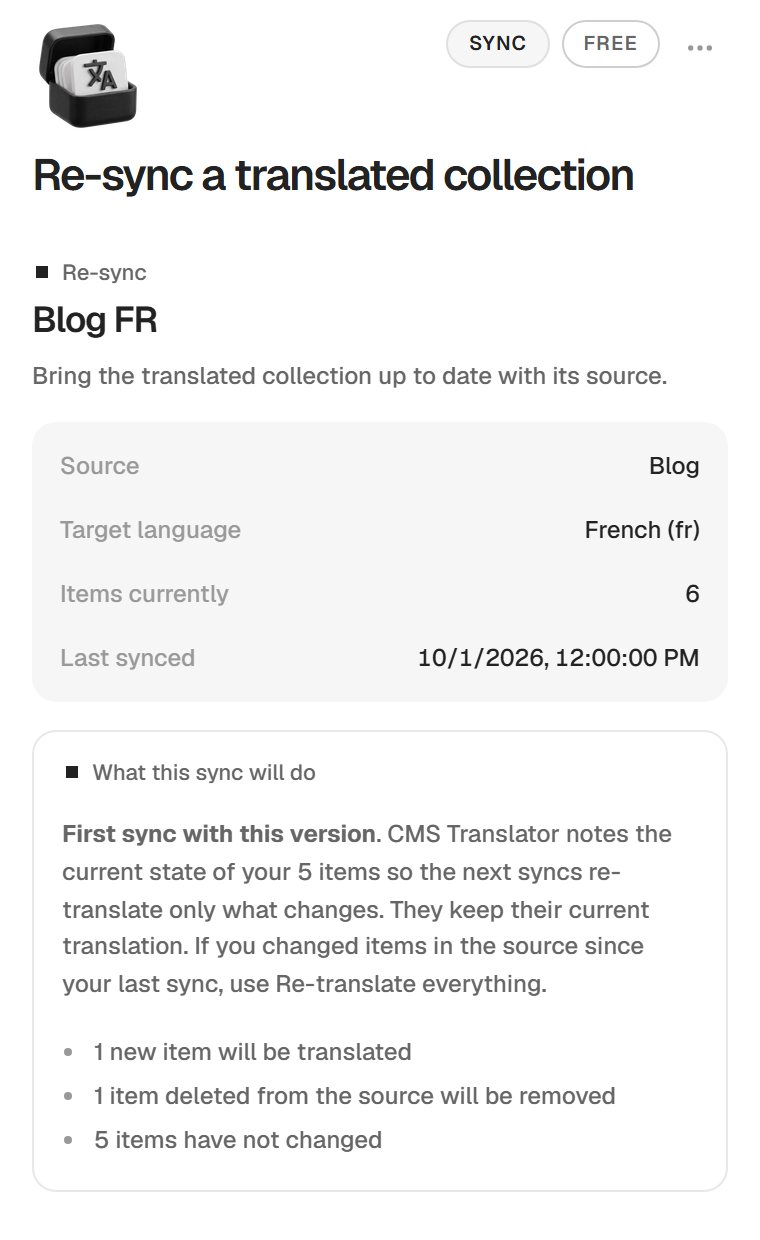
- The plugin shows the source, the target language, the number of items and the last sync, then What this sync will do, before anything runs.
- Pick the method, Instant or DeepL.
- Click Sync.
What this sync will do
The preview lists each kind of change with its count, for example
- 1 new item will be translated
- 2 changed items will be re-translated
- 1 item you edited by hand stays as you edited it
- 1 item deleted from the source will be removed
- 5 items have not changed
The plugin keeps a fingerprint of each item and each field. An item whose source changed is translated again. A field you rewrote in the translated collection is protected, even if its source changed.
Replace my hand edits
When some protected items have a changed source, the option Replace my hand edits appears. Turn it on to translate those items again and replace your edits. The preview updates before you click.
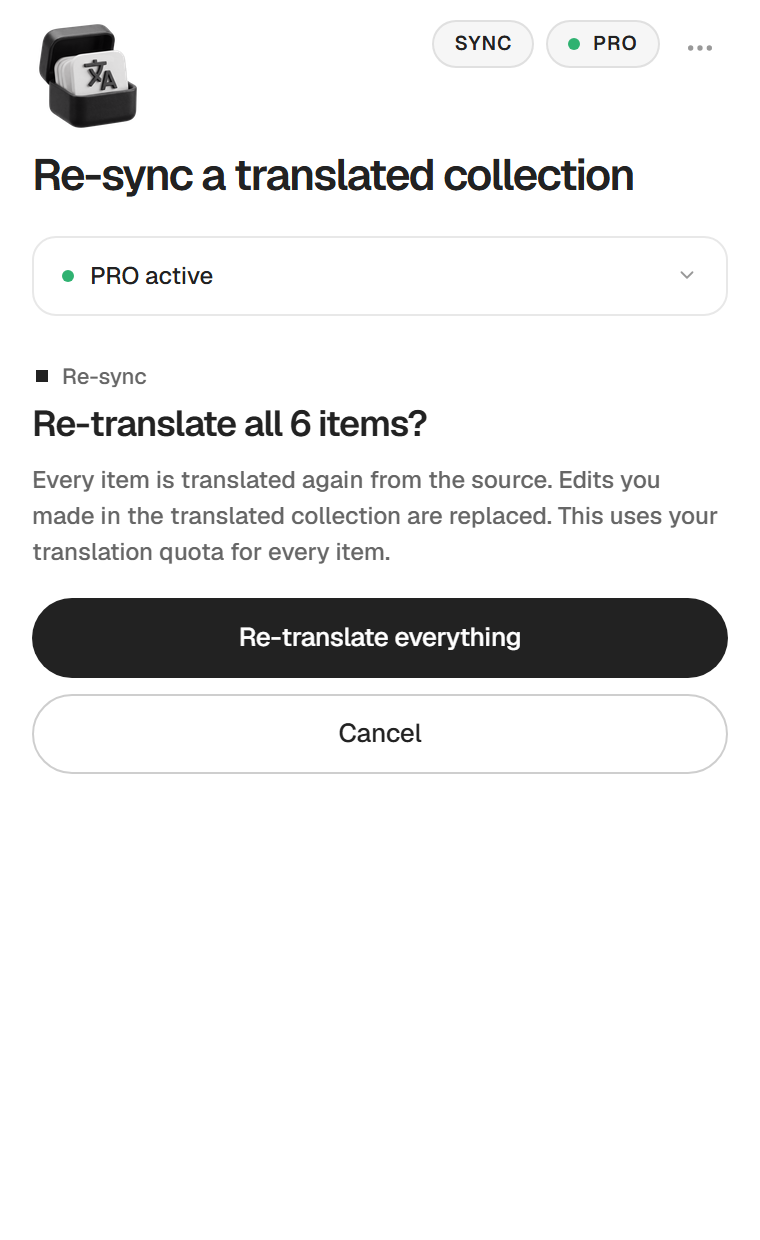
Re-translate everything
Re-translate everything translates every item again from the source. The plugin asks first, Re-translate all 6 items?. Edits made in the translated collection are replaced, and every item counts against your translation quota.
When it is done
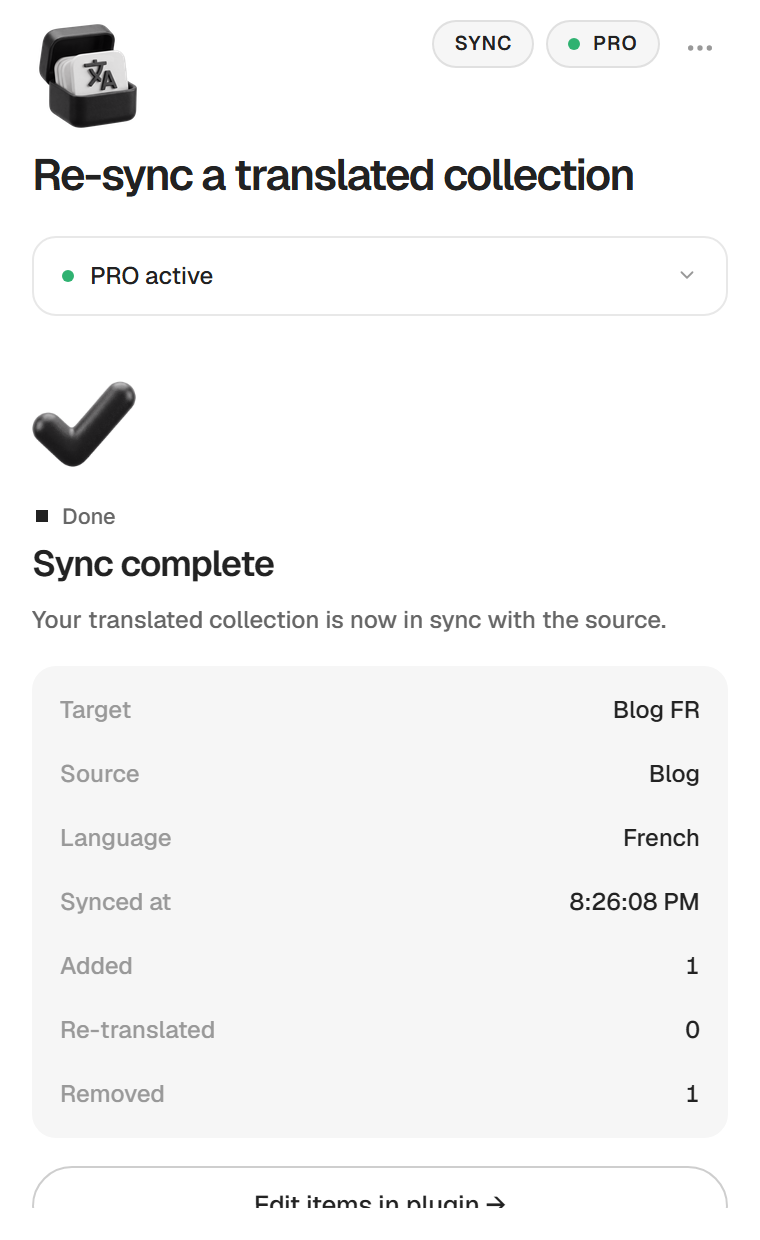
The screen says Sync complete with the counts Added, Re-translated, Kept (hand edits) and Removed. If nothing changed in the source, the button reads Nothing to sync, or the plugin says Already up to date. Nothing is written in both cases.
First Sync after updating from 2.3
A collection created with version 2.3 or earlier has no fingerprints yet. Its first Sync says First sync with this version. The plugin notes the current state of the items, which keep their translation, and from then on Sync translates only what changes. New and deleted items are still handled on that first Sync.
If you changed existing items in the source since your last sync, that first Sync cannot see it. Use Re-translate everything once.
Also at Sync
- Sync works with Instant or DeepL. Copy-paste and the manual method are not offered at Sync. With DeepL and no key saved in this browser, the button reads Add DeepL key → and asks for it.
- Fields you left out at creation stay out.
- Your glossary and, with Instant, your context apply as they do on the first translation.
- If the translation fails, the collection is not changed (Your translated collection was not changed.).
- On the free plan, the Sync screen still shows the preview, with the offer Sync is a PRO feature.
Edit items
The editor lets you fix any translated item without leaving the plugin. It is free. You open it from Edit items in the plugin on the success screen, from the card of an existing collection, or from Edit items in plugin → on the Sync screen.
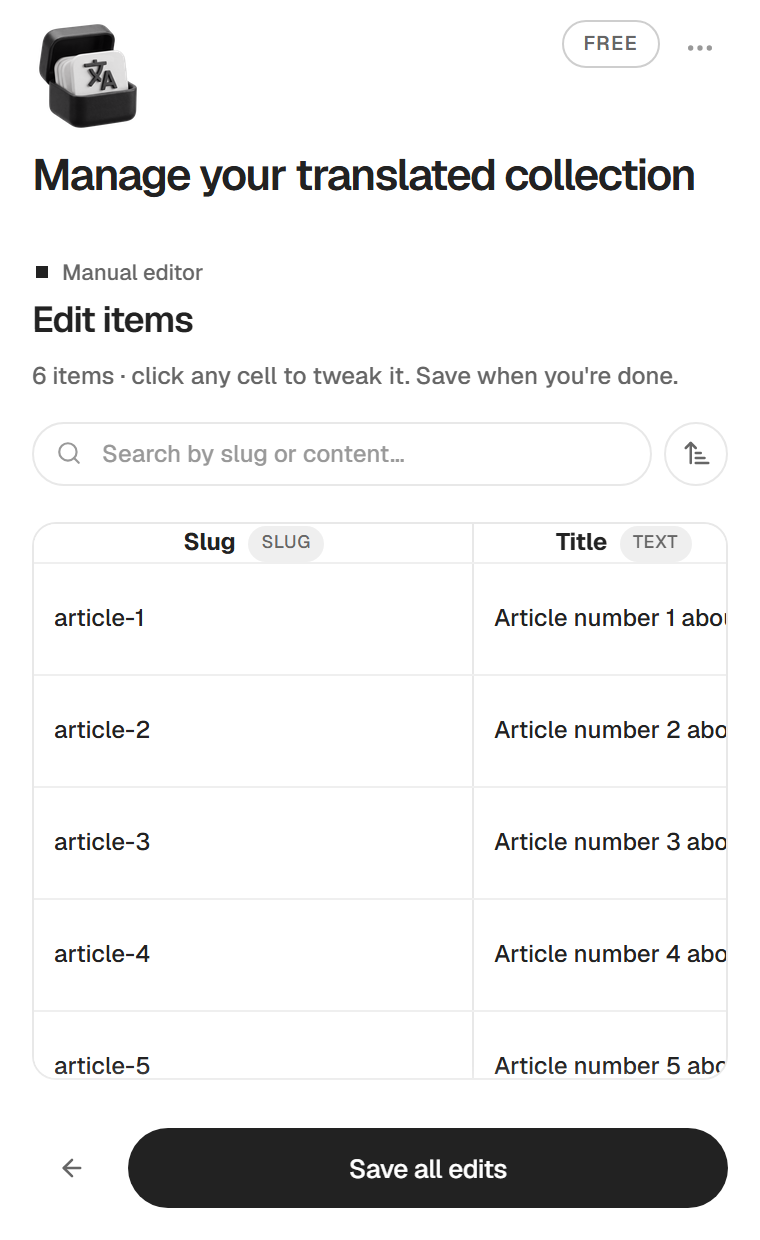
- Every item is a row, every field a column. Click a cell to edit it. Text, rich text, slugs and images can be changed.
- For an image, click it to replace it or to upload one, paste a URL instead, or remove it.
- Search with Search by slug or content…. The button next to it sorts the items newest first or oldest first.
- The Status column shows whether an item is Draft or Live.
- Click Save all edits to write your changes to the collection.
An empty slug, or two items with the same slug, are refused, and the plugin says Nothing was saved. Fix the slug and save again.
If you leave the editor or close the plugin with unsaved edits, it asks Leave without saving?. Click Keep editing, or Leave and lose edits.
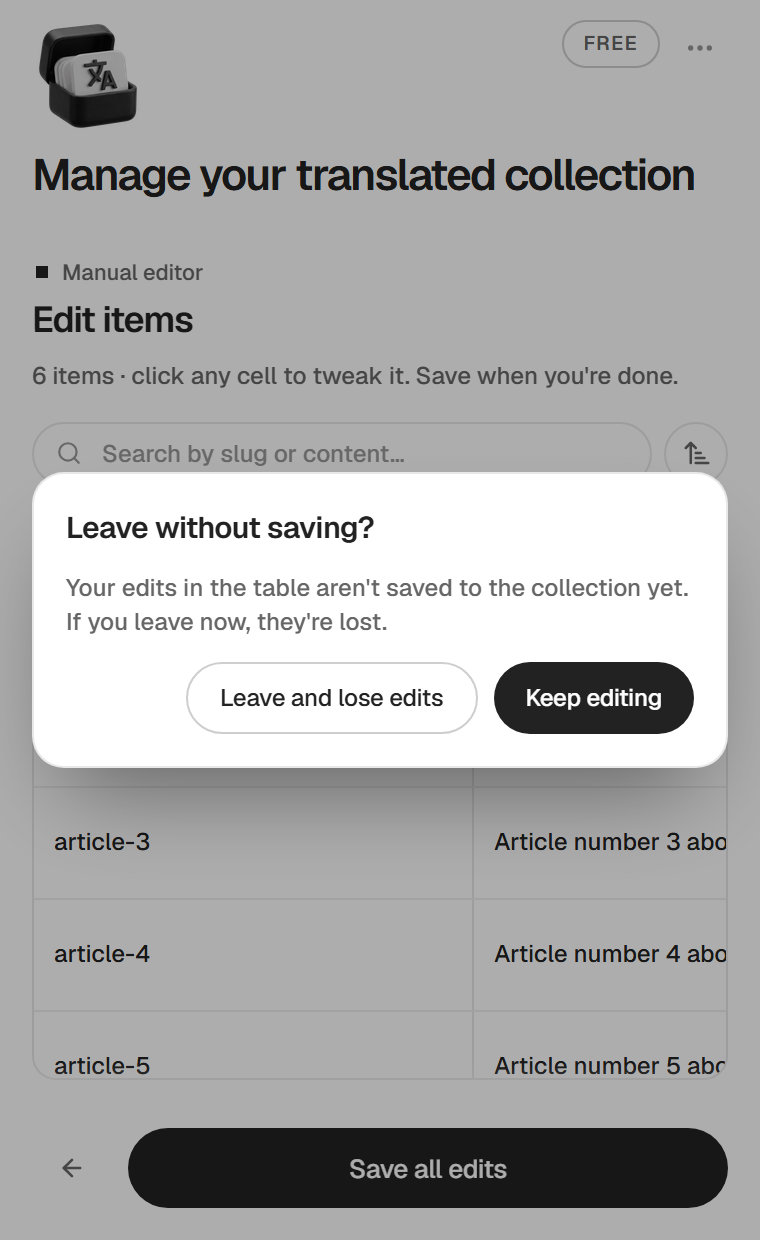
Edits made here, or directly in the Framer CMS, count as hand edits. Sync protects them, see Sync.
Reconfigure or detach
Open the plugin on a collection it already created (from the CMS, on that collection) and you get four cards under the title Manage your translated collection.
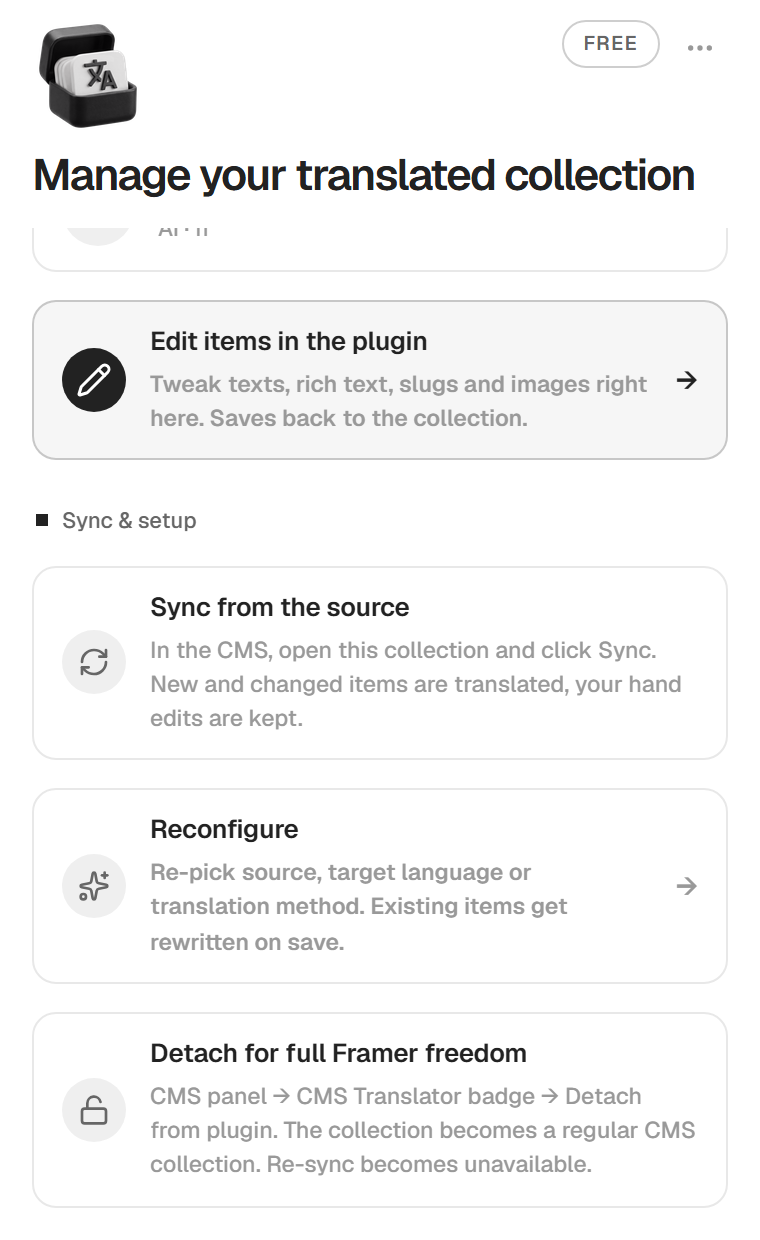
- Edit items in the plugin opens the editor.
- Sync from the source reminds you that Sync starts from the CMS. In the CMS, open this collection and click Sync.
- Reconfigure lets you pick the source, the target language or the method again, under the title Reconfigure your translated collection. The items are rewritten when you save, with the same rule as the first time. The plugin translates first and writes only if the translation worked. On the free plan, once your free run is used, a new run needs PRO.
- Detach for full Framer freedom explains how to turn the collection into a regular one.
Detach a collection
In the CMS panel, click the CMS Translator badge of the collection, then Detach from plugin. The collection becomes a regular CMS collection. You can add fields or references to it, and edit it freely. Sync is no longer possible on it, and the plugin no longer manages it.
Glossary
The glossary protects your brand and product names across translations. Open the menu (the ••• button at the top right), then Glossary. Type a term in Add a term… and press the plus button.
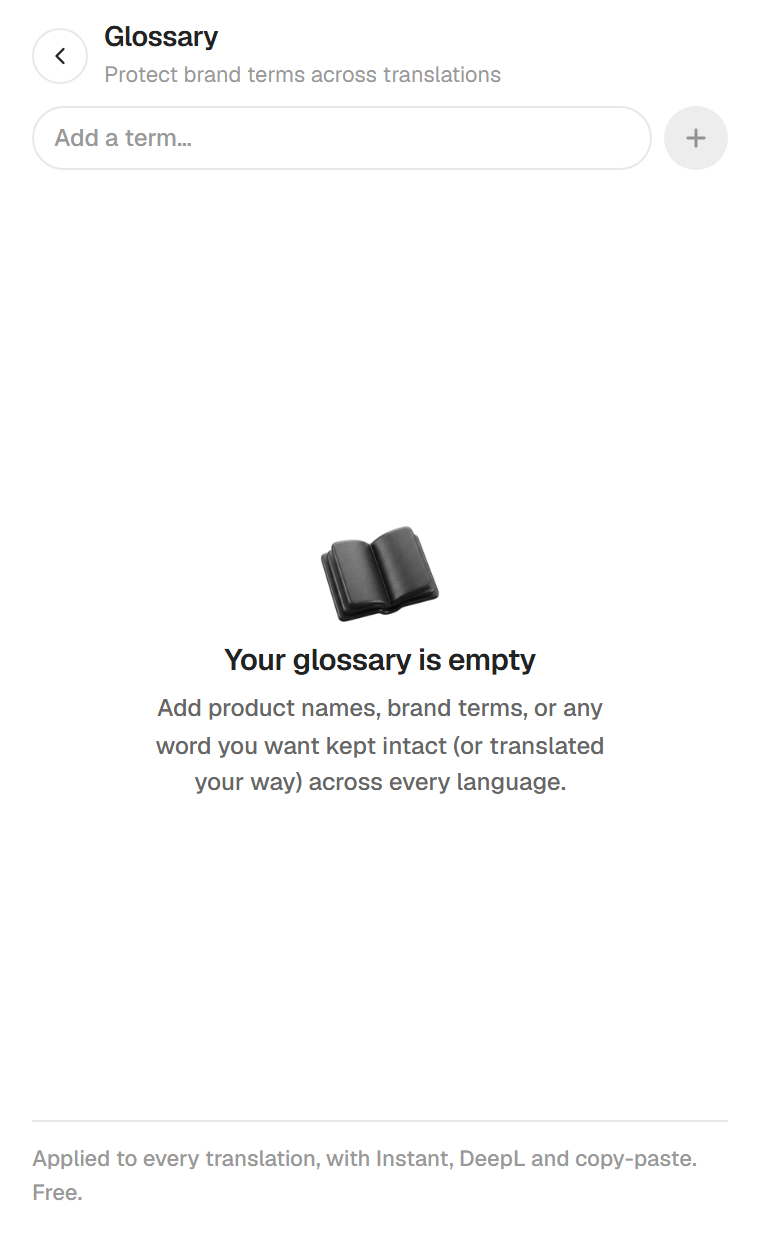
Each term has a rule.
- Keep as-is leaves the term untouched in every language.
- Custom for this language sets the translation you want for the target language. Pick a target language on the Source tab first, otherwise there is nothing to fill in. Leave the box empty to keep the original.
The glossary is free. It applies to Instant, DeepL and copy-paste, on the first translation and at Sync. It is saved in the project, so collaborators share it.
Context and tone (PRO)
On the Method tab, the Instant card has an Add context / tone button. It opens Translation context & tone, a box of up to 600 characters where you describe the voice you want, for example "Casual tone. Keep product names in English." Click Save.
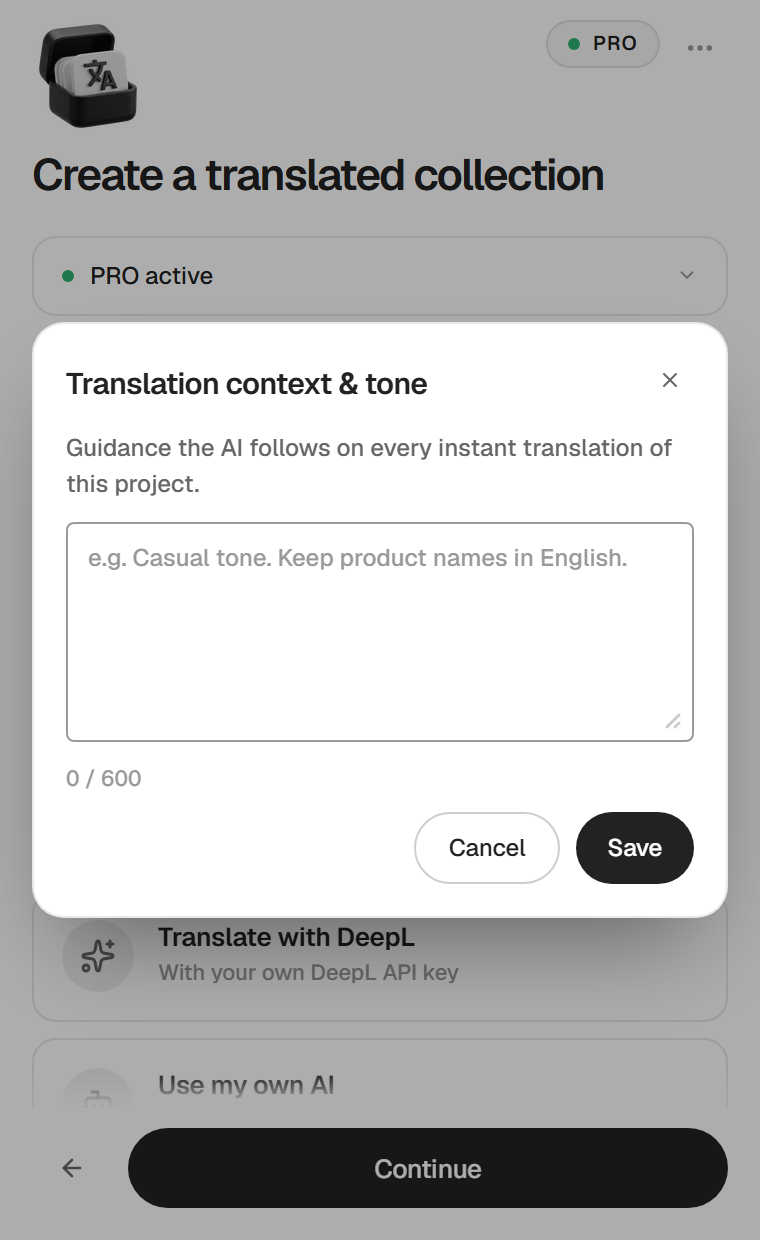
The AI follows it on every Instant translation of this project, Sync included. The context is saved in the project. It applies to Instant only. On the free plan the button shows a lock and opens the PRO offer.
Plans and license
Free and PRO
| Free | PRO, €29 once | |
|---|---|---|
| Translated collections | 1 collection in 1 language, per project | Every collection, every language |
| Instant translation | One collection of up to about 15,000 characters | Large collections, up to 500,000 characters a month, then your DeepL key |
| DeepL, copy-paste, manual | Yes, for your free collection, any size | Yes |
| Sync and Re-translate everything | No | Yes |
| Context and tone | No | Yes |
| Glossary, field choice, editor, custom languages | Yes | Yes |
PRO is a single payment, no subscription. The 500,000 Instant characters are counted per license key and per calendar month. The Translation Pack, €39, gives you Page Translator PRO and CMS Translator PRO with one key each, so each plugin has its own Instant counter.
For comparison, Framer Localization costs €20 a month per language, billed yearly (€25 billed monthly). For four languages that is about €960 a year. CMS Translator PRO is €19 once and works on every Framer plan.
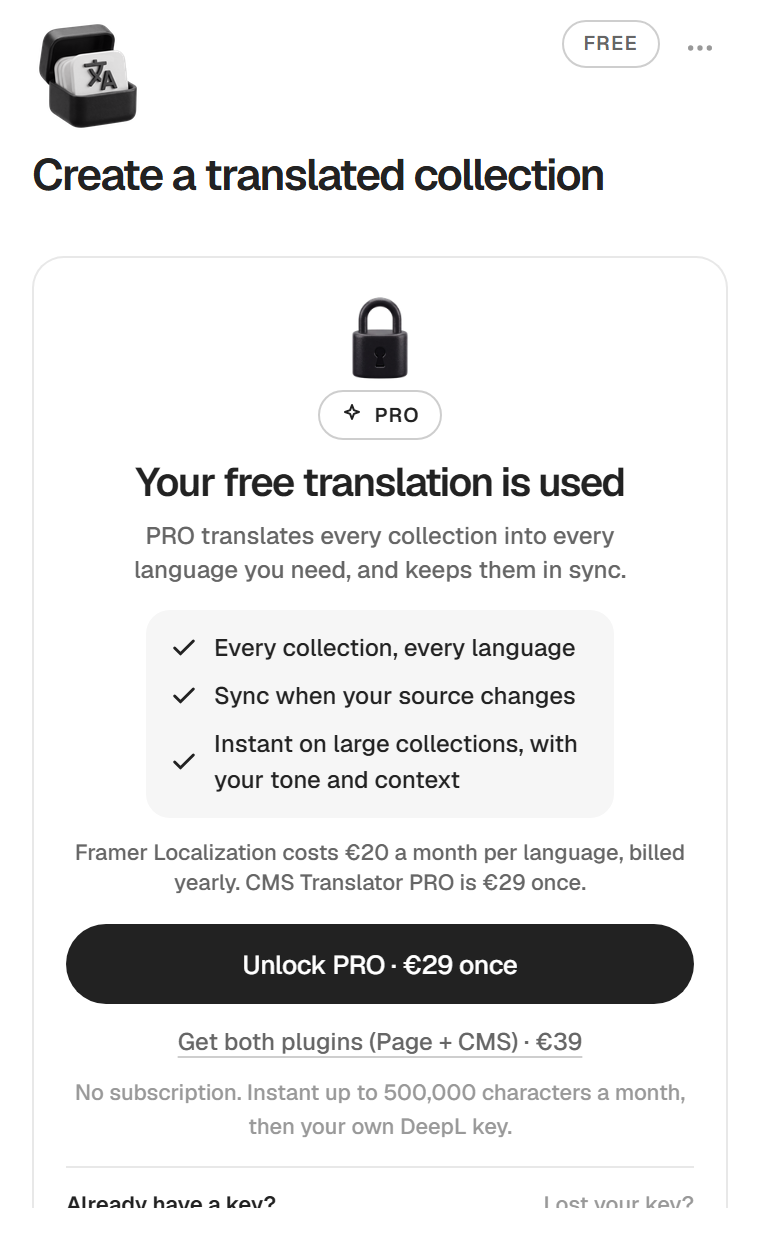
Once your free collection exists, the plugin shows Your free translation is used when you start a new one, with the PRO offer.
Buy PRO and activate your key
Buy
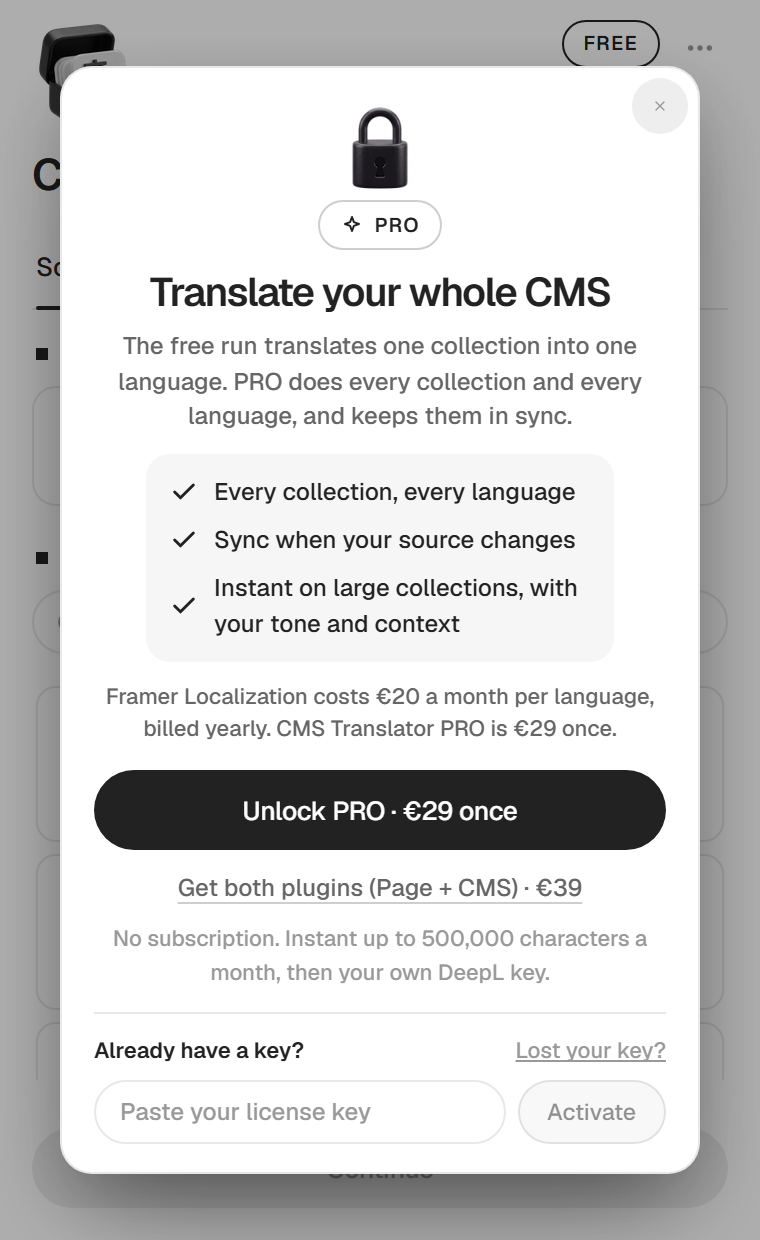
Every PRO screen of the plugin has the same offer. You reach it from the FREE badge at the top right, the context lock, the Sync screen, or a free limit. Click Unlock PRO · €29 once, or Get both plugins (Page + CMS) · €39 for the Pack. Payment happens on Polar, in your browser. Polar sends your license key by email.
Activate
- Open CMS Translator from the CMS.
- Click the FREE badge at the top right.
- Paste your key in Paste your license key, under Already have a key?.
- Click Activate.
- The plugin shows You're PRO and Everything below is yours now. Click Let's go. The badge now reads PRO.
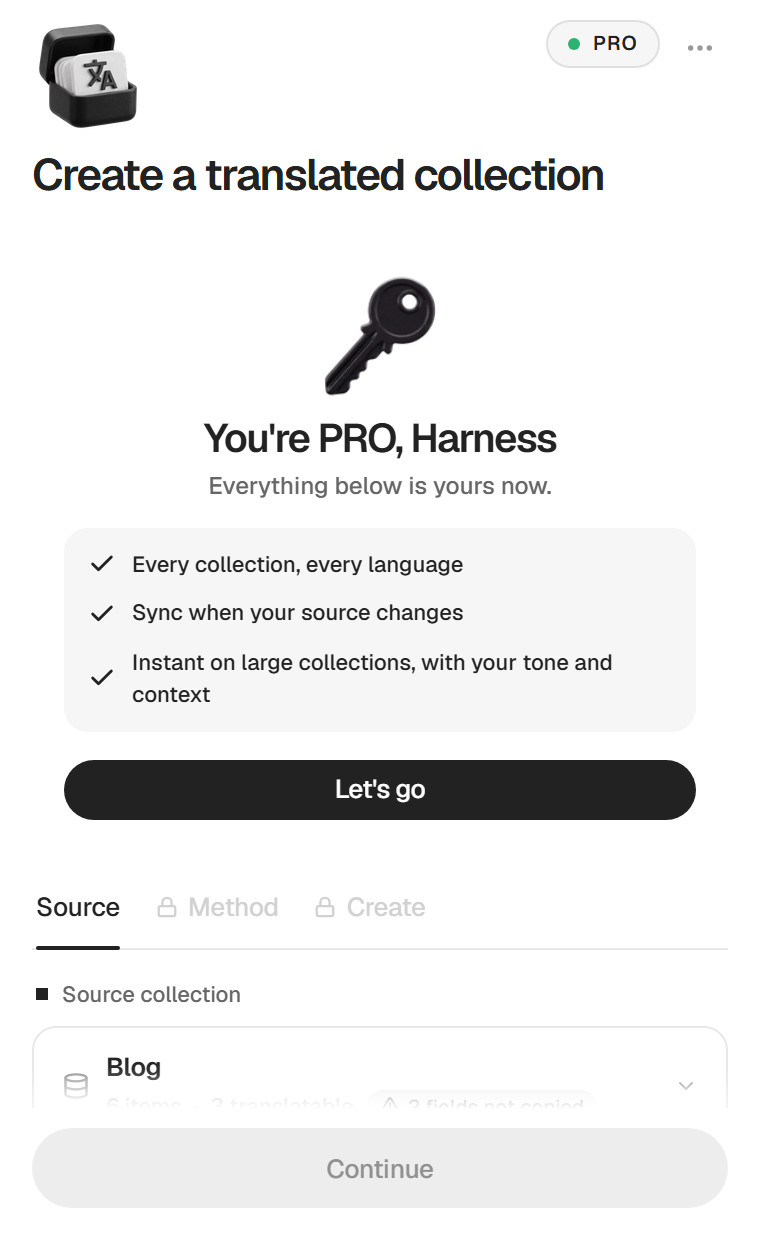
With the Translation Pack, paste the CMS Translator key here and the Page Translator key in Page Translator.
Find or remove your key
On PRO, a PRO active bar sits at the top of the plugin. Click it to see your key, partly hidden, with two links.
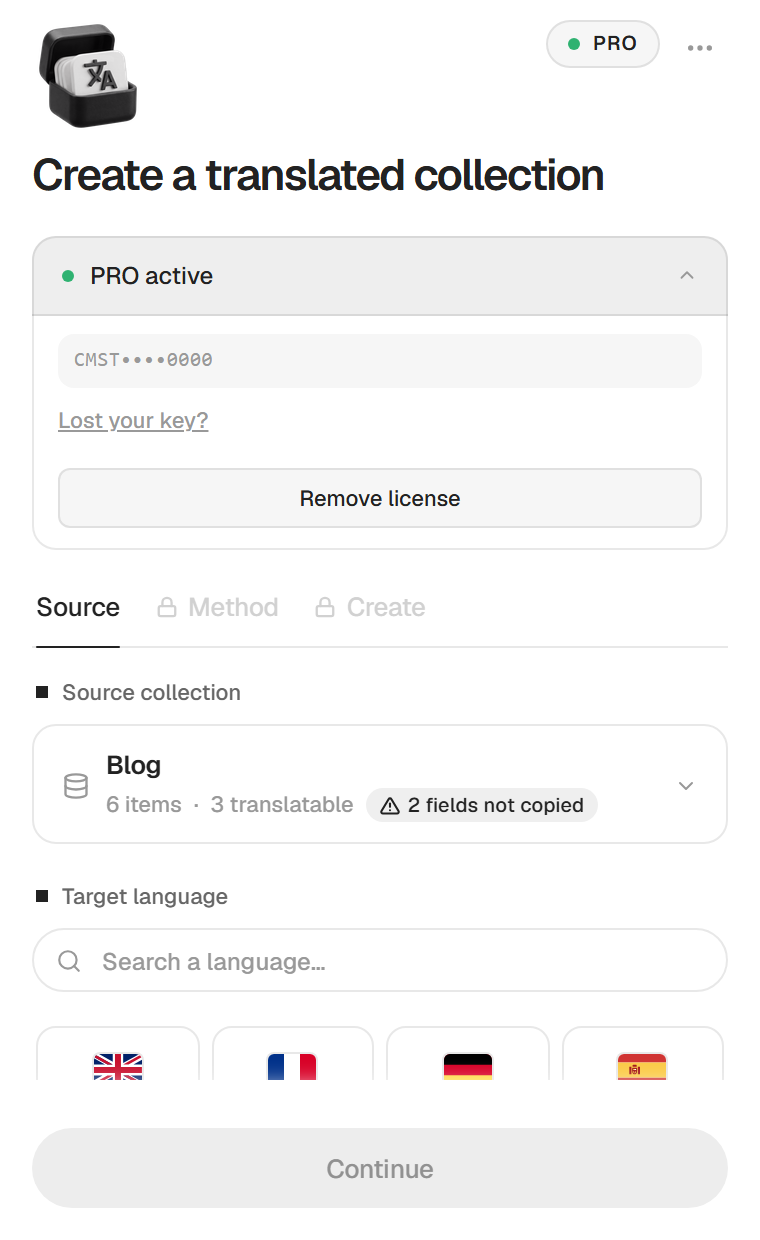
- Lost your key? opens the Polar customer portal. Sign in with the email you paid with, your key is there. The same link sits next to the key field on the free side.
- Remove license deactivates the key in this browser and frees the activation.
The key is stored in the browser where you activate it, not in the Framer project. A new browser, the Framer desktop app or cleared browser data each need the key again. A key has a limited number of activations. When it is reached, remove one from a browser you no longer use, or from your Polar account.
Help
Permissions
The plugin checks your Framer permissions when it opens and again before each write. If your role cannot edit the CMS of the project, it says Edit access needed, greys out the buttons that would write, and adds You can look around, nothing will be written.
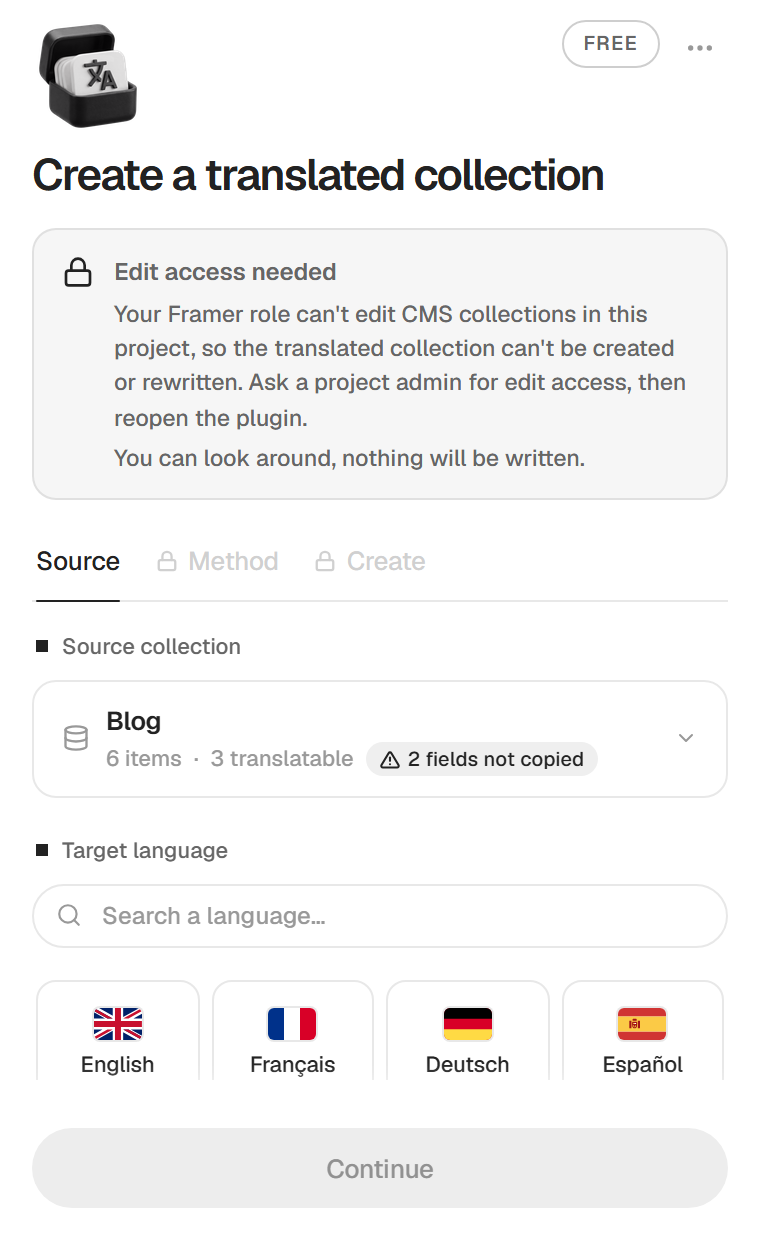
Ask a project admin for edit access, then reopen the plugin. If Framer refuses a change anyway, the plugin says Framer refused the change and Nothing was written.
The plugin menu
The ••• button at the top right opens the menu.
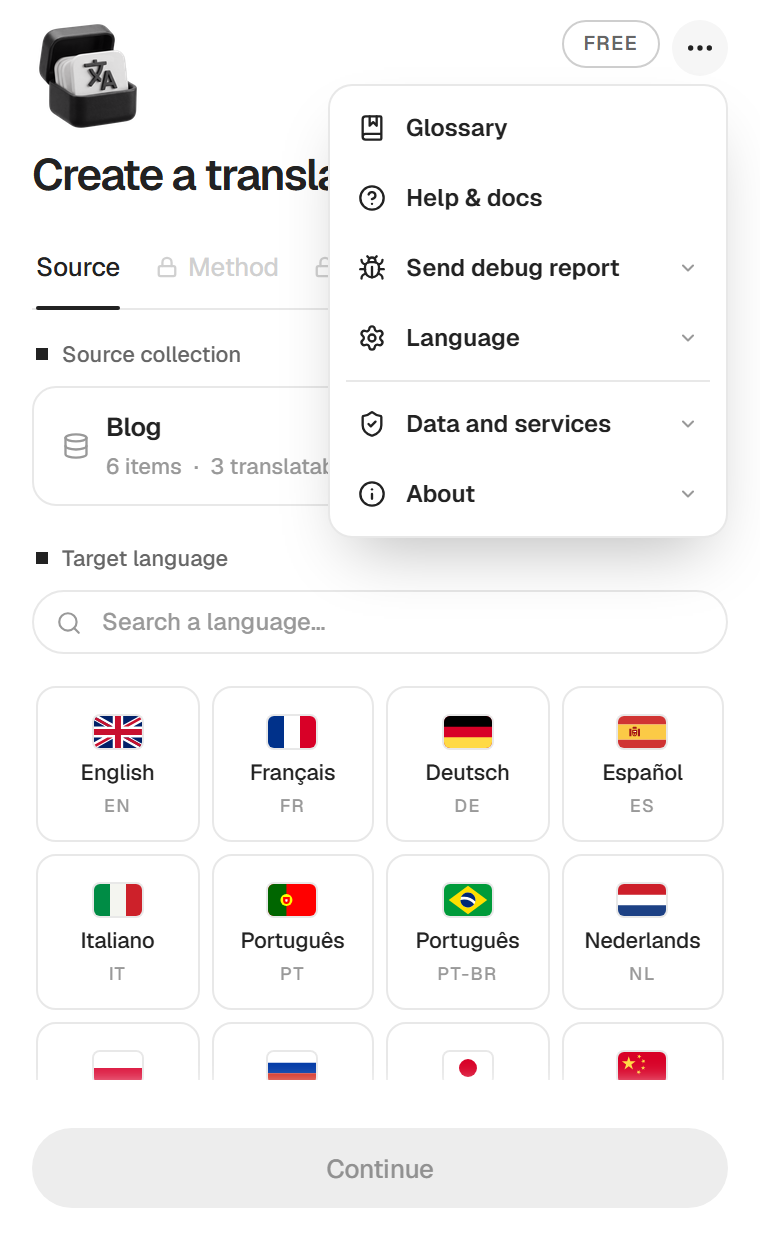
- Glossary, see Glossary.
- Help & docs shows a short description, a link to this page and Copy support email.
- Send debug report sends your plugin settings and an optional note. No DeepL key, no license key and no collection content. Write what happened in the box and click Send report.
- Language changes the language of the plugin itself. Match system follows your computer. English, French, Spanish, Brazilian Portuguese, German and Japanese are available.
- Data and services lists the services outside Framer that the plugin talks to, see Data and services.
- About shows the version number.
Data and services
Nothing leaves Framer until you start a translation, check a license or run Sync, and nothing is written to your project until you click. The plugin shows the same summary in the menu, under Data and services.
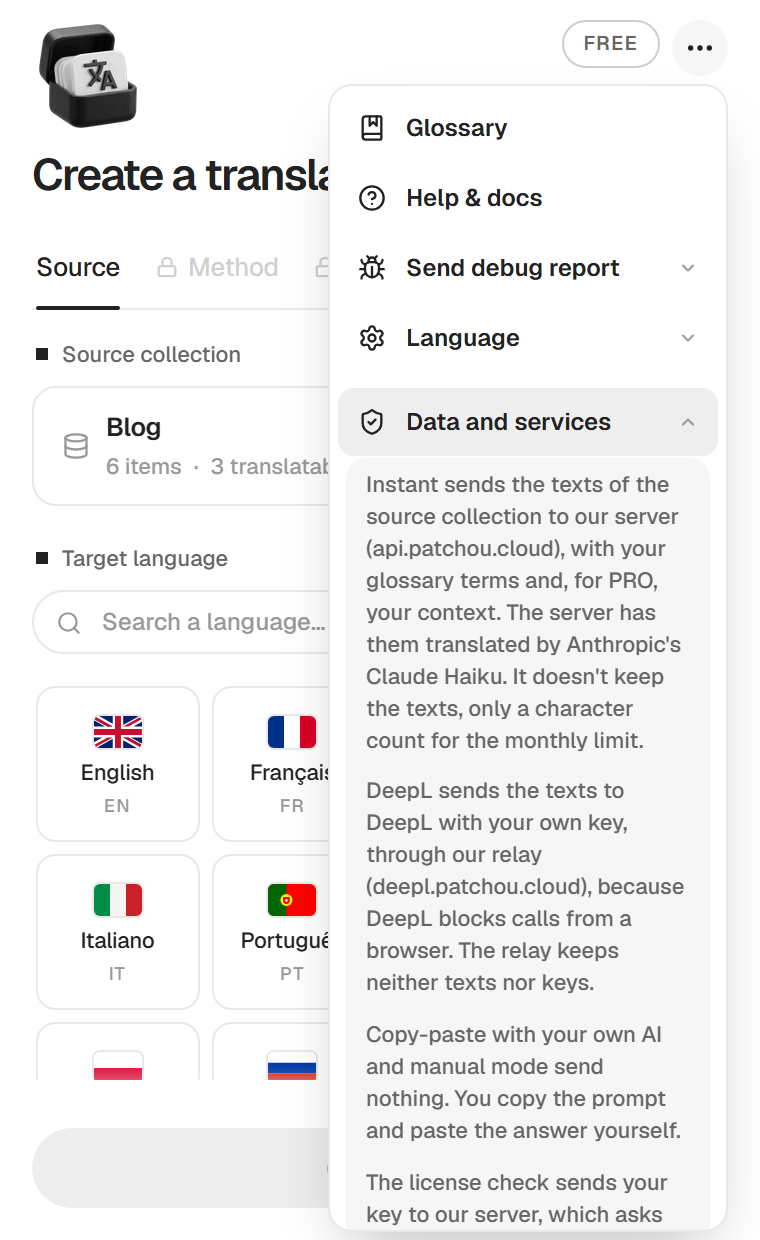
- Instant sends the texts of the fields you left ticked (and the slugs when Translate slugs is on), your glossary terms and, on PRO, your context to our server (api.patchou.cloud), which has them translated by Anthropic's Claude Haiku. So that a short value is not translated blind, the request also carries the collection name, the field names, a label for each item (its first non-empty text field, cut at 80 characters, even when that field is unticked, or its slug) and, for a short field with few lines in the batch, up to four other values of that field. It also sends the language codes, the random install id and, on PRO, your license key. The server keeps no text. Per call it records the time, the install id, free or PRO, the character and token counts, the cost and the status. It also keeps the install ids that used their free run, a daily request count per IP address and the monthly character count of each license key.
- DeepL sends the texts to DeepL with your own key, through our relay (deepl.patchou.cloud), because DeepL blocks calls from a browser. The relay keeps neither texts nor keys.
- Copy-paste and manual send nothing. You copy the prompt and paste the answer yourself.
- License checks send your key to our server, which asks Polar, where you bought it.
- Usage events (steps, counts, errors) go to PostHog through our server, with a random install id, your IP address for a rough location and your browser type. Never the content of your collections.
Your DeepL key and your license key stay in this browser. In your project, the plugin writes the translated collection and its settings (source, language, method), and in the project data the glossary, the context and the marker that the free run was used.
Troubleshooting
I can't find the plugin in the CMS
Install it first from the Marketplace page. Then, in the CMS, click + Add Collection. Installed collection plugins are listed in that menu.
"CMS Translator opens from the CMS"
You opened the plugin from the canvas or the plugin list. It writes nothing there and shows the way, Open the CMS, Click + Add Collection, Pick CMS Translator. Click Got it, close and open it from the CMS. The same screen lists your translated collections.
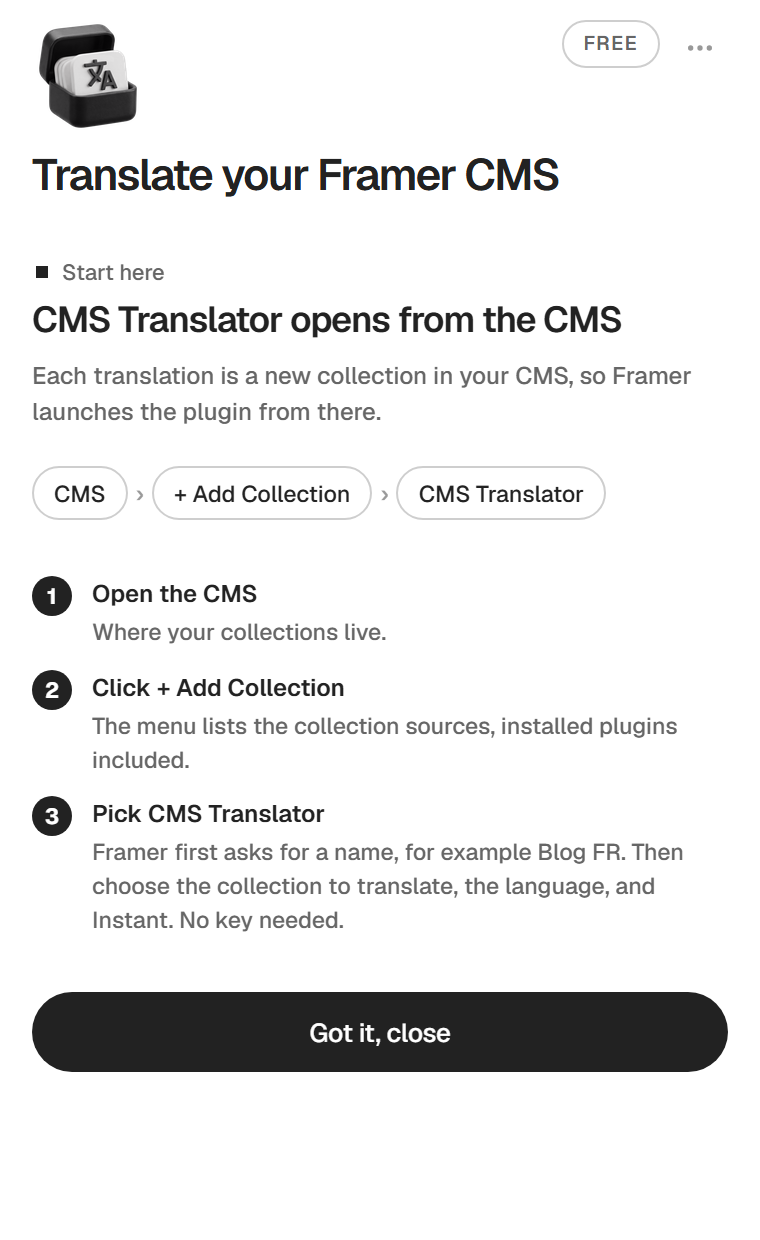
"Open the plugin from the CMS"
The action you tried only works on a collection created with CMS Translator. Open the plugin from + Add Collection to create one, or from the Sync button of a translated collection.
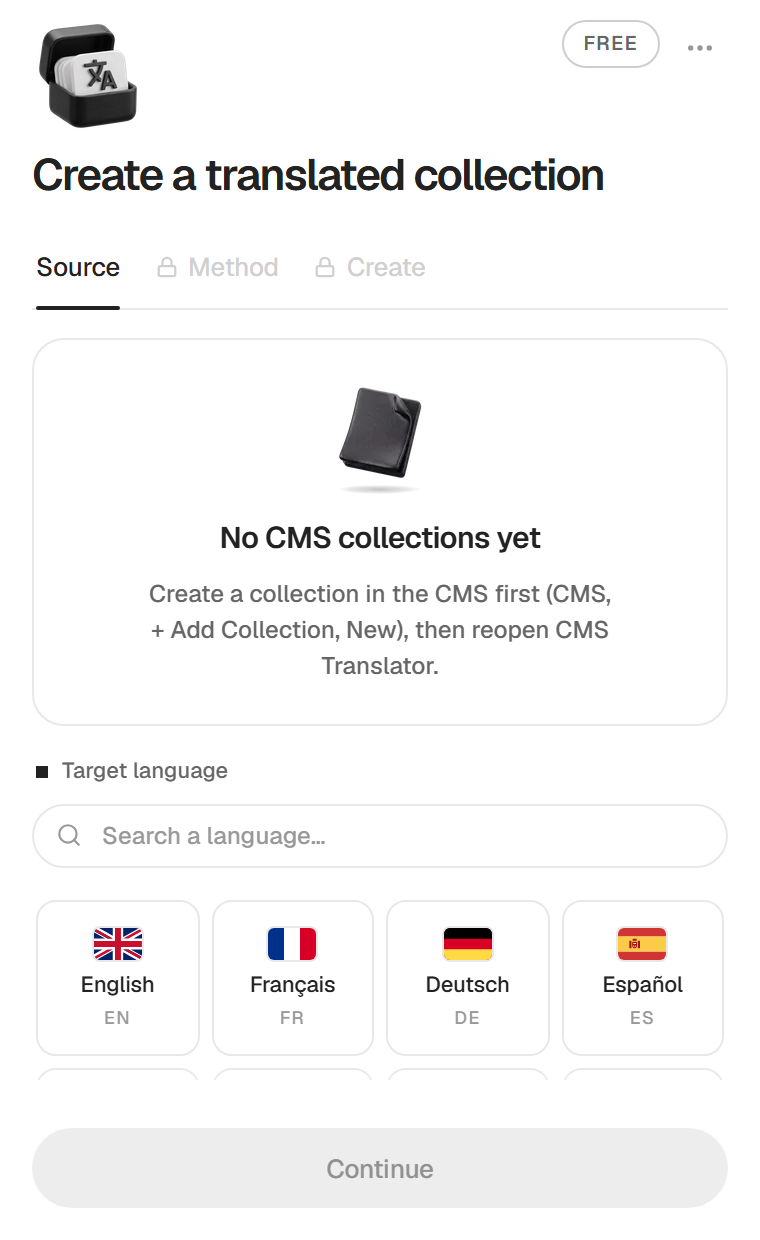
"No CMS collections yet"
The project has no collection to translate. Create one in the CMS (+ Add Collection, then New), add items, then reopen CMS Translator.
"Nothing to translate"
The source collection has no items yet. Add items to it, then run the plugin again. Nothing was written.
"Nothing to translate in the selected fields"
The fields you left ticked hold no text. Go back to tick more fields, or click Copy 6 items as they are.
The Method or Create tab is locked
Pick a source collection and a target language first. With DeepL, the Create tab also waits for a valid key.
"Too large for the free run"
The collection needs several Instant batches and the free run covers one. Click Use DeepL with my key or Copy-paste into my own AI, which have no size limit on your free collection, or unlock PRO. Your free run is still available.
"Your free translation is used"
This project already has its free collection. A second collection, a second language or a new run needs PRO. The free Instant run is also counted once per installation of the plugin, so Instant can refuse it in a new project if you already used it.
"DeepL refuses this key"
Check that it is an API key from your DeepL account (API Free or API Pro), copied in full, without spaces. DeepL keys are usually 36 characters or more. Or translate with Instant, which needs no key.
"DeepL quota reached"
Your DeepL key has no characters left this month. Translate with Instant or copy-paste instead, or raise the limit in your DeepL account.
"Monthly Instant limit reached"
PRO includes 500,000 Instant characters a month. Use DeepL with your key or copy-paste until next month.
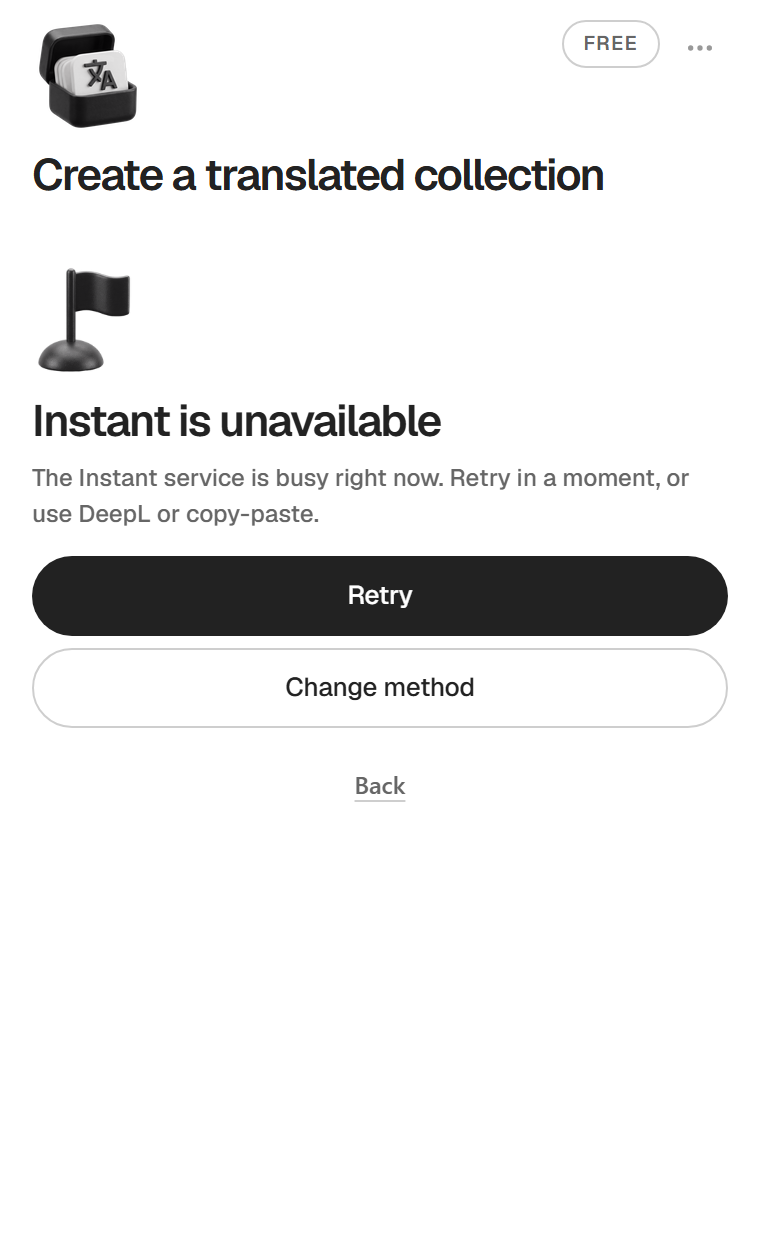
"Instant is unavailable"
The Instant service is busy. Click Retry in a moment, or Change method to switch to DeepL or copy-paste. Your collection was not changed.
"Free trial already used today"
Instant's free run was already used today from your network, which happens on a shared office or VPN connection, or after a few tries. Try again tomorrow, switch to copy-paste or DeepL now, or unlock PRO. Your collection was not changed.
"Too many requests"
The translation service asked to slow down. Wait a minute, then retry. Your collection was not changed.
"Connection lost"
The service could not be reached or took too long. Check your connection, then retry.
"The AI answer couldn't be read"
Some translations are missing or the format is off. With Instant, click Retry and it asks again. With copy-paste, paste a fresh answer from your AI without editing it, the whole answer, code block included. If the AI keeps adding comments, ask it to return only the JSON object.
The translation failed and the collection looks unchanged
That is on purpose. The plugin translates everything before writing, so a failure leaves the collection as it was (Your translated collection was not changed.). Fix the cause and run it again.
"Translation failed"
Something unexpected went wrong. Retry or pick another method. If it happens again, click Contact support, which copies the support email, and send the text under Details.
A reference field is missing in the translated collection
Reference and multi-reference fields are skipped, see What gets translated. Detach the collection if you need to add one by hand.
A gallery is missing
Galleries have been copied since version 2.4, so a collection translated with an older version has none yet. From version 2.4.1, a Sync is enough. It adds the missing galleries and image descriptions and leaves the rest of the translation as it is, your manual edits included. With version 2.4.0, run Re-translate everything once instead. A gallery listed under Fields not copied holds something other than images and stays in the source.
Some items are not visible on the published site
They are drafts in the source, and drafts stay drafts in the translated collection. Take them out of draft in the Framer CMS, on the translated collection, then publish.
The rich text looks different
The tags are kept and each paragraph is translated as a whole. If a sentence reads wrong, fix it in the editor. Sync keeps your fix.
Images are the same as in the source
That is expected, images are copied. Their alt text is translated. To use a localized image, replace it in the editor.
"Two items use the slug…"
Each slug must be unique, and an empty slug is refused. Fix the slug in the editor and save again. Nothing was saved before that.
The language switcher leads to a 404
You translated the slugs. The Page Translator Language Switcher keeps the slug when it changes language, so it looks for an article that does not exist. Reconfigure the collection with Translate slugs off, or remove the switcher from your article pages. See Slugs.
The translated articles give a 404
Check that you created a CMS page under the language prefix (/fr/blog/:slug), that its collection is the translated one, and that you published after.
Sync says "Already up to date", but I changed an item
If this is the first Sync of a collection created with 2.3 or earlier, the plugin had no fingerprints and noted the current state. Run Re-translate everything once. After that, each change is picked up.
Sync did not update an item I changed in the source
You had edited that item in the translated collection, so Sync protected your edit. Turn on Replace my hand edits to translate it again.
Sync replaced my edit
Replace my hand edits was on, or you used Re-translate everything. Both replace hand edits. Rewrite the edit in the editor.
The Sync button is greyed out
On the free plan, Sync needs PRO and the button reads Upgrade to re-sync. With edit access missing, a note says so. When nothing changed, it reads Nothing to sync.
"Sync unavailable"
This collection was not created by CMS Translator, or it was detached, so it has no source to sync from. Create a translated collection from + Add Collection.
"Add your DeepL API key" at Sync
You picked DeepL and no key is saved in this browser. Paste it and click Validate & continue, or switch to Instant.
The buttons are greyed out, "Edit access needed"
Your Framer role cannot edit the CMS of this project. Ask a project admin for edit access, then reopen the plugin. See Permissions.
"Framer refused the change"
Framer refused the write, usually for a permission reason. Nothing was written. Check your access, then try again.
The glossary or the context won't save
Your role cannot save plugin settings in this project. Ask a project admin for edit access.
The language I want is not in the grid
Add it with Custom, an ISO code and a name. Use Instant or copy-paste for it.
The DeepL card says my key has few characters left
Your DeepL plan may not cover the whole collection. Translate with Instant or copy-paste, or add credit on DeepL.
"This key isn't valid"
Copy the key again from the Polar email, in full. Lost it, see Find or remove your key.
"This is a Page Translator key"
Each plugin has its own key, and a Page Translator key does not unlock CMS Translator. The CMS Translator key starts with CMSTRAD. The Translation Pack gives you both keys, paste each in its own plugin.
"This key reached its activation limit"
Remove the license in a browser you no longer use (PRO active, then Remove license), or from your Polar account, then try again.
"This key has been revoked", "disabled" or "is no longer valid"
The key no longer works, after a refund for example. Email me if you think it is a mistake.
"Couldn't reach the license server"
Check your connection and try again.
I was PRO and the plugin says FREE
The key is stored per browser. In a new browser, or after clearing your browser data, paste it again with the FREE badge.
My translated collection no longer offers Sync
It was detached. A detached collection is a regular collection. Create a new translated collection from the source if you want Sync again.
Still stuck
Open the menu, click Send debug report with a short note, and email pro.allali.ilies@gmail.com.
FAQ
Does it use Framer's locales?
No. The plugin writes a separate collection per language and never touches Framer's own locales. It works on every Framer plan, without Framer Localization.
And Framer's Auto Translate?
It belongs to Framer Localization, the paid add-on. CMS Translator does not use it and does not need it.
Is my source collection changed?
No. The plugin only reads it.
What happens if I uninstall the plugin?
The translated collections stay in your project with their items. Sync no longer works until you reinstall.
Can I edit the translated items?
Yes, in the plugin editor or in the Framer CMS. Sync keeps your edits unless you choose to replace them.
Is anything shared with my collaborators?
The glossary, the context and the settings of each translated collection are saved in the project. Your license key and DeepL key stay in your browser.
Is the interface in French?
The plugin is in English by default. Open the menu, then Language, to switch to French, Spanish, Brazilian Portuguese, German or Japanese.
And my static pages?
Page Translator translates them. The Translation Pack has both plugins for €39.
Is it a subscription?
No. PRO is €29 once.
Can I get a refund?
If PRO does not work as described, ask for a full refund within 14 days of purchase. Email pro.allali.ilies@gmail.com with your order number or the email you paid with. The translated collections stay in your project after you uninstall, so a refund covers a fault, not a change of mind. Once refunded, the key is deactivated and the free version keeps working. Refund policy.
Support
Email pro.allali.ilies@gmail.com, or message @ilies-allali on the Framer Community. A debug report sent from the plugin menu (Send debug report) helps me find the problem faster.