Documentation
Page Translator, step by step
Install the plugin, translate your Framer site into real pages at /fr, /de or /es, keep them up to date, and fix what goes wrong.
Version 5.6.1On this page
Get started
Start in two minutes
- In your Framer project, press
Ctrl+K(⌘Kon a Mac), type Page Translator and press Enter on the result under Marketplace plugins. You can also start from the Marketplace page. - On Languages, click the language you want, French for example.
- Click Select pages →. Every page is already ticked.
- Click Translate →.
- Keep Instant translation and click Translate 6 pages (the number is yours).
- When it says Translation complete, click View /fr page.
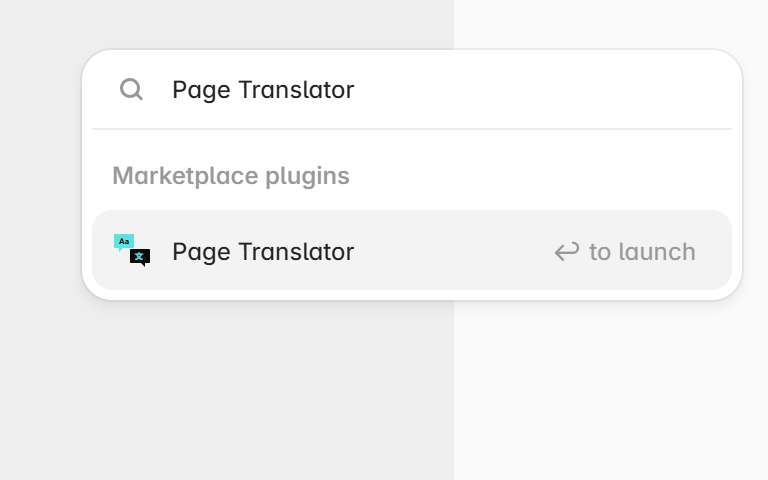
The plugin has now created real Framer pages at /fr, /fr/about and so on, in your own project. Review them, then publish your site as usual.
Your first translation, in detail
The plugin works in three tabs, Languages, Pages and Translate. You move forward with the button at the bottom, or by clicking a tab. A tab shows a lock until the one before it is filled in.
Before you start
- Your Framer seat needs Design access to the project. Without it, the plugin shows Design permission required at the top and cannot create pages.
- Write your site in one language first. That language is the source, every other one is a copy of it.
1. Languages
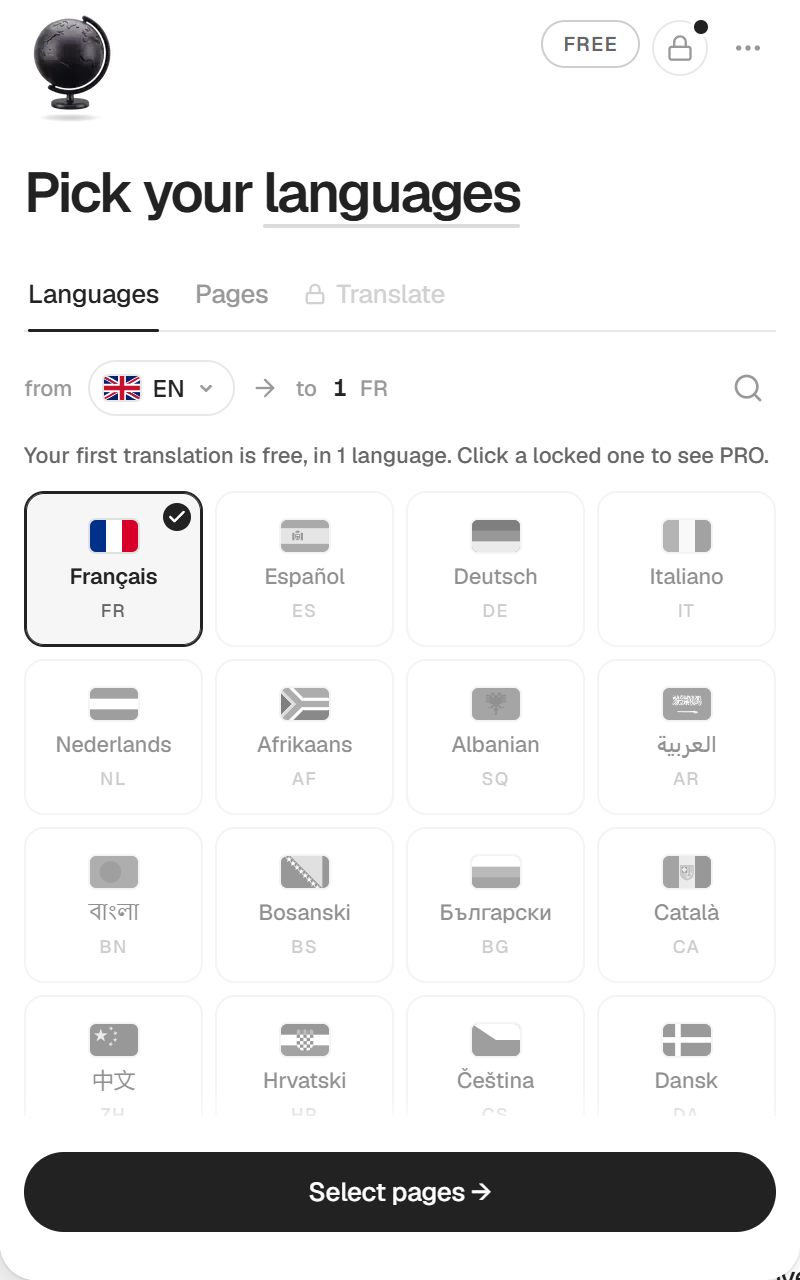
The screen is titled Pick your languages. The from line is your source language. The plugin reads it from your Framer project when it can, otherwise it shows Auto. Set it yourself if it says Auto, see Languages for why.
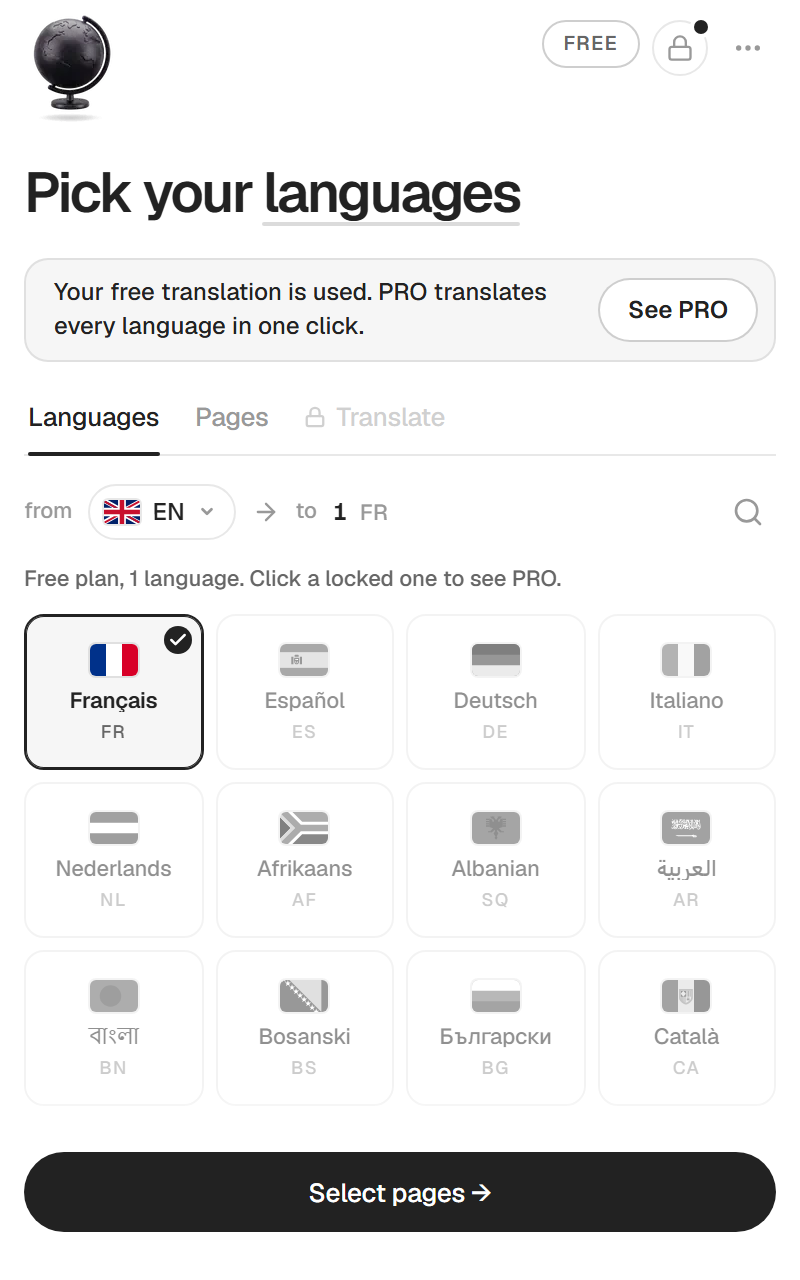
Under to, click the languages you want. On the free plan you pick one, and the others show a lock. Clicking a locked one opens the PRO offer. When you are done, click Select pages →.
2. Pages
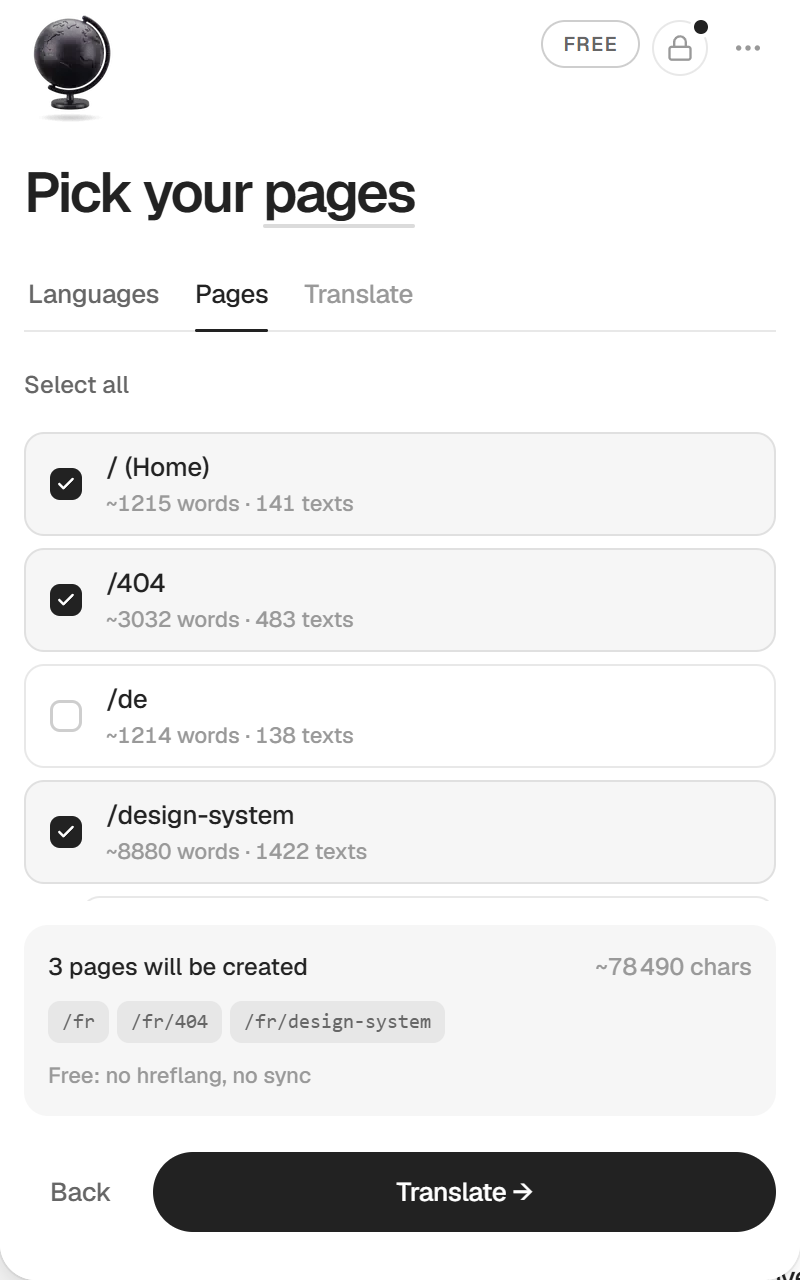
The screen is titled Pick your pages. Every static page of the project is listed with its path, an estimate of its words and its number of texts. All of them are ticked by default. Untick the ones you do not want, or use Select all and Deselect all. Subpages are grouped under their parent, click the arrow to show them.
The summary under the list says how many pages will be created and shows their future URLs, /fr, /fr/about and so on. Then click Translate →.
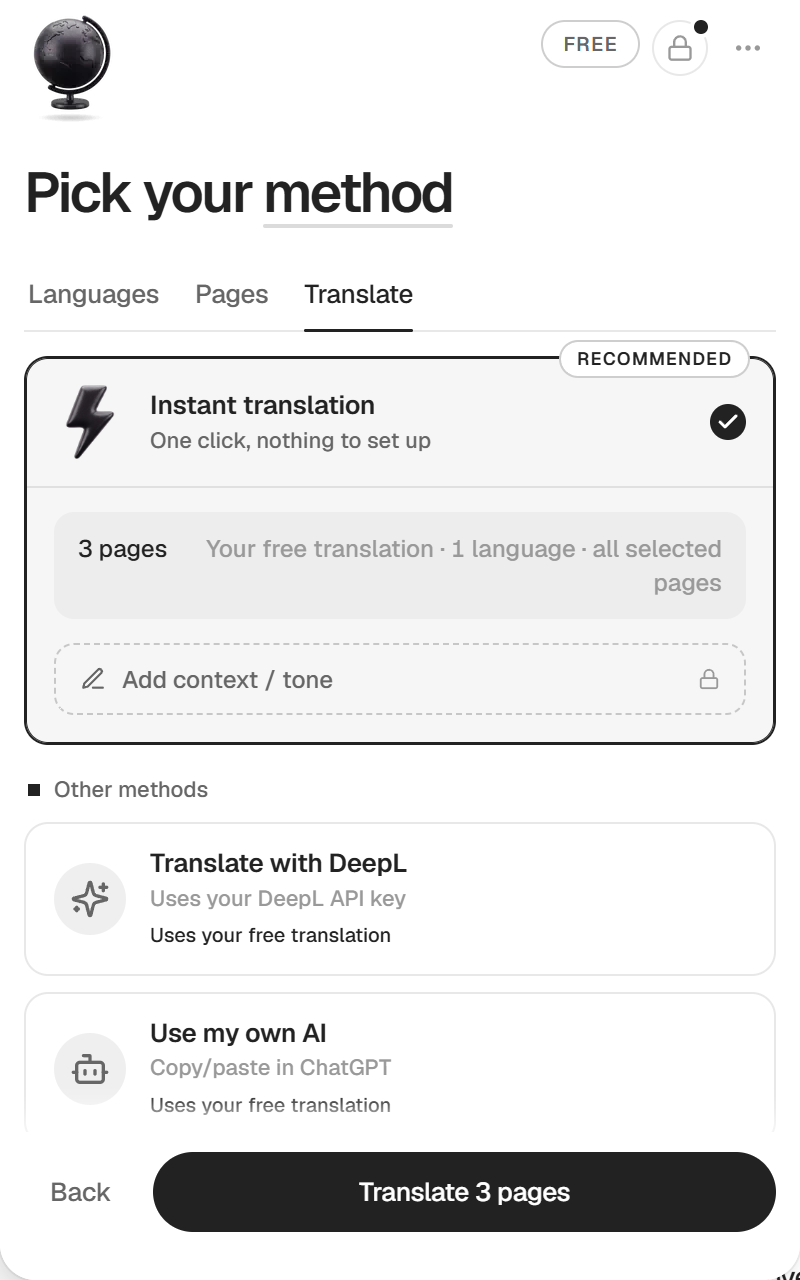
3. Translate
The screen is titled Pick your method. Instant translation is selected and marked Recommended. On the free plan its card reads Your free translation · 1 language · all selected pages. The three other methods are under Other methods, see Choose a method.
Below the cards you have the Translate URLs too option, off by default (see Options). Click Translate 6 pages at the bottom. The number counts every page in every language you picked.
While it runs
The plugin reads your pages, translates them, creates the copies and writes the texts. Keep Framer open on the project. You can click Cancel at any time. The plugin then finishes the page it is on, and the pages created before you cancelled stay in your project.
When it is done
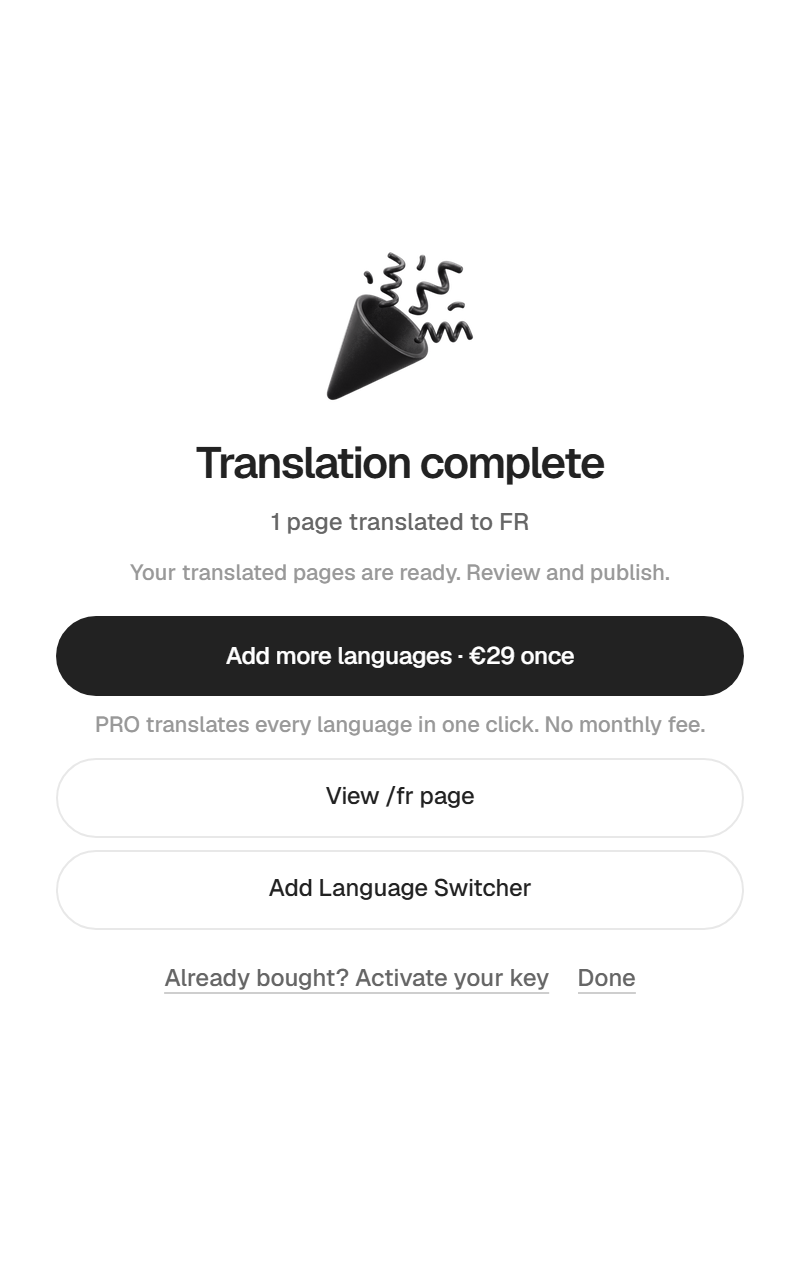
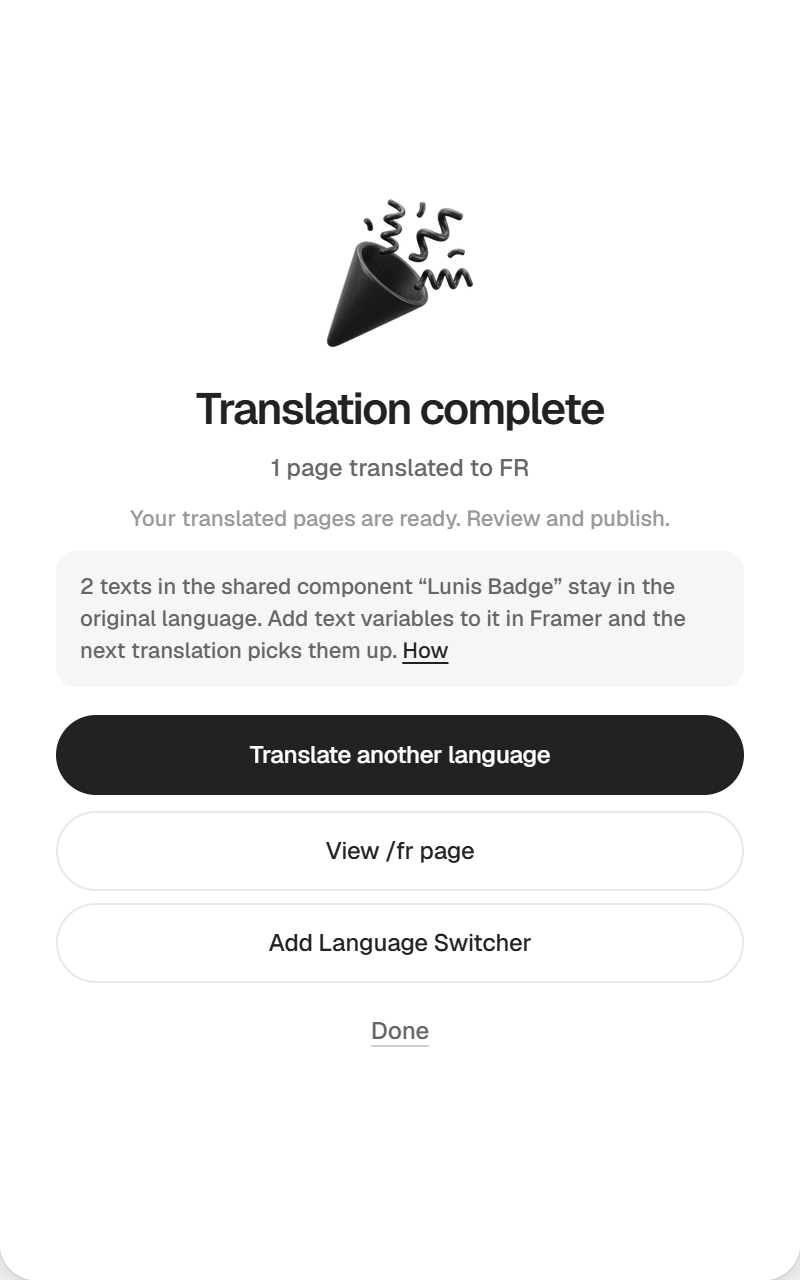
The screen says Translation complete and how many pages were translated into which language. From there you can
- click View /fr page to open the translated home (or the first translated page) on the canvas,
- click Add Language Switcher to drop the switcher on the current page (see Language Switcher),
- on the free plan, click Add more languages · €29 once to buy PRO, or Already bought? Activate your key,
- on PRO, click Translate another language to start again from the first tab,
- click Language tags to add or update the hreflang and lang scripts of your site, see hreflang and SEO,
- click Done to go back to the start.
If some texts stayed in the original language because they live in a shared component (a navigation bar, a footer), a short note says which components and links to the fix.
Check and publish
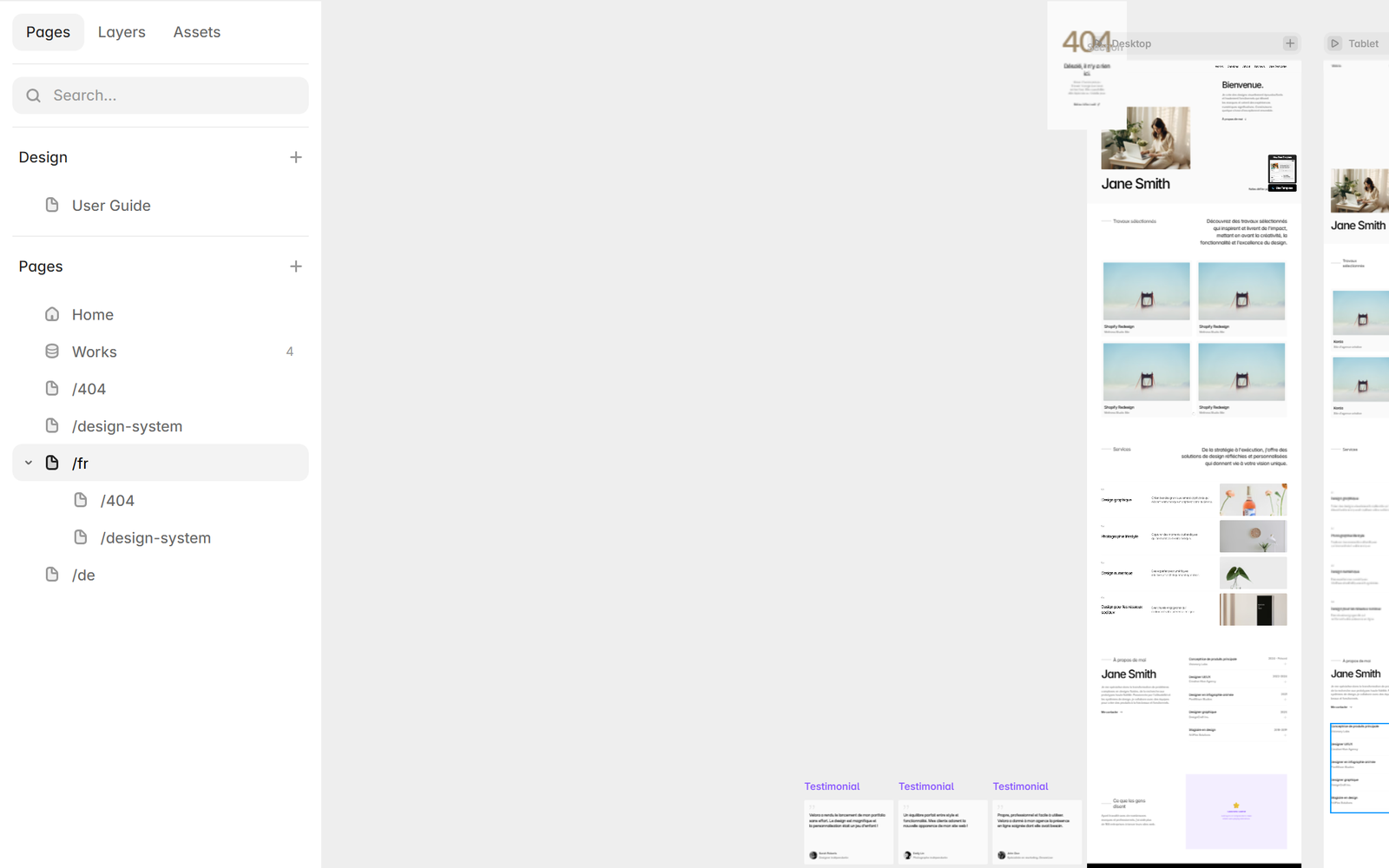
The translated pages are normal pages. You find them in the Pages panel of Framer, under /fr. Open a few, check the texts, then publish your site the way you always do.
Translate
Choose a method
All four methods create the same real pages. They differ in who does the translation.
| Method | Who translates | What you need |
|---|---|---|
| Instant translation | AI, inside the plugin | Nothing |
| Translate with DeepL | DeepL | Your DeepL API key |
| Use my own AI | ChatGPT, Claude, Gemini or any AI you use | Copy and paste, once per language |
| Just create the structure | You, by hand on the canvas | Nothing |
On the free plan, every method uses the same free translation. The cards say Uses your free translation until you have used it.
Instant translation
You click once and there is nothing to set up. Your page content is sent to Anthropic to be translated, the plugin says so under the cards. On PRO, Instant covers up to 500,000 characters a month, about 300 pages. Past that, the plugin asks for your own DeepL key until the next month.
On the free plan, Instant sends the whole selection in one request. A very large site can be refused with Page too large. Your free translation is not used in that case, so pick DeepL or copy-paste instead.
Translate with DeepL
- Create an API key on deepl.com. The Get free key → link opens the right page.
- Click the Translate with DeepL card and paste the key in Paste your DeepL API key.
- Wait for Key valid. It also shows how many characters your DeepL plan has left.
- Click Translate 6 pages.
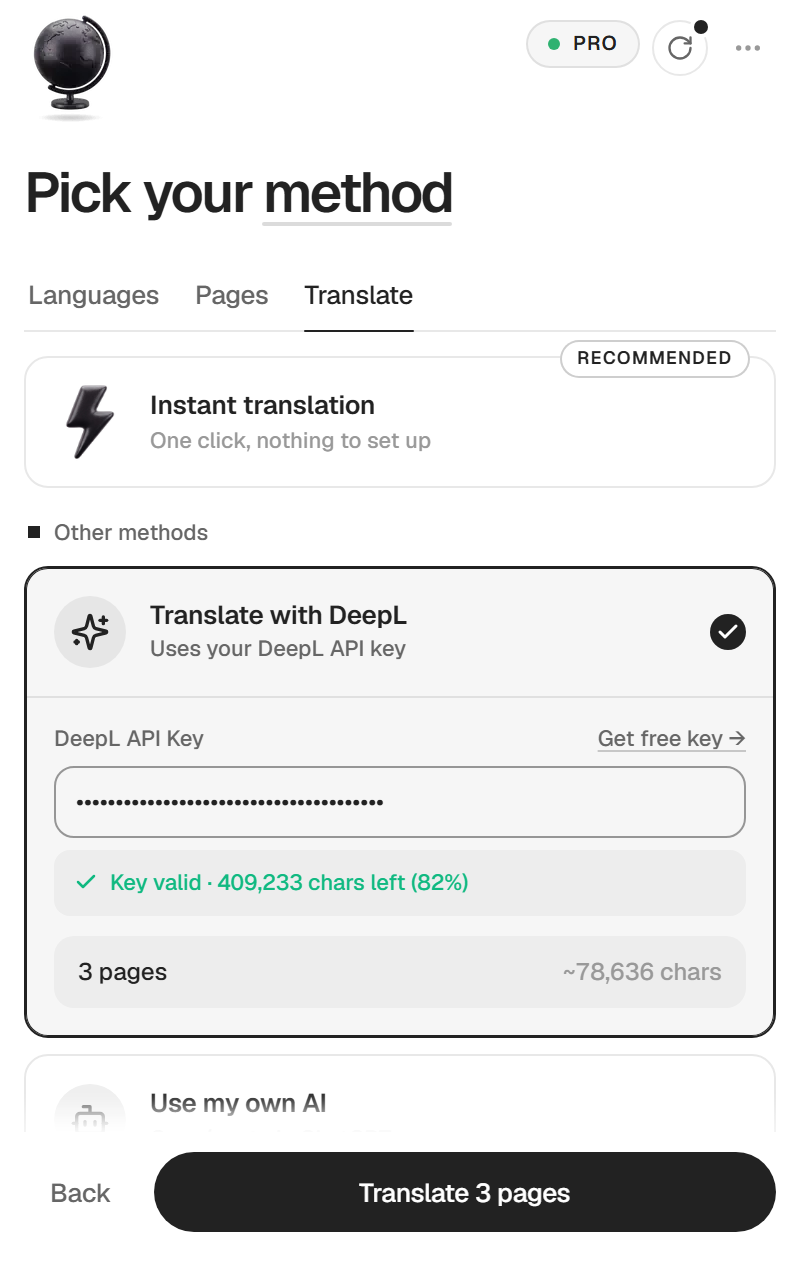
The card warns you when your quota is lower than what the selection needs, because DeepL would stop partway. New DeepL API Free accounts get a one-time credit of 1,000,000 characters that does not reset. The key stays in your browser. It is not saved in the project, so collaborators cannot see it.
DeepL is greyed out with Not available for … when you picked a custom language. Use Instant or copy-paste for that one.
Use my own AI
- Click the Use my own AI card, then Generate prompt.
- Click Copy prompt. The button carries the name of the language.
- Paste it into ChatGPT, Claude or Gemini and send it.
- Copy the whole answer and paste it in the box under Paste the AI response.
- If you picked several languages, click Next: German → (the button names the next language) and do the same.
- Click Create 6 pages →.
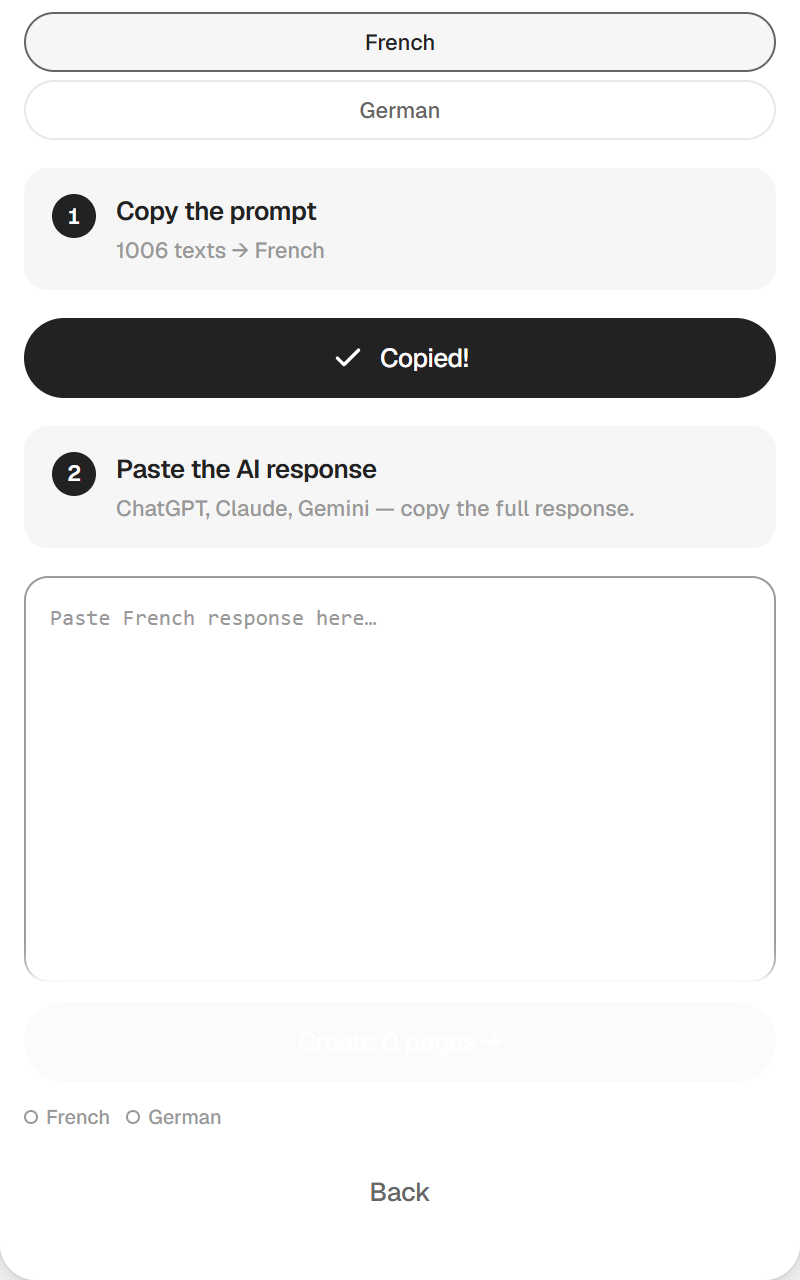
Paste the full answer, code block included. The plugin tolerates the usual formatting slips of AI tools. This method costs nothing beyond the AI you already pay for, and you can read every line before it lands in Framer.
Just create the structure
The plugin creates the translated pages with the original text still in them, and you rewrite it on the canvas. Click the card, then Create 6 manual pages. It helps when a translator delivers the copy, or for a language you write yourself. The glossary does not apply here.
Languages
Source language
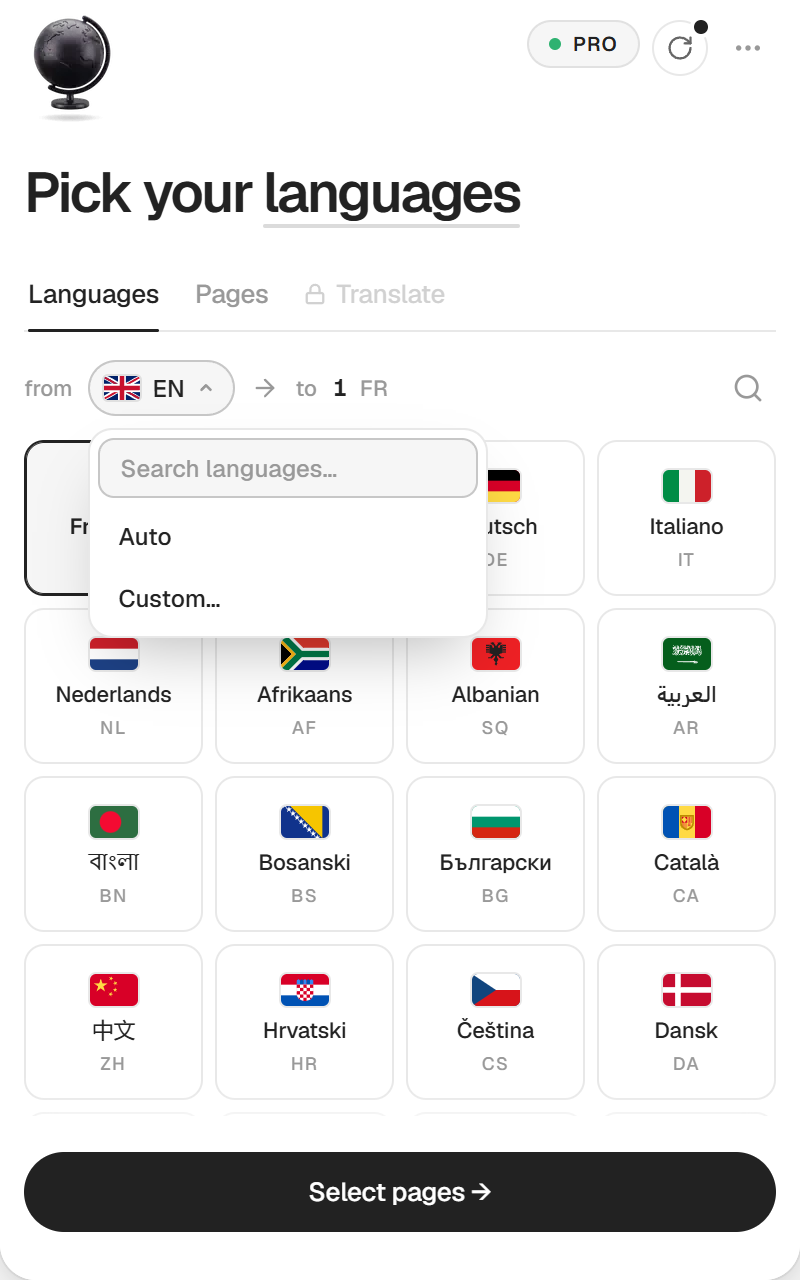
The from line on the first tab is the language your site is written in. The plugin takes it from your Framer project settings. If it cannot, it shows Auto, and the AI guesses the language.
Set it explicitly. With Auto, the plugin translates, but it skips two things that need to name your language, the Language Switcher and the hreflang tags. Click the source language to change it. If yours is not in the list, add it with a code and a name.
Target languages
54 languages are built in. Use the search field to find one. Each language gets its own URL prefix, /fr, /de, /pt-br and so on.
Custom languages
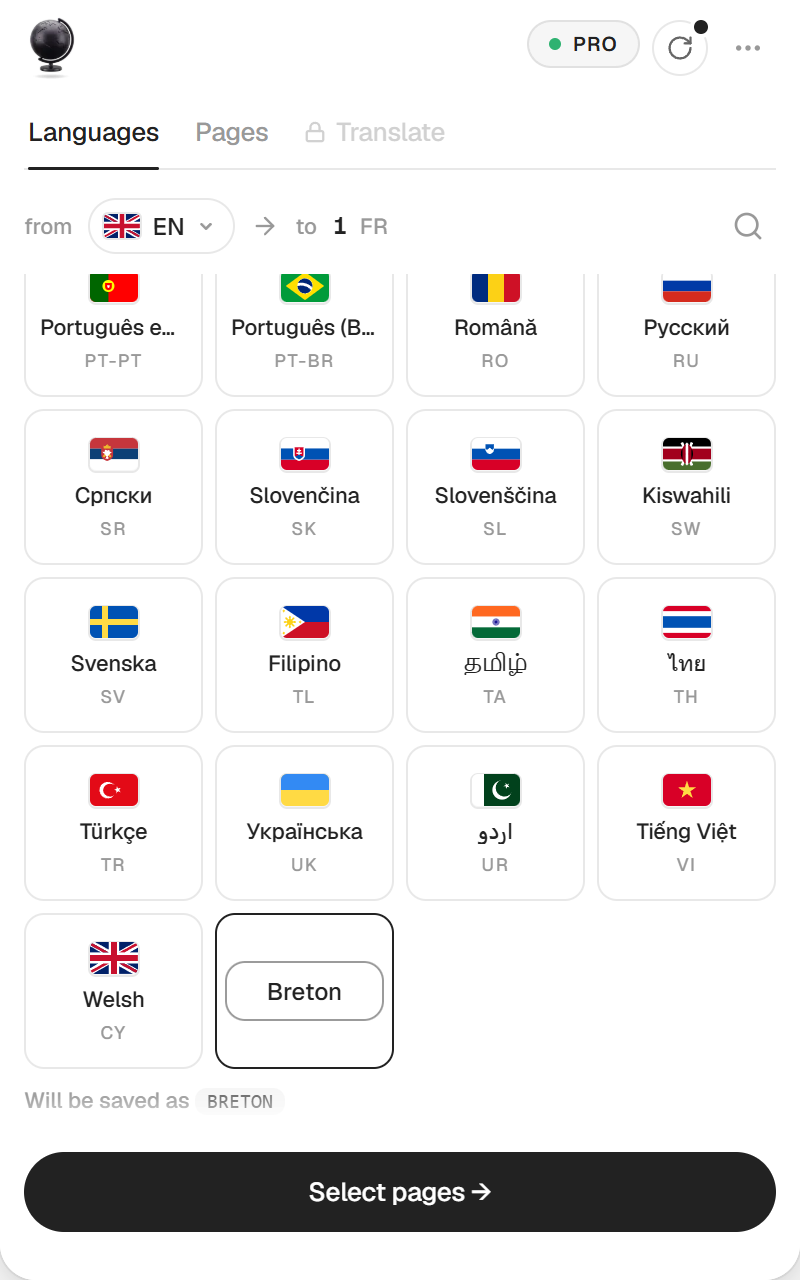
For a language that is not in the list, click Custom, type its name and confirm. The plugin shows the code it will use under Will be saved as. A custom language works with Instant and copy-paste, not with DeepL. On the free plan it counts as your one language.
On the free plan
One target language. The line Free plan, 1 language. Click a locked one to see PRO. sits above the list. Languages kept from an earlier session are cut back to one when you reopen the plugin.
Pages
The second tab lists the static pages of your project. Some pages are left out on purpose.
- CMS collection pages (a blog post template, for example). The texts of a collection are translated by CMS Translator.
- Pages the plugin created itself, so you never translate a translation.
Pages whose path already starts with a language code, such as /fr or /en/about, are listed but unticked. Tick them again if they are real pages.
There is no page limit, on the free plan either. While it scans, the plugin may open pages that Framer has not loaded yet, so the canvas can jump from page to page. It comes back to your page at the end.
Options, tone and glossary
Translate URLs too
On the Translate tab, under Options. When it is on, the page paths are translated as well, /blog/my-article becomes /fr/blog/mon-article. It works with Instant, DeepL and copy-paste. When two pages end up with the same translated path, the second one gets -2. Read the Language Switcher section before you turn it on.
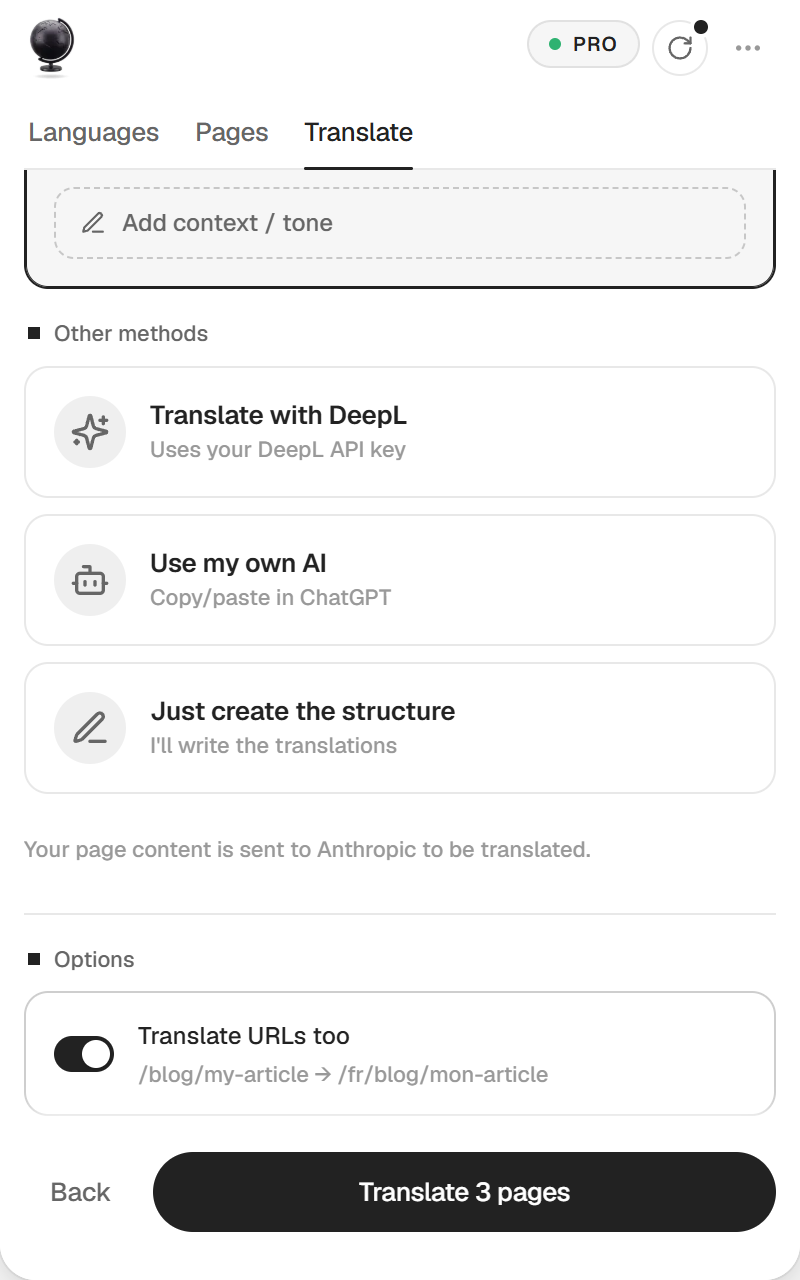
Add context / tone (PRO)
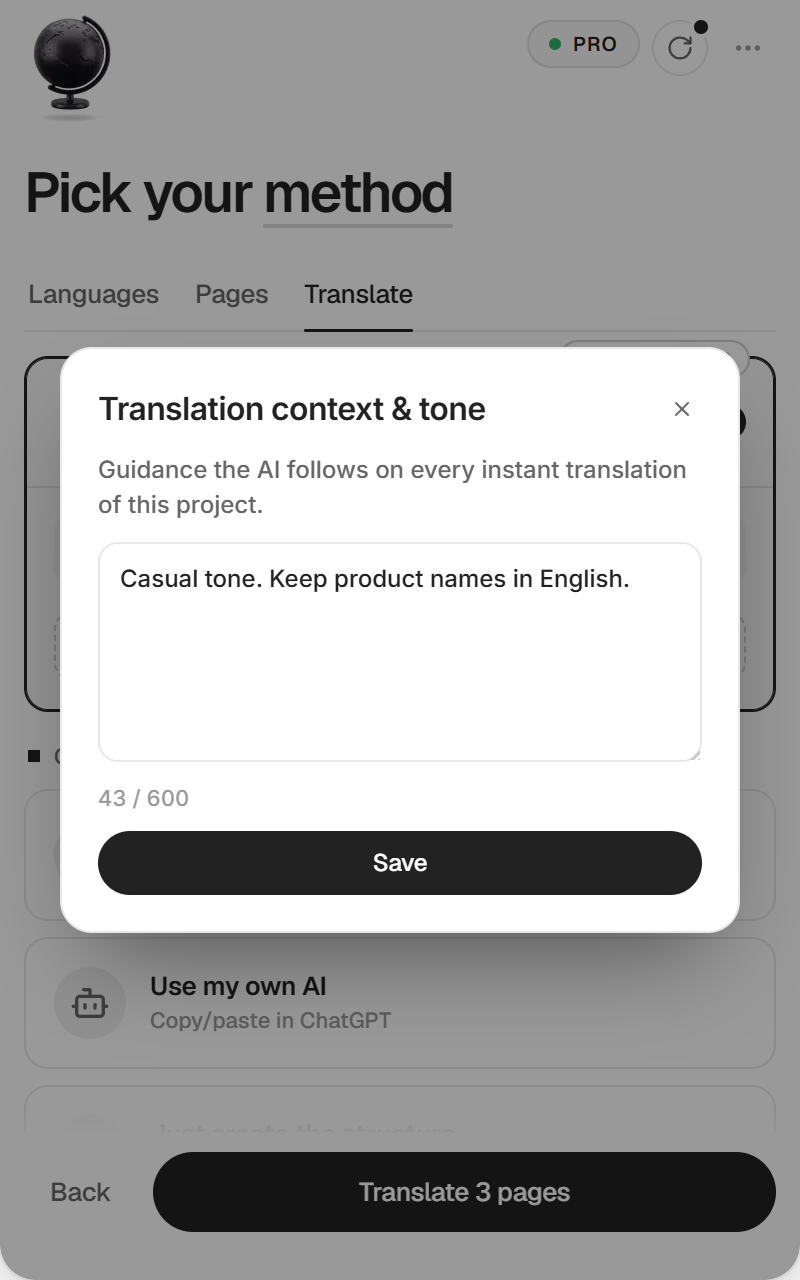
In the Instant card, Add context / tone opens a box where you describe the voice you want, for example "Casual tone. Keep product names in English." Click Save. The AI follows it on every Instant translation of this project. On the free plan the button shows a lock and opens the PRO offer.
Glossary
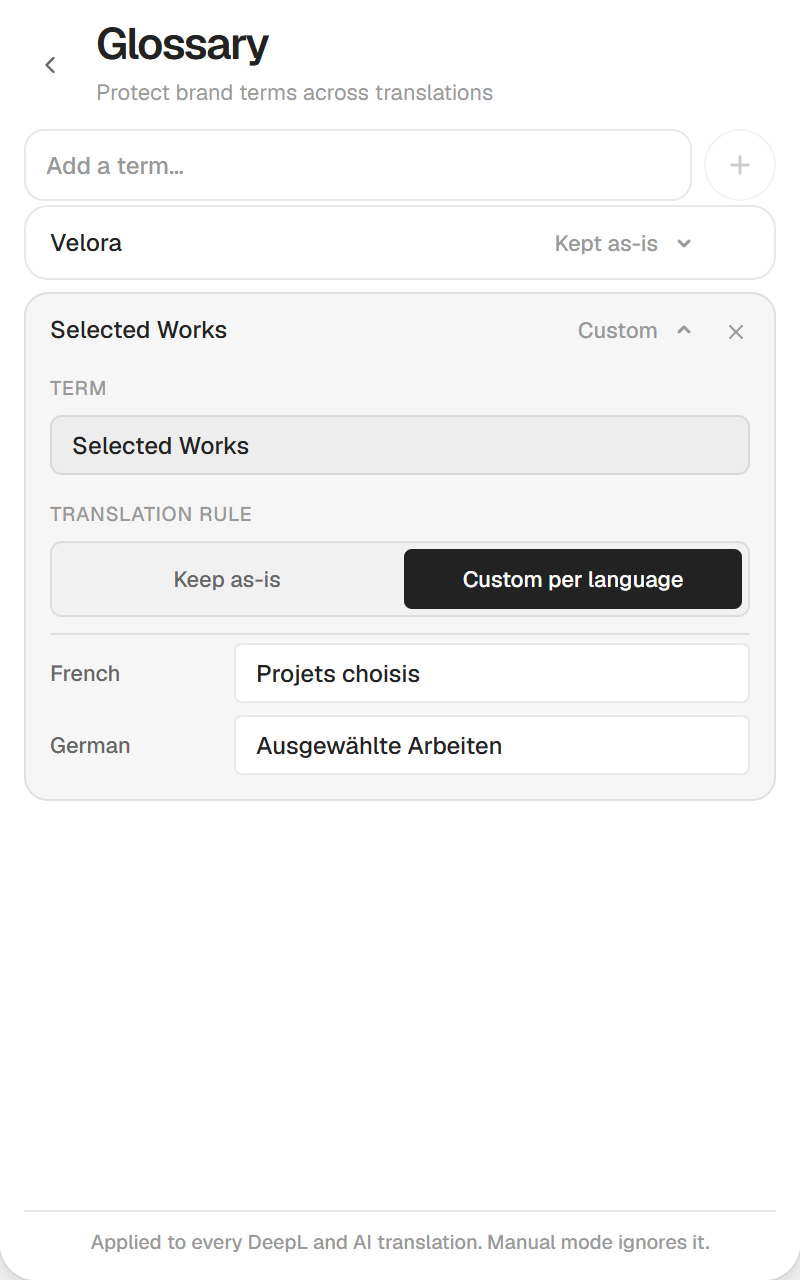
Open the menu (the ••• button at the top right), then Glossary. Type a term in Add a term… and choose its rule.
- Keep as-is leaves the term untouched in every language. Use it for your brand and product names.
- Custom per language lets you write the translation you want for each language. Pick your target languages first, otherwise there is nothing to fill in.
The glossary applies to Instant, DeepL and copy-paste, on every plan. It is saved in the project. Just create the structure ignores it.
What gets translated, and what doesn't
Translated
- Text layers placed on the page.
- Text you pass to a component through its properties (its variables), such as a button label set on the page.
- Links between your pages. On
/fr/about, a link to/contactnow points to/fr/contact. - The page paths, if Translate URLs too is on.
The Tablet and Phone breakpoints are recreated on every translated page, with the styles you set on them.
Kept as they are
Values that are not text stay untouched, so they keep working. Icon names, colors, fonts, URLs and option values of a component are never sent to translation. Values bound to a CMS field stay bound. Glossary terms set to Keep as-is stay too.
Shared components
Text typed inside a component (a navigation bar, a footer, a testimonial card) belongs to the component itself. It is the same on every page that uses it, so it cannot differ between /about and /fr/about, and it stays in the original language. The success screen lists those components and how many texts they hold.
A navigation bar or footer that comes from a layout template (the right panel shows Layout: Template) is not listed, because plugins cannot read templates. If your site uses one, check it after translating and apply the same fix.
To make that text translatable, turn it into a variable.
- In Framer, open the component.
- Select the text layer.
- In the right panel, open the Content property, click the plus icon and choose Create Variable.
- Back in the plugin, translate the pages that use the component again.
The text now belongs to each instance, and the plugin translates it on each translated page. Translating a page again rebuilds it from the original, see Sync.
Not translated
- CMS collections. Use CMS Translator, €19, or both plugins in the Translation Pack for €39.
- Page titles and meta descriptions. Write them in the settings of each translated page.
- Slides of a Ticker, Slideshow or Carousel. The plugin copies the translated slides onto the translated page, but the component still points to the original ones, because Framer does not let plugins change that link. Select the component on the translated page and pick its items again. They are already on the page.
After translating
Sync when your content changes (PRO)
The plugin remembers what it translated. When you change the original pages, Sync finds the texts that changed and translates only those.
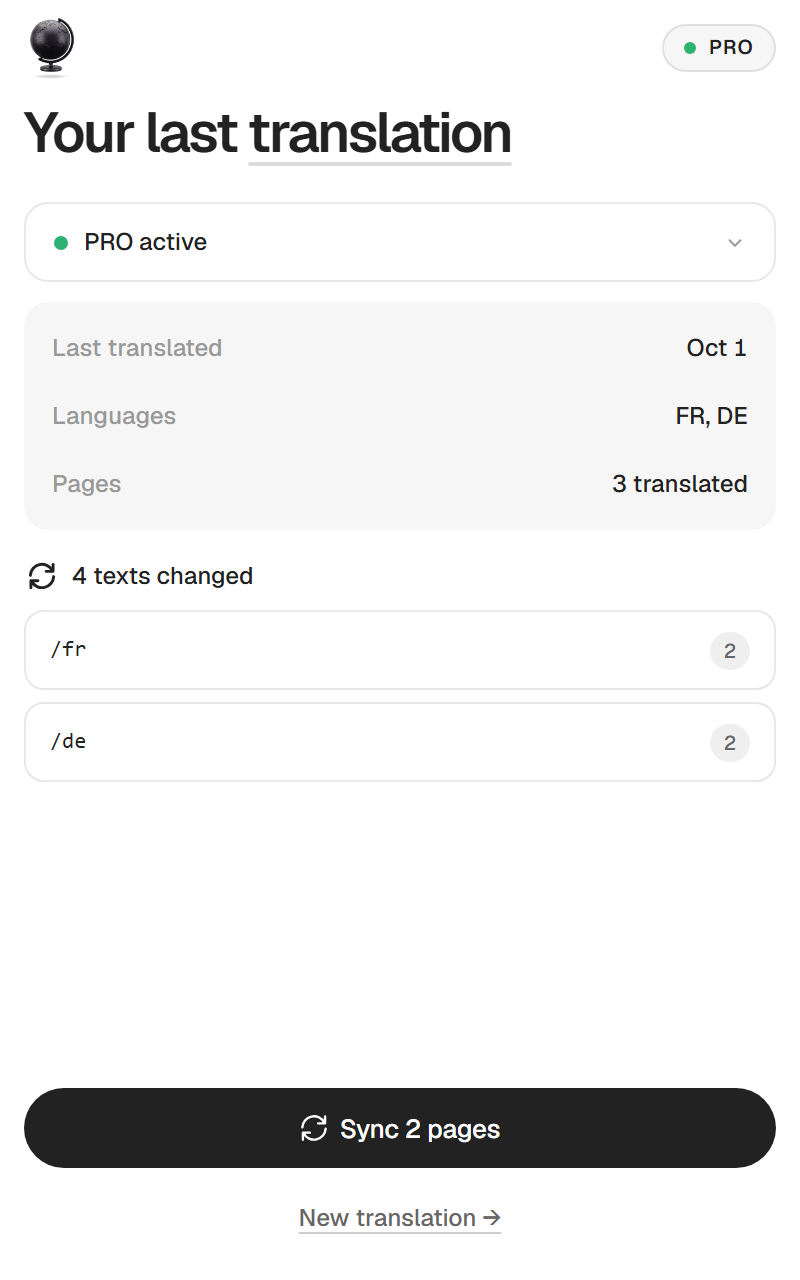
- Click the round arrows button at the top of the plugin. It appears once the project has a translation.
- The plugin checks your pages. It shows the date of the last translation, the languages and the pages, then Everything up to date or 3 texts changed with the list of translated pages concerned.
- Click Sync 2 pages.
- Choose the method, Instant, ChatGPT / Claude or DeepL API, then click Sync 2 pages again.
With ChatGPT / Claude, the button reads Generate sync prompt. Click it, then Copy sync prompt, paste it into your AI, click I have the response →, paste the answer and click Apply sync.
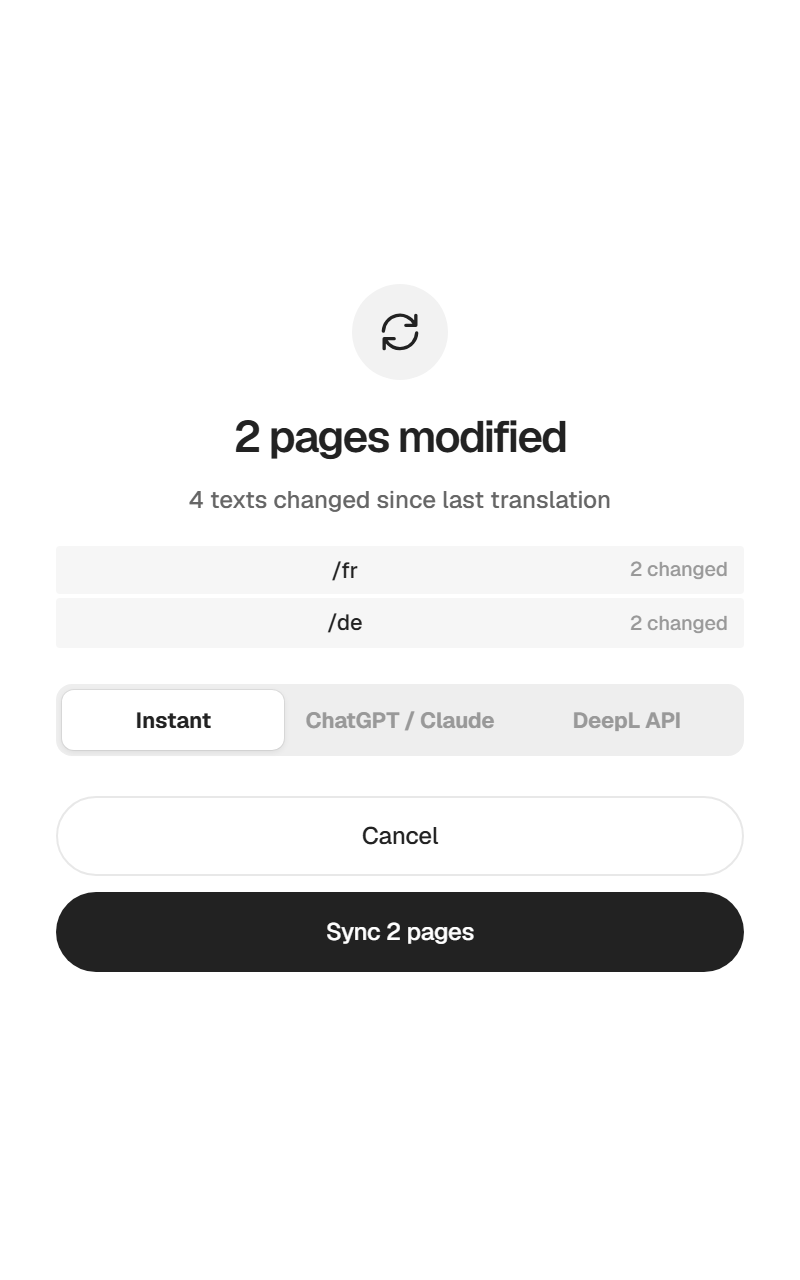
What Sync changes
Only the texts whose original changed. Every other text on the translated pages stays as it is, including the ones you edited by hand. Sync compares texts. A new image, a new section or a style change on the original is not carried over.
What Sync does not cover
- A new page. Click New translation → and translate it like the first time.
- A new language. Translate it from the first tab. The languages you already have stay.
- Layout or image changes. Translate that page again.
On the free plan, the Sync button shows a lock and opens the PRO offer.
Language Switcher
After a translation, the plugin creates a code component named Language Switcher in your project and updates it with every language you translated. It needs a source language, so it is not created when the source is on Auto.
- On the success screen, click Add Language Switcher. The plugin drops it on the page you have open and says Language Switcher added to canvas.
- Move it where you want it. To show it on every page, put it inside your navigation component.
- Select it to style it in the right panel.
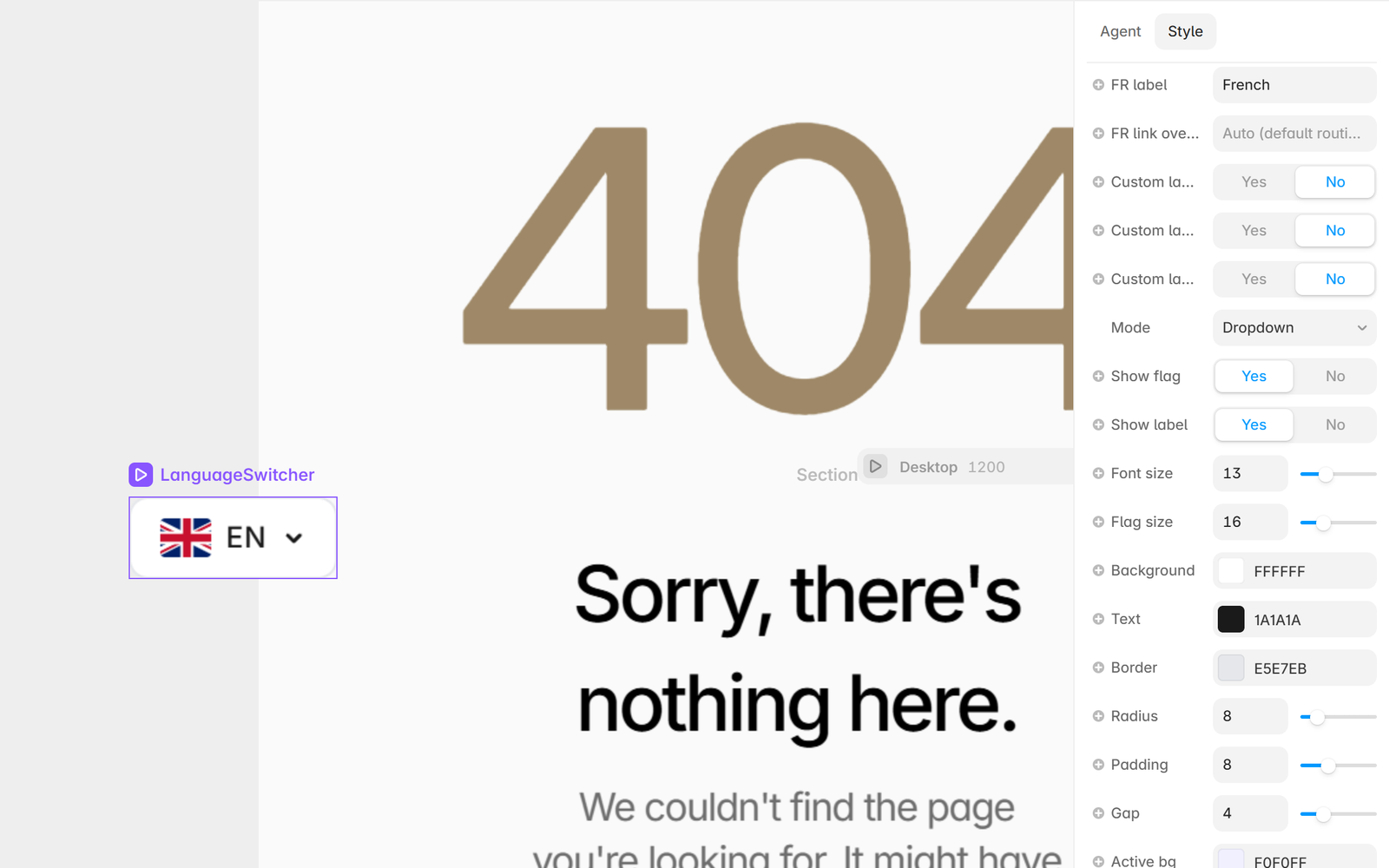
It has three modes, Dropdown, Flags bar and Minimal. You can show or hide the flag and the label, and set the font size, the colors, the radius, the active and hover states and the dropdown shadow. For each language you can hide it, rename it or give it a link of your own.
On a page, it swaps the language prefix and keeps the rest of the path, so /about leads to /fr/about. On the canvas and in the preview it shows Links work on the published site instead of navigating. Flags are images, custom languages show their name only.
/about becomes /fr/a-propos, but the switcher still sends visitors to /fr/about, which does not exist. Only the home page works from the switcher in that case.hreflang and SEO
Translated pages are real pages at real URLs, so search engines crawl and index them like the rest of your site.
Language tags (PRO)
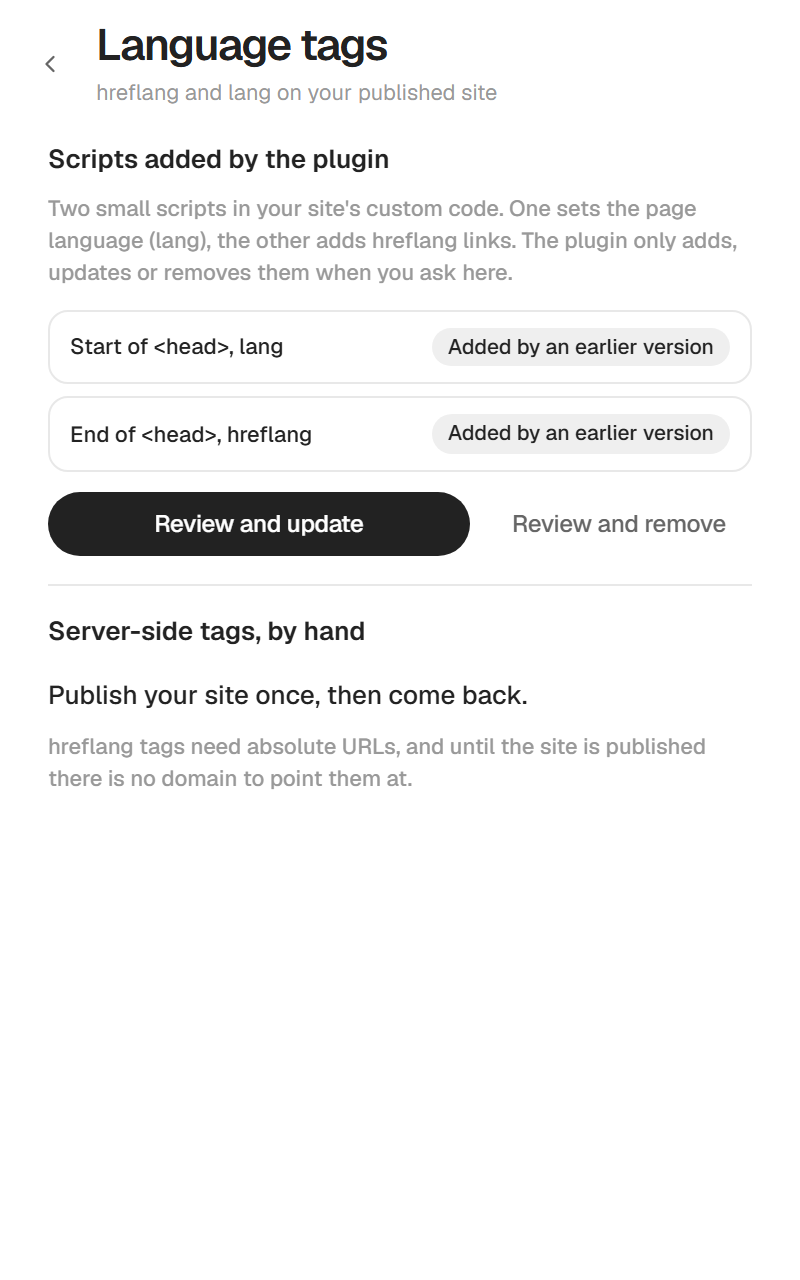
Two small scripts in your site's custom code tell search engines and browsers which language each page is in.
- At the end of the head, one writes the hreflang tags of each page when it loads, so Google knows
/fr/aboutis the French version of/about. - At the start of the head, the other sets the page language, and the text direction for Arabic, Hebrew, Persian and Urdu.
The plugin never adds them by itself. A translation or a Sync leaves your custom code alone. You add the scripts from the Language tags panel, after you have seen the code.
- Translate at least one page with a source language set, not Auto.
- Open the menu, then Language tags. The success screen has a Language tags button too.
- The panel lists the two slots, Start of <head>, lang and End of <head>, hreflang, each with its status, Not added, Added or Added by an earlier version.
- Click Review and add, or Review and update if the scripts are already there. The plugin shows the exact block it will add, or the current block struck through above the one that replaces it.
- Click Apply changes, then publish your site.
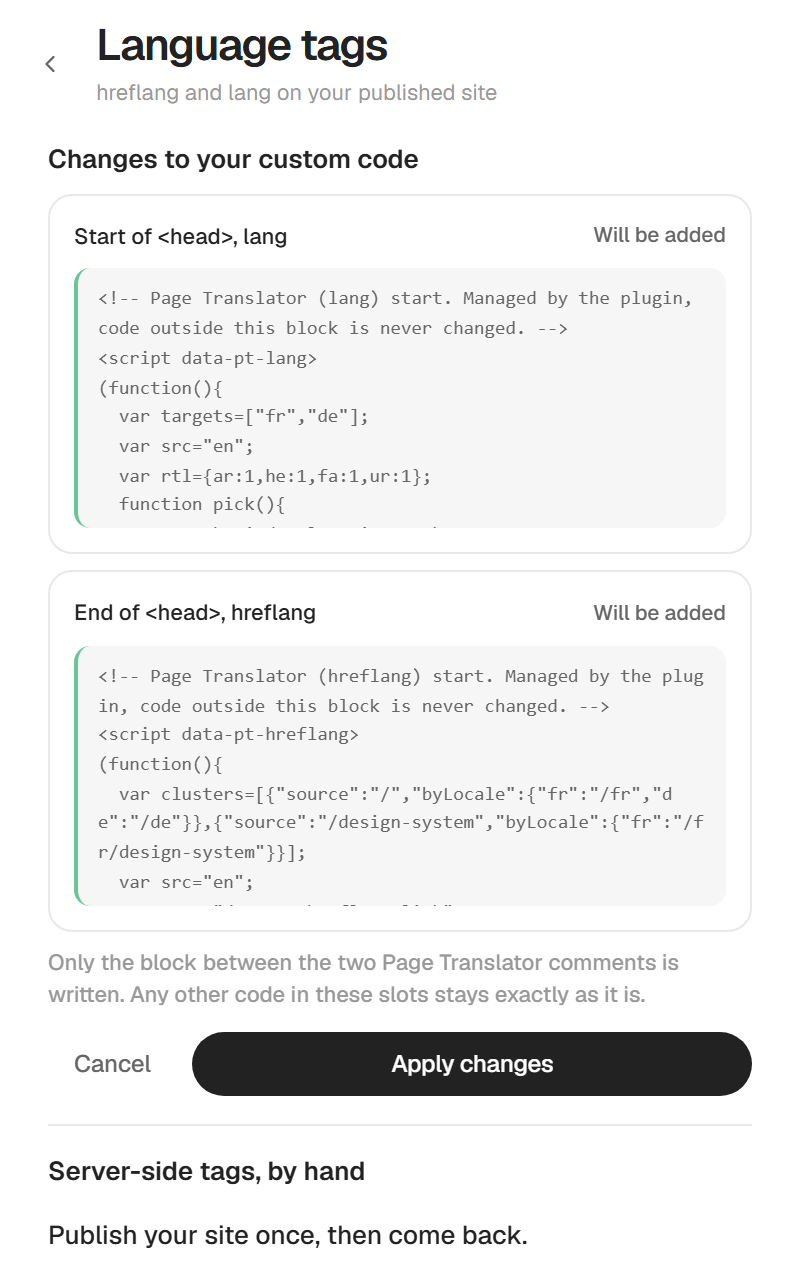
The plugin writes only its own block, between two Page Translator comments. Any other code in these slots stays exactly as it is. If your custom code changed after the preview, the plugin writes nothing and asks you to review again. To take the scripts off, click Review and remove, check the code that will go, then click Remove scripts. Adding needs PRO, removing works on any plan.
Both scripts run in the browser, because Framer gives plugins one code block for the whole site while hreflang must differ on each page. Google runs JavaScript and reads them. If a slot says Turned off in Site Settings, Framer doesn't publish it, turn it back on in your site settings. If your project uses Framer's own Locales, the panel offers to remove the scripts instead, since Framer already serves these tags.
If you used a version before 5.6.1
Versions 5.2.7 to 5.6.0 added the scripts by themselves after each translation. They stay in place and keep working. The panel shows them as Added by an earlier version. Review and update replaces them in place with the new marked block, Review and remove takes them off. Nothing changes until you choose.
hreflang in the HTML (optional)
To have the tags in the served HTML, paste them yourself in Framer. The plugin writes them for you, in the Server-side tags, by hand part of the same panel.
- Publish your site once, so it has a domain.
- Open Language tags and scroll to Server-side tags, by hand.
- Check the domain the plugin detected. Correct it if you use a custom domain.
- In Framer, open Site Settings, then Code, and add a script placed at Start of <head>.
- Paste the first block and tick the pages listed under it in the Page selector. There is one block per original page, and it goes on the original and on each of its translations.
- Repeat for every block, then publish.
The plugin's hreflang script sees your tags and steps aside, so nothing is duplicated. The checkboxes in this part are for your own tracking, the plugin cannot read your site settings. To check, open a published page, view its source and search for hreflang.
What stays on your side
Page titles and meta descriptions, see What gets translated.
Plans and license
Free and PRO
| Free | PRO, €29 once | |
|---|---|---|
| Translations | 1 | As many as you want |
| Target languages | 1 | All, plus custom ones |
| Pages | All | All |
| Instant translation | For that one translation | Up to 500,000 characters a month (about 300 pages), then your DeepL key |
| DeepL, copy-paste, manual | Use the free translation | Yes |
| Glossary, translated URLs, Language Switcher | Yes | Yes |
| Sync | No | Yes |
| hreflang and page language scripts | No | Yes |
| Context and tone | No | Yes |
| Activations | 5 |
PRO is a single payment with future updates included. The Translation Pack adds CMS Translator PRO for €39 in total.
Once the free translation is used, a banner says Your free translation is used. PRO translates every language in one click. with a See PRO button.
Buy PRO and activate your key
Buy
Every PRO screen of the plugin has the same offer. You reach it from the FREE badge at the top right, a locked language, the Sync lock, or the success screen. Click Unlock Pro next to the €29 price. Payment happens on Polar, in your browser. The Pack with CMS Translator (€39) is on the pricing section of this site.
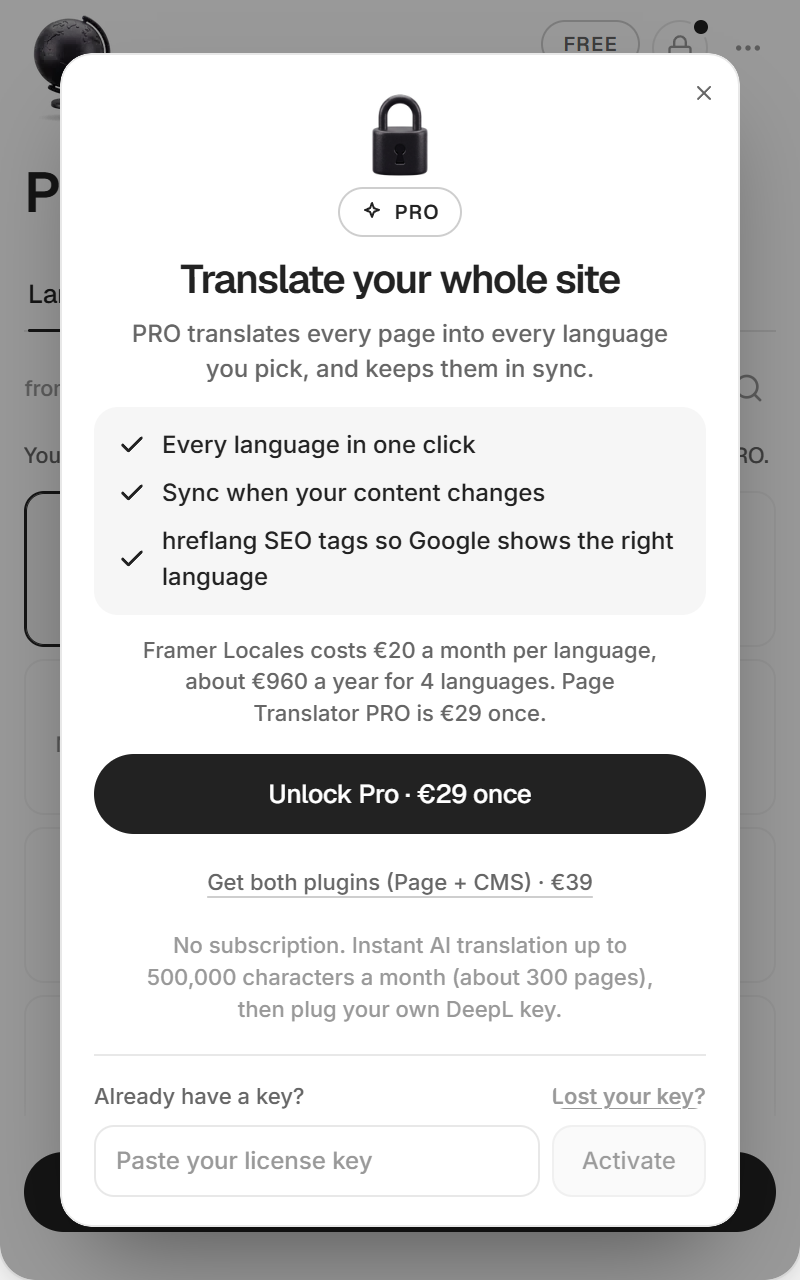
If your browser blocks the new tab, the plugin shows the link with a Copy button. Open it yourself.
Get your key
After payment you land on translate.patchou.cloud, which shows your license key with a copy button. Polar also sends it by email. If the page cannot show it, it tells you the key is on its way to your email. Nothing after 5 minutes, write to pro.allali.ilies@gmail.com from the address you paid with.
Activate
- Open Page Translator in Framer.
- Click the FREE badge at the top right.
- Click I have a key under the price and paste your key.
- Click Activate.
- The plugin shows You're PRO. Click Let's go. The badge now reads PRO.
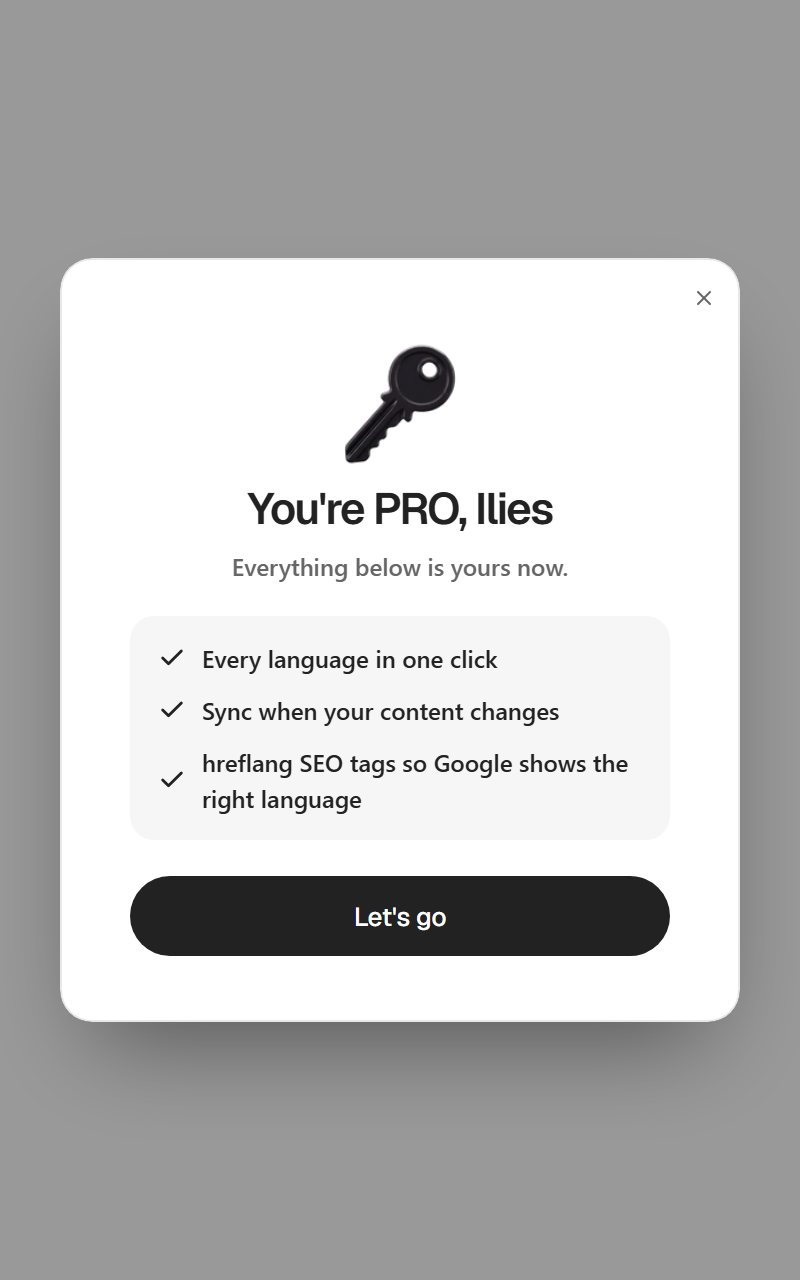
Right after a free translation, Already bought? Activate your key on the success screen opens the same field.
Manage your license
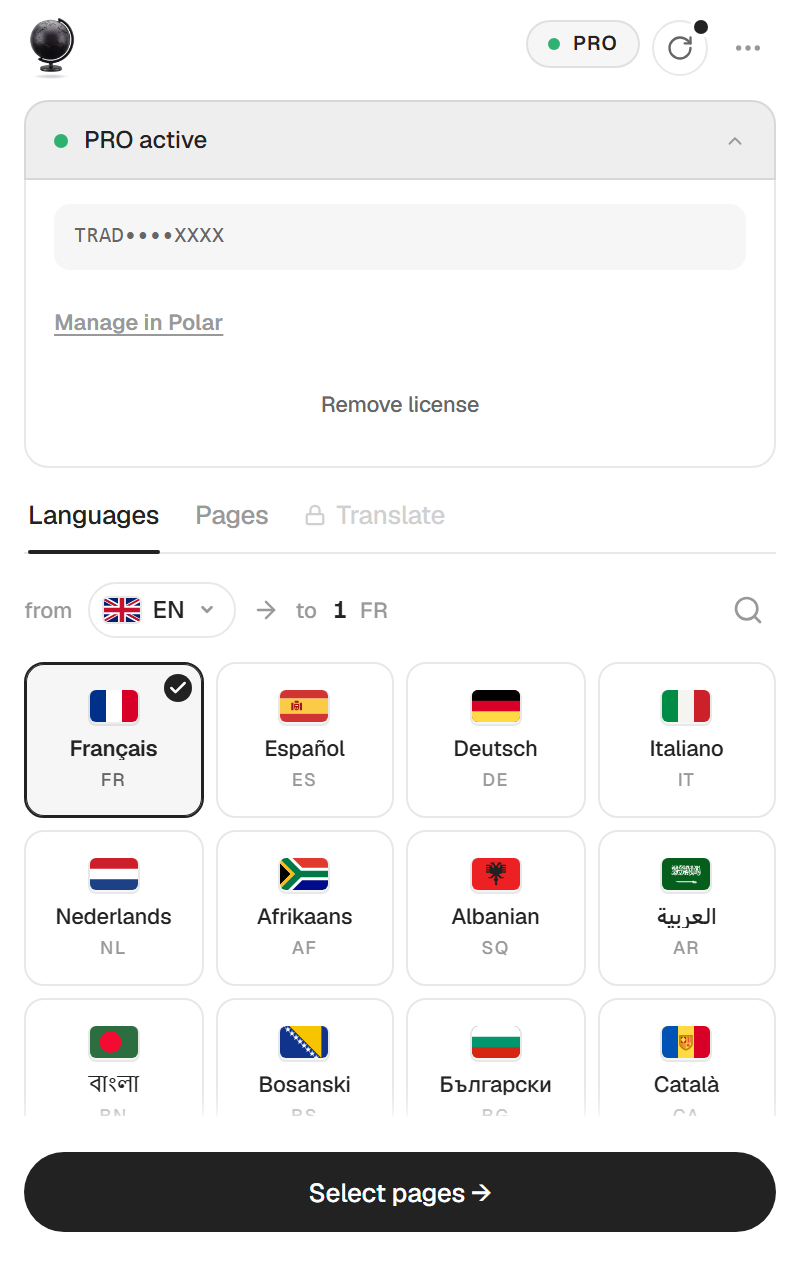
Click the PRO badge, then PRO active. You see your key, partly hidden, with two buttons.
- Manage in Polar opens your Polar customer portal.
- Remove license deactivates the key in this browser and frees one activation.
Five activations
The key is stored in the browser where you activate it, not in the Framer project. Each browser, or the Framer desktop app, counts as one activation, and a key has five. A collaborator who translates on their own computer uses one too. If you clear your browser data or switch browsers, activate again. When all five are used, remove one from the plugin where it is active, or from your Polar account.
Lost your key
Click Lost your key? under the key field, or go to the Polar customer portal and sign in with the email you paid with. Your key is there.
Refunds
If PRO does not work as described, ask for a refund within 14 days. The translated pages stay in your project whatever happens. Refund policy.
Help
The plugin menu
The ••• button at the top right opens the menu.
- Glossary, see Options.
- Language tags adds, updates or removes the hreflang and lang scripts, see hreflang and SEO.
- Help & docs shows a short description, a link to this page and Copy support email.
- Send debug report sends your note and a summary of your plugin settings (step, language codes, number of pages, method). It sends no page content and no DeepL or license key. Write what happened in the box and click Send report.
- Language changes the language of the plugin itself. Match system follows your computer. English, French, Spanish, Brazilian Portuguese, German and Japanese are available.
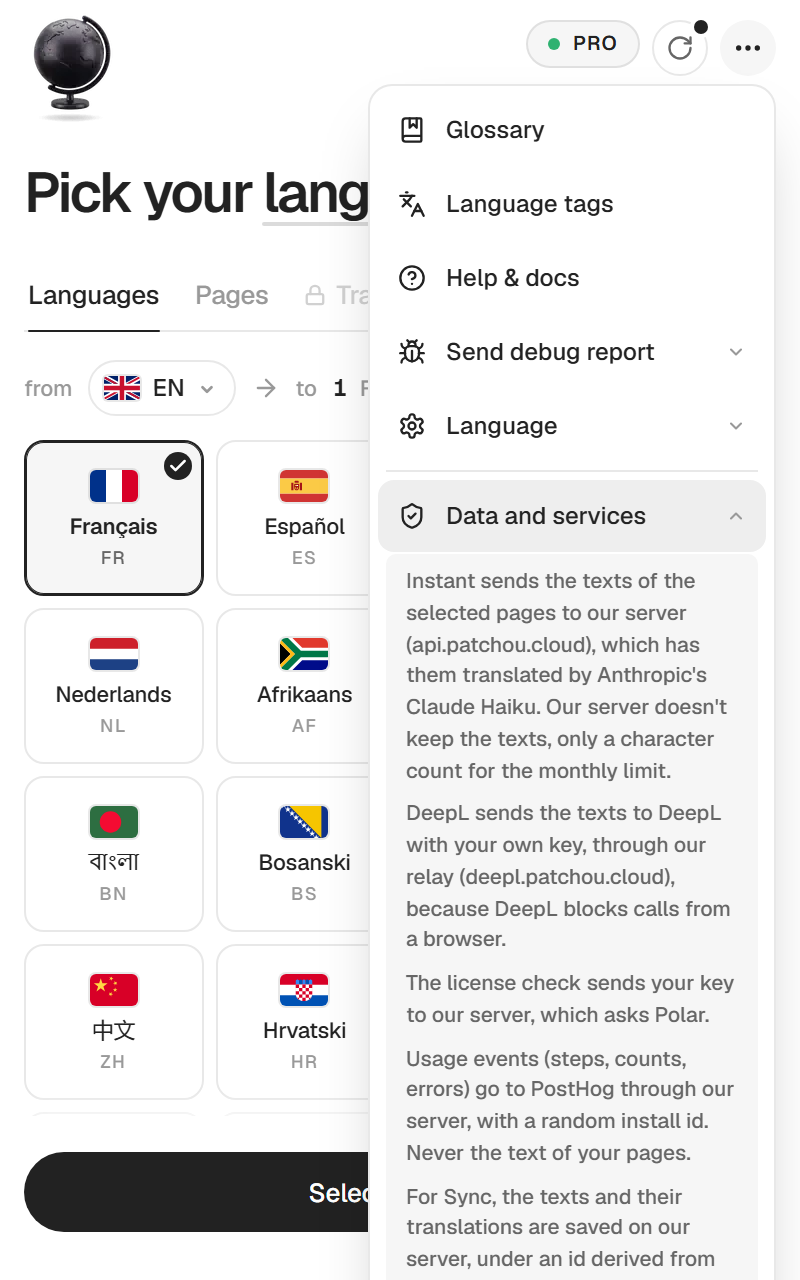
- Data and services lists the services outside Framer that the plugin talks to and what each one receives, see Data and services.
- About shows the version number and a link to this page.
Data and services
Nothing leaves Framer until you start a translation, check a license or open Sync. The plugin shows the same summary in the menu, under Data and services.
- Instant sends the texts of the selected pages, your glossary and, on PRO, your context to our server (api.patchou.cloud), which has them translated by Anthropic's Claude Haiku. The server keeps no text, only counts per call (characters, tokens, cost) for the limits.
- DeepL sends the texts and your key to DeepL through our relay (deepl.patchou.cloud), because DeepL blocks calls from a browser. The relay stores neither.
- Copy-paste and manual send nothing. You paste the prompt into your AI yourself.
- License checks send your key to our server, which asks Polar, where you bought it.
- Usage events (steps, counts, settings, errors) go to PostHog through our server, with a random install id, your IP address for a rough location and your browser type. Never the texts of your pages, their names or their paths.
- Sync saves the source texts, their translations and the page paths on our server after each translation, under an id derived from the project.
Your DeepL key and your license key stay in this browser. In your project, the plugin writes the translated pages, the Language Switcher, its own settings and, only when you confirm it in Language tags, the two scripts. Each of these writes is checked against your Framer permissions first. On your published site, the Language Switcher loads its flag images from flagcdn.com.
Troubleshooting
Some texts are still in the original language
They are most likely in a shared component, such as your navigation or footer. The success screen names them. Turn the text into a variable, then translate again. If the text is in a CMS collection or in a Ticker or Slideshow, see what is not translated.
The buttons are greyed out
Your Framer role does not allow that change in this project. A short note under the button says what is missing, for example Edit access needed on the Translate tab. Ask a project admin for edit access, then reopen the plugin. Without edit access, Instant does not use your free translation.
Design permission required
Your Framer seat cannot edit this project, so the plugin cannot create pages. Ask a project admin for Design access, then reopen the plugin.
This Framer project has no pages yet
Add a page in Framer, then reopen the plugin.
The Pages or Translate tab is locked
Pick at least one language, then at least one page. Clicking the locked tab says which one is missing.
A language is greyed out with a lock
You are on the free plan, which allows one language. Clicking it opens the PRO offer.
DeepL is greyed out, "Not available for …"
One of your languages is a custom language, which DeepL does not take. Use Instant or copy-paste.
Free translation used
Your free translation has been used. Translating again, or into another language, needs PRO.
Page too large
The selection is too big for one Instant request. Use your DeepL key, or copy-paste. On the free plan, your free translation is still available.
Monthly limit reached
You used this month's 500,000 Instant characters on PRO. Click Use a DeepL key to continue with your own key. The limit comes back next month.
Instant translation unavailable
The service did not answer this time. Click Use a DeepL key or Use copy-paste. Your languages and pages stay selected. You can also try again a little later.
"Key not valid" or "Invalid DeepL key"
Copy the key again from your DeepL account, without spaces. DeepL keys are usually 36 characters or more.
Quota exhausted this month
The DeepL key works, but your DeepL plan has no characters left until its reset. Wait for the reset, upgrade your DeepL plan, or switch to Instant or copy-paste.
"DeepL refuses translations on this key right now"
DeepL accepts the key but blocks translations, often an unverified account or a daily limit. Click Open dashboard → and check your DeepL account.
"Your quota is below the characters needed"
Your DeepL plan cannot cover the whole selection, so the translation may stop partway. Select fewer pages or languages, or add credit on DeepL.
"Too many requests"
DeepL is limiting the pace. Wait a few seconds and try again.
"Could not parse the LLM response as JSON"
The answer pasted in copy-paste mode is not complete. Copy the AI's whole answer, not just part of it. If it still fails, ask the AI to "return only the JSON object, no commentary" and paste that.
Translation finished with errors
Some pages could not be read, and the screen lists them. Open each of those pages once in Framer, then translate them again. They are never counted as translated.
"Components have translatable controls, but none matched in the clone"
The plugin could not write some component texts on the translated page. Send a debug report from the menu and email me.
You cancelled a translation
The pages created before you cancelled stay in the project. Delete them in the Pages panel, or translate again to complete them.
Icons are missing on pages translated with an older version
Before 5.6, icon names could be sent to translation and the icons broke. Translate those pages again with the current version.
No previous translation found
Sync needs a first translation in this project. Translate first.
Sync says everything is up to date, but I changed the page
Sync only compares texts. Images, layout and styles are not synced. Translate the page again to rebuild it.
"Texts on /… couldn't be synced"
The plugin did not find those texts on the translated page, usually because they were edited or deleted there. Fix them by hand, or translate the page again.
"Could not save translation snapshot"
The translated pages were created, but the plugin could not save what it translated, so Sync may not work for this project. Send a debug report.
Enter your DeepL API key to sync
Your last method was DeepL and no key is saved in this browser. Paste the key on the Translate tab, or sync with another method.
No switcher found
The switcher is created by a translation with a source language set. Set the source language, translate, then click Add Language Switcher.
The switcher does nothing on the canvas
That is expected. It shows Links work on the published site. Test it on the published site.
The switcher opens a page that does not exist
You translated the URLs, see the note in Language Switcher.
hreflang tags are missing
Since 5.6.1 the plugin no longer adds them after a translation. Open Language tags and check that both slots say Added. If not, click Review and add, then Apply changes. Then check that you are on PRO, that the source language is not on Auto, that plugin custom code is enabled in your Framer site settings, and that you published after applying. The tags are added by a script, so look for them in your browser's inspector, not in the raw page source, unless you set up hreflang in the HTML.
The Language tags panel says "Translate at least one page first"
The scripts list your translated pages, so they need a translation in this project. Translate, then open the panel again. If it says "Set your source language first", set it on the first tab.
"Publish your site once, then come back"
This one is about the Server-side tags, by hand part of the panel. hreflang in the HTML needs full URLs, so the site needs a domain. Publish, then open the panel again. The scripts above it do not need this.
"This key isn't valid"
Copy the key again from the Polar email, in full. Lost it, see Manage your license.
"This key is already active on 5 devices"
Remove the license in a browser you no longer use (PRO active, then Remove license), or from your Polar account, then try again.
"This key has been revoked", "disabled" or "is no longer valid"
The key no longer works, after a refund for example. Email me if you think it is a mistake.
"Couldn't reach the license server"
Check your connection and try again. If you were already PRO, the plugin keeps you PRO while you are offline.
The checkout did not open
Your browser blocked the new tab. Copy the link the plugin shows and open it yourself.
I was PRO and the plugin says FREE
The key is stored per browser. In a new browser, or after clearing your browser data, paste it again with the FREE badge.
Still stuck
Open the menu, click Send debug report with a short note, and email pro.allali.ilies@gmail.com.
FAQ
Does it replace Framer Locales?
For static pages, yes. You get real translated pages without the Locales add-on, which Framer bills per language and per month. Locales serves hreflang in the HTML and translates page titles and metadata, which this plugin does not.
Which Framer plans does it work on?
All of them. The translated pages are ordinary pages of your project.
What happens if I uninstall the plugin?
Nothing. The pages are part of your project and stay where they are.
Can I edit the translated pages?
Yes, like any page. Sync keeps your edits, except on texts whose original changed. Translating a page again rebuilds it.
Where is my content sent?
Instant sends it to Anthropic through our server, DeepL to DeepL, copy-paste to the AI you paste it into. Just create the structure sends nothing. The details are in Data and services.
Is anything shared with my collaborators?
The glossary, the context, the chosen languages and the translation history are saved in the project, so collaborators see them. Your license key and DeepL key stay in your browser.
Does it handle right-to-left languages?
Yes. On PRO, once you add it from Language tags, the page language script sets the text direction for Arabic, Hebrew, Persian and Urdu.
Is it a subscription?
No. PRO is €29 once, with updates included.
And my CMS?
CMS Translator translates collections. The Translation Pack has both plugins for €39.
Support
Email pro.allali.ilies@gmail.com, or message @ilies-allali on the Framer Community. A debug report sent from the plugin menu helps me find the problem faster.